

Translate lectures and classes in real time: subtitles, recording transcripts and quick notes
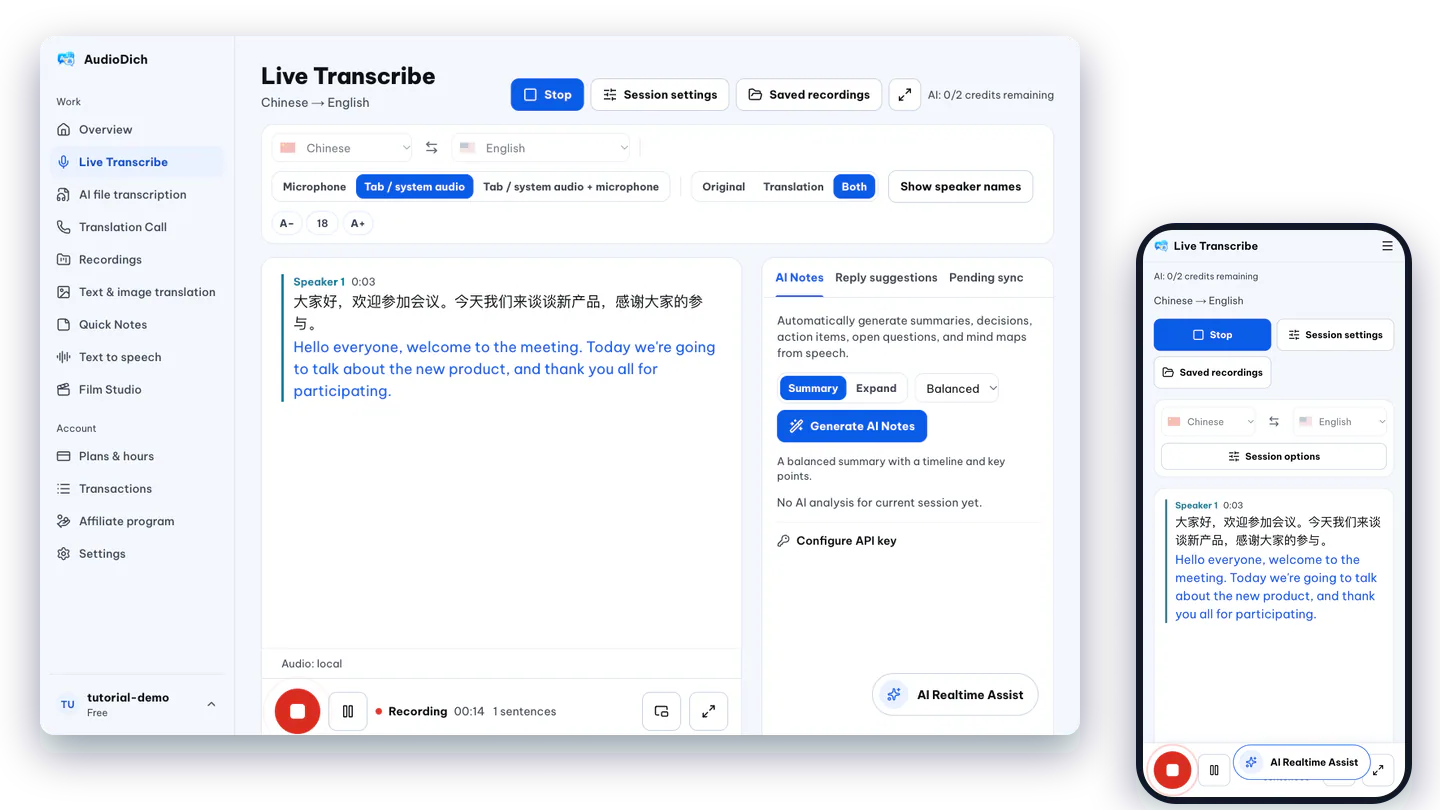
Lecturers speak fast, use specialist terms and do not stop for you. For an online class, open AudioDich beside it and choose tab audio to read translated subtitles sentence by sentence; for a recorded lecture, upload the file to get a transcript with its translation; then save quick notes to revise from before exams.
Real problems of studying in another language
Lecturers speak fast and do not stop
You listen, understand and take notes in a second language at once. Lose one sentence and you lose the thread of the whole passage.
Specialist terminology
Technical words are not in everyday dictionaries, and guessing a meaning makes you miss what comes next.
Recordings are hard to revise from
A one-hour audio file is hard to search. You need text to find the right passage again.
Translating lectures and classes with AudioDich, step by step
Four steps, each a real screenshot of AudioDich running. You install nothing in the class platform.
- Step 1
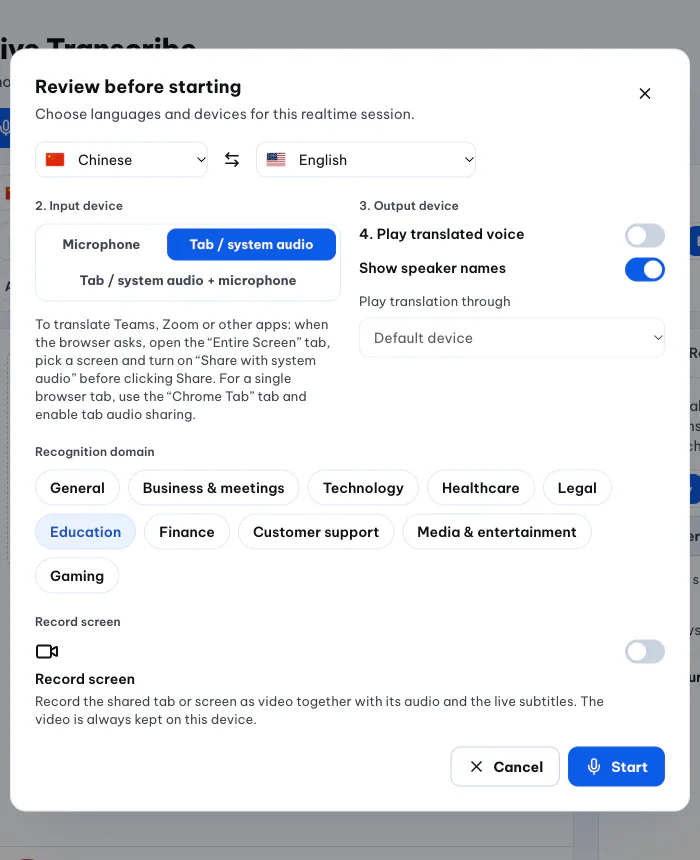
Check the audio and language pair before class
Open AudioDich a few minutes early, press Start, choose the language the lecturer speaks and the one you want to read, pick a domain close to the subject and select tab audio so it listens to the class tab.
- Step 2
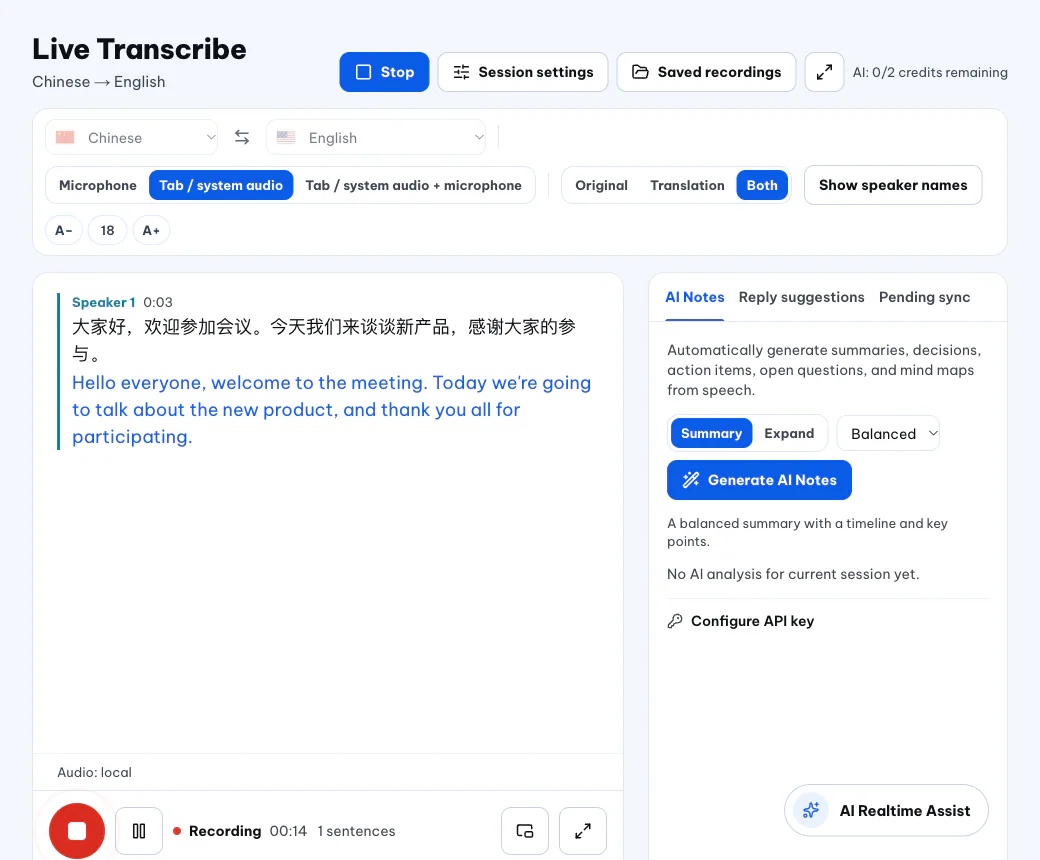
Read live subtitles during the class
Each sentence appears as the original with its translation below. Keep AudioDich beside the class window or on a second screen, and adjust the text size to read comfortably.
- Step 3
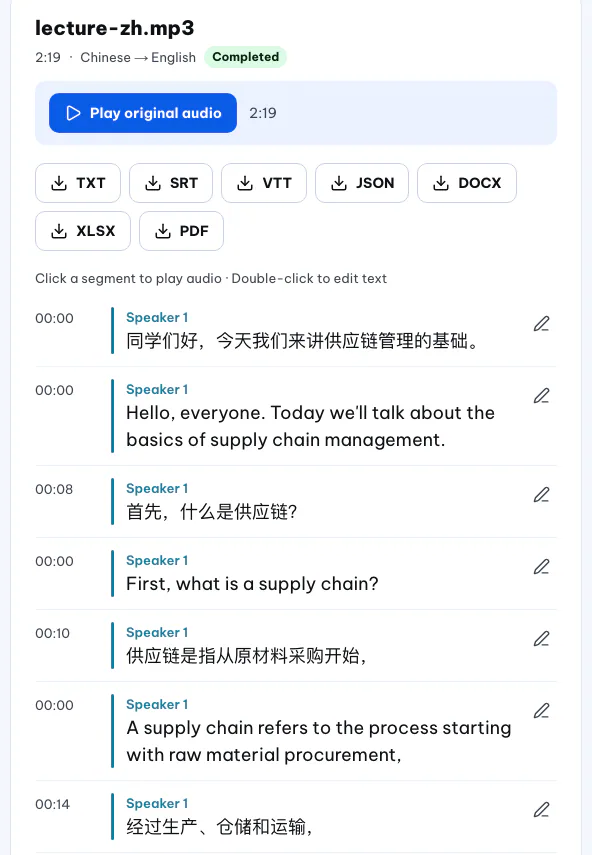
Recorded lecture: transcribe from a file
In file translation, upload the audio or video recording of the lecture and choose the source and target languages. You get a transcript with its translation to read, search and download.
- Step 4
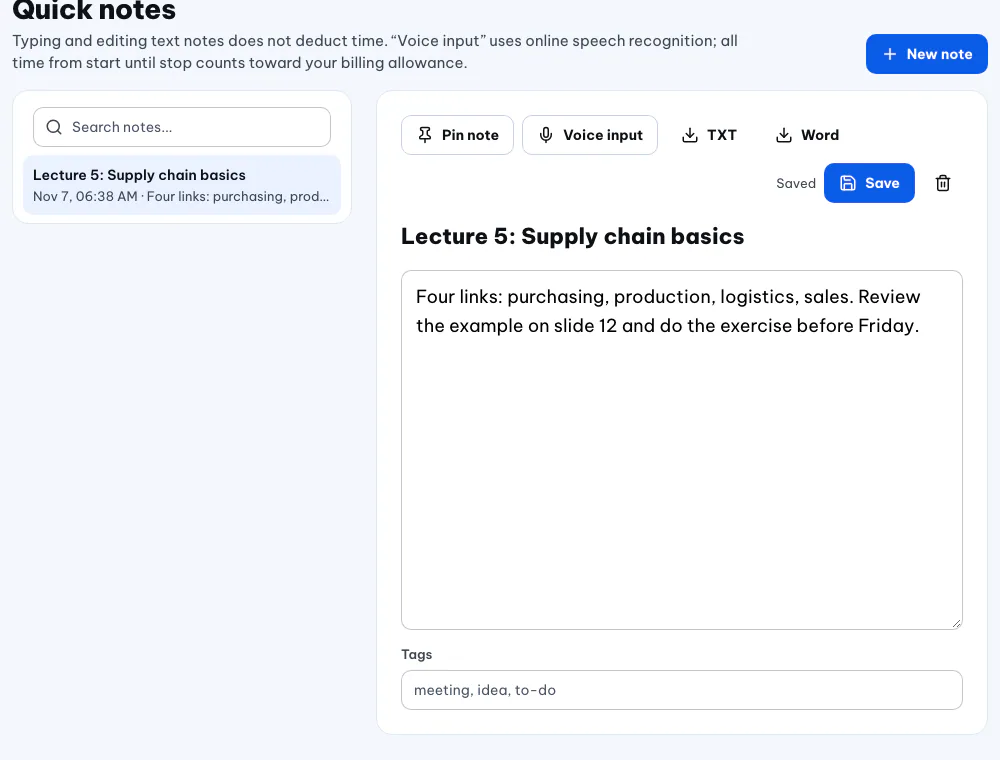
Quick notes to revise from
Save the main points, to-dos and deadlines in quick notes right after the session, so you can find them again when you revise.
Main features for translating lectures and classes
Real-time bilingual subtitles
Recognition and translation in more than 60 languages, with the original and its translation sentence by sentence.
Transcripts from recorded files
Upload an audio or video recording of a lecture to get a transcript and translation.
Microphone or tab audio
Use the microphone in a live classroom; choose browser tab audio for an online class.
Quick notes
Save main points, to-dos and deadlines to revise from.
Save and download
Sessions are saved to review, edit and download when you need them.
Business Information
Official operator information and contact channels for AudioDich.
- Vietnamese registered name
- HỘ KINH DOANH HỘ KINH DOANH NGUYỄN LÊ TOÀN
- Household business registration No. (also the tax code)
- 035085005366
- Phone
- 0943 943 647
- Support email
- letoan_ng [at] yahoo.com.hk
For in-person and online classes
In an online class, listen through the browser tab so nothing is installed in the platform. In a lecture hall, place the microphone near the sound source or record and upload the file after the session. Distant, noisy or overlapping speech makes results less accurate.
Notes on recording lectures
Ask the lecturer for permission before recording or saving a transcript, and do not publish it without consent. Machine translation can get terms, names and numbers wrong, so check against the course materials before exams.
Quick answers
The questions people ask most before using AudioDich for a real class.
What is AudioDich for lectures?
A tool that listens to class or lecture audio, recognises the speech, translates it and shows bilingual subtitles in real time; it also transcribes recorded files and saves quick notes.
Do I need to install anything in the class platform?
No. AudioDich listens through your computer (a browser tab or the microphone), so it needs no permission from the lecturer or school.
Does it work for recorded lectures?
Yes. Upload an audio or video file in file translation and choose the source and target languages to get a transcript with its translation.
Can I fully trust the translation?
No. Machine translation can get specialist terms, names and numbers wrong. Check against your course materials, especially before an exam.
Which languages, how is data handled and what does it cost?
More than 60 languages. Audio is processed to create transcripts and translations depending on the features you turn on, and is only saved when you enable storage or choose to save. Your first sign-in includes a 20-minute free trial, then 10 minutes every day, with no credit card; for more, see the Pricing page.
Start with AudioDich
Try AudioDich in a real meeting, video, or call. When you need more time, compare hourly and monthly plans.