

AI video translation and dubbing: captions, dubbed voices and export
Upload a foreign-language video to Film Studio and AI recognizes the speech and translates it into captions; you edit each line, pick an AI voice for each character, then export a video with captions and the dubbed voice or download the caption files on their own.
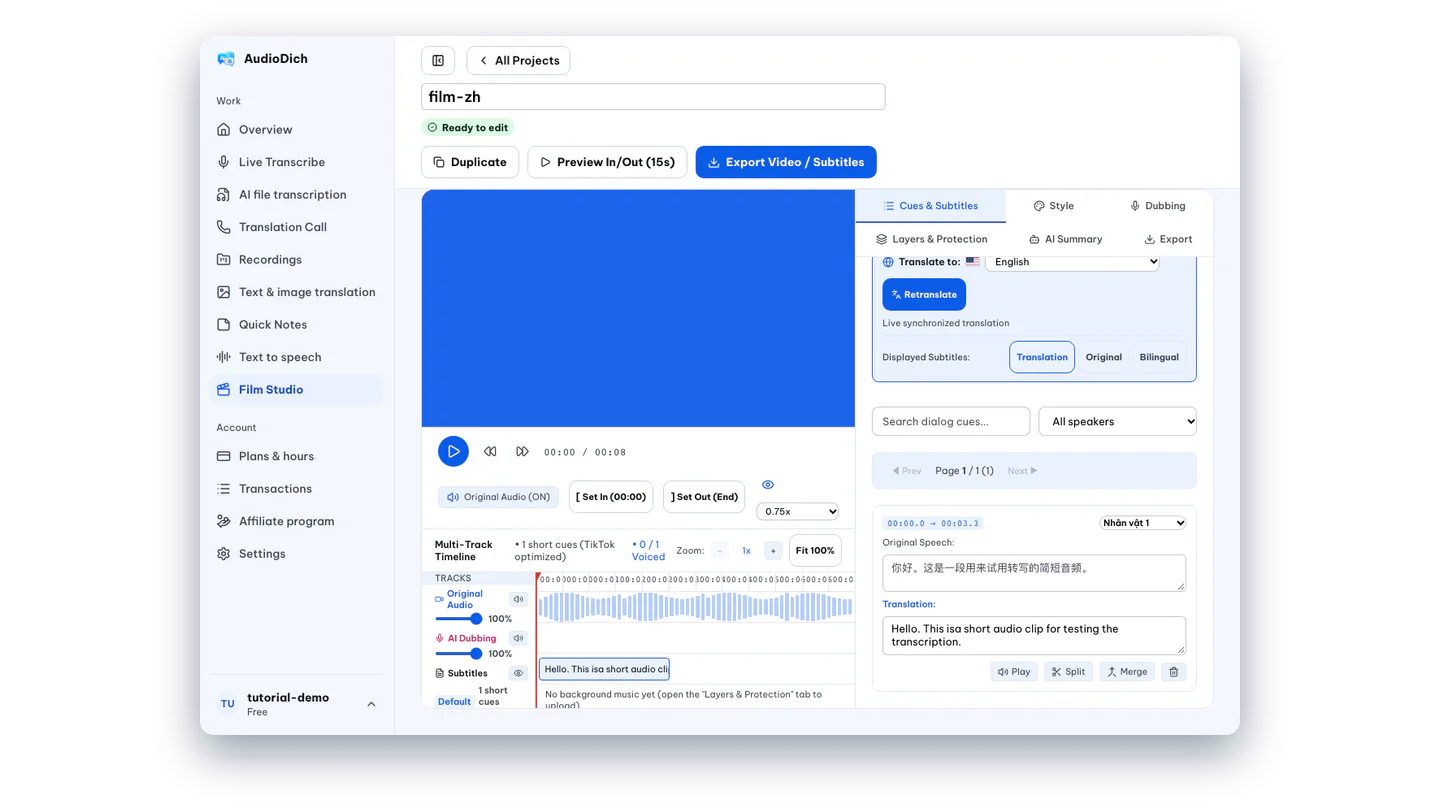
Challenges of bringing a foreign-language video to your audience
A good video, but the audience does not understand the language
A video in Chinese, Korean or English only reaches people who know that language. Captions and a dubbed voice widen your audience.
Making captions by hand takes a lot of time
Listening, retyping, timing each line and translating, even for a video of a few minutes, takes hours.
Dubbing takes many steps and many tools
Transcription, translation, voice recording and audio mixing usually live in different programs, which makes it hard to keep the timing in sync.
Translate and dub a video in Film Studio, step by step
Four steps, each a real capture from Film Studio processing a Chinese video. Everything runs in the browser, so you need no separate editing software.
- Step 1
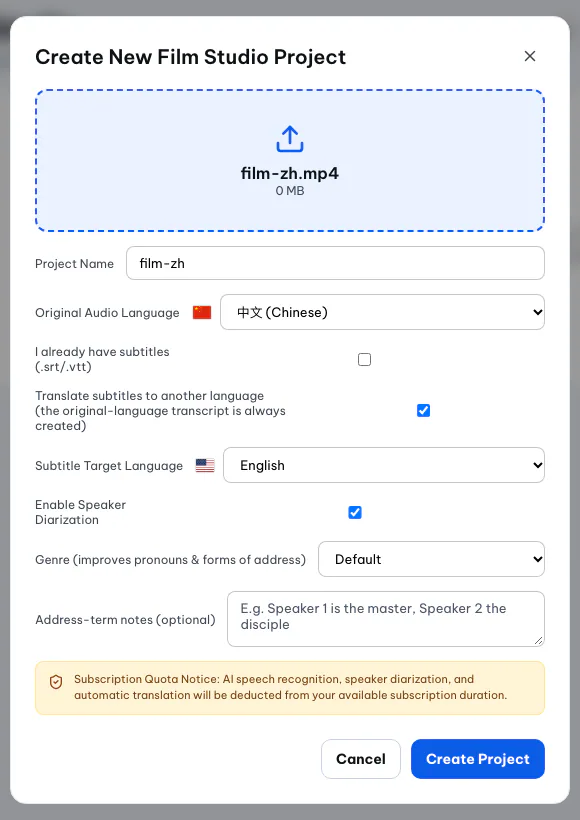
Upload the video and choose the languages
In Film Studio, click New Project, drag and drop a video or audio file, choose the original speech language (or leave it on auto-detect) and the caption language to translate into, then click Create Project.
- Step 2
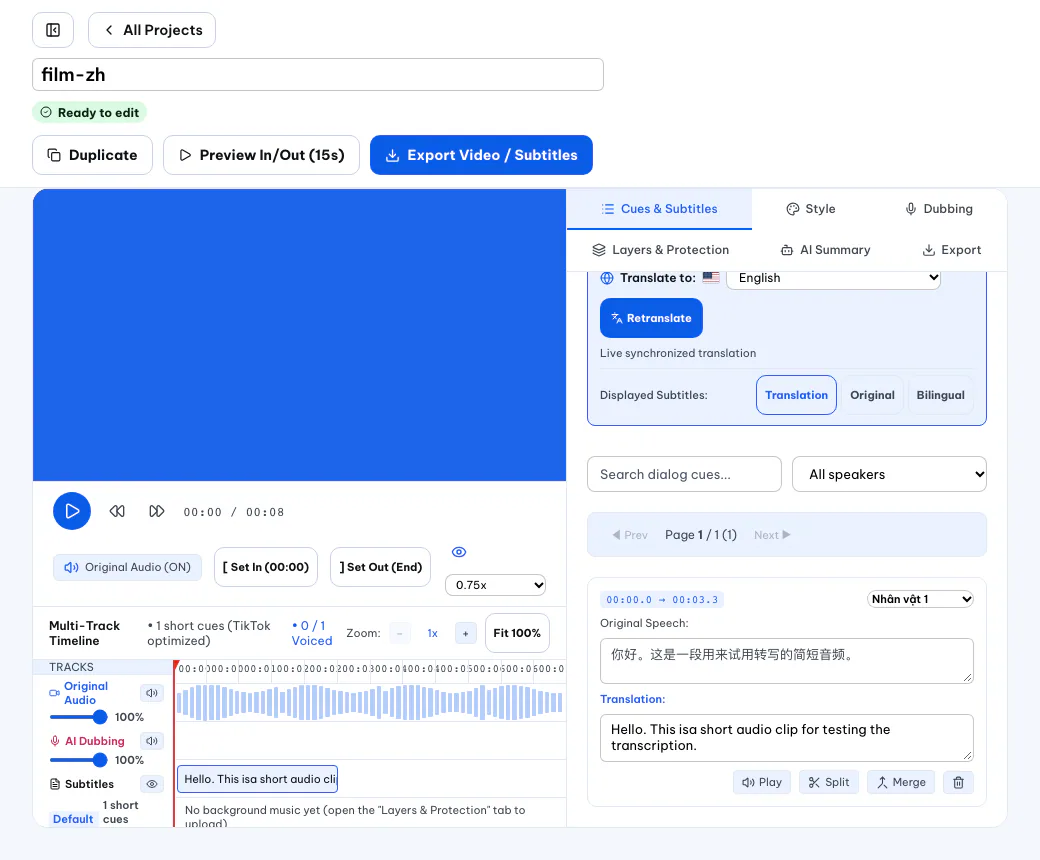
Review and edit the translated captions
When the project is ready to edit, each line shows the original text and the translation with timestamps. Edit the text, split or merge lines, and listen to each line.
- Step 3
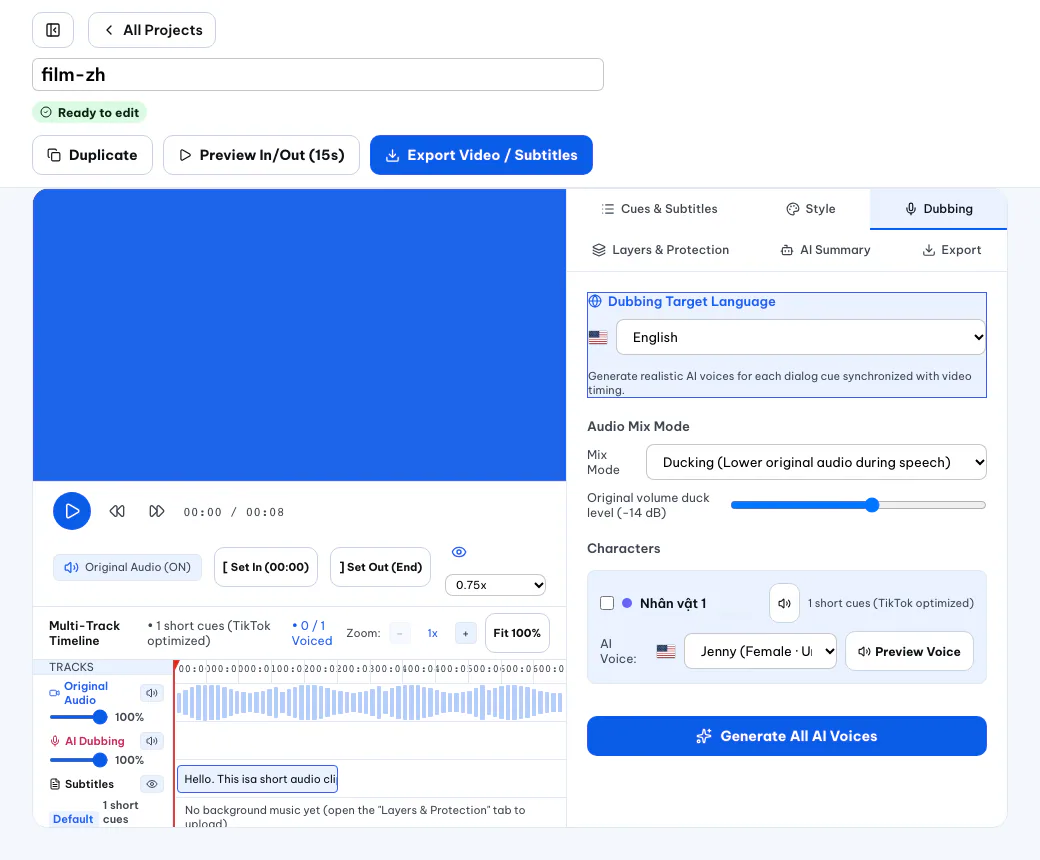
Choose the dubbing language and AI voices
In the Dubbing tab, choose the dubbing language, how to mix the original audio, and an AI voice for each character, preview the voices, then click Generate All AI Voices.
- Step 4
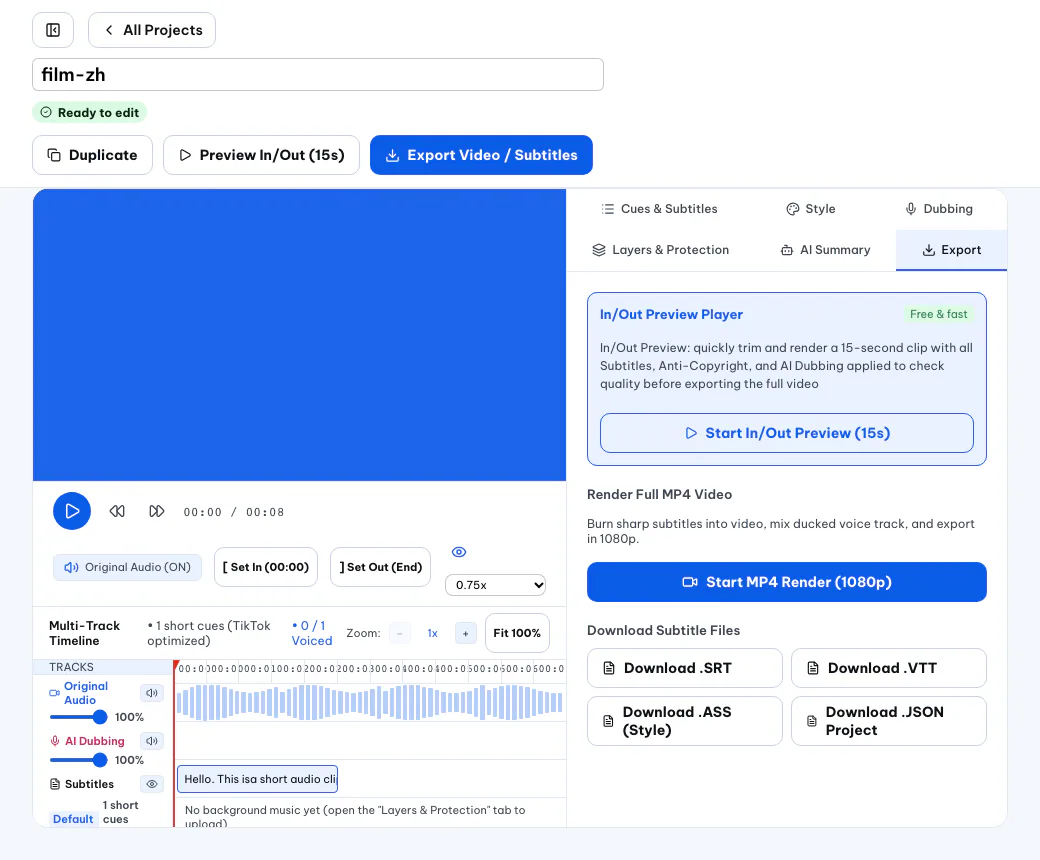
Export the video or caption files
In the Export tab, preview a quick 15-second clip, build a 1080p MP4 video with captions and the dubbed voice, or download the caption files SRT, VTT, ASS and JSON separately.
Key Film Studio features for translating and dubbing video
Speech recognition and caption translation
AI recognizes the original speech and translates it into the language you choose, and it also recognizes who is speaking.
Line-by-line editor
Edit the text, adjust timestamps, split or merge lines and listen to each line.
AI voices for each character
Pick a separate dubbing voice for each character and preview it before generating.
Mix the original audio with the dubbed voice
Choose to keep the original audio, replace it, or lower it while the dubbed voice plays.
Export video and caption files
Build a 1080p MP4 with captions, or download SRT, VTT, ASS and JSON; you can preview a quick 15-second clip before building.
Business Information
Official operator information and contact channels for AudioDich.
- Vietnamese registered name
- HỘ KINH DOANH HỘ KINH DOANH NGUYỄN LÊ TOÀN
- Household business registration No. (also the tax code)
- 035085005366
- Phone
- 0943 943 647
- Support email
- letoan_ng [at] yahoo.com.hk
Good for short videos, lectures and introductory content
Film Studio suits content creators, teachers and businesses who need to bring a foreign-language video to an audience that speaks another language. Clear speech, little noise and few people talking over each other give better results.
Notes on copyright and accuracy
Only translate and dub videos you have the right to use. Translations and AI voices can get proper names, terms and intonation wrong, so review the captions and preview the voices before publishing. Projects are kept for 14 days after creation.
Quick answers
The most common questions before translating and dubbing a video with AudioDich.
How does Film Studio translate and dub a video?
You upload a video, AI recognizes the speech and translates it into captions; you edit them, choose an AI dubbing voice for each character, then export an MP4 video or caption files.
Which video formats are supported?
Film Studio accepts common video and audio files such as MP4, WebM, MOV, MKV and MP3.
Can I export the caption files separately?
Yes. You can download SRT, VTT, ASS and JSON, or build a 1080p MP4 video with captions.
Can I fully trust the translation and the AI voices?
No. Translations and AI voices can get proper names, terms and intonation wrong. Review the captions and preview the voices before publishing.
Which languages are supported, and what about data and pricing?
60+ languages for recognition and translation. Recognition, translation and dubbing use up the time or AI credits of the plan you are on, and projects are kept for 14 days after creation. Your first login includes 20 free minutes, then 10 minutes per day, with no credit card needed; if you need more, see the Pricing page.
Start with AudioDich
Try AudioDich in a real meeting, video, or call. When you need more time, compare hourly and monthly plans.