

Real-time Zoom translation with subtitles and a transcript
Open Zoom as usual and run AudioDich next to it: bilingual subtitles follow every sentence your client says, the translation can be read aloud through your headphones, and at the end you have a transcript to check against. No Zoom plug-in, and the host does not have to switch anything on.
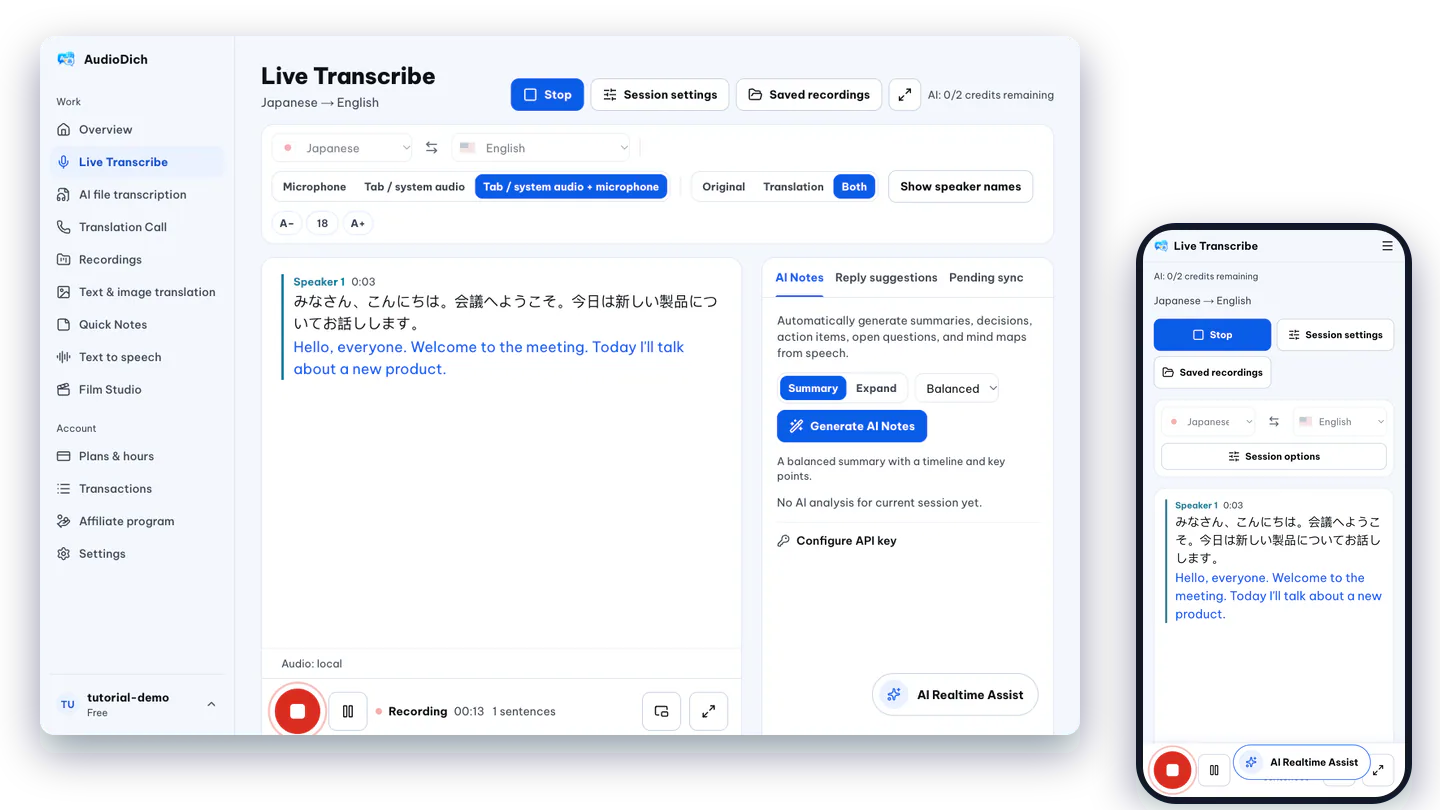
The real problems of running a Zoom meeting in another language
Clients speak fast and numbers and terms slip away
In a demo or a negotiation, missing one figure for price, deadline or conditions means guessing for the rest of the meeting. Handwritten notes cannot keep up, and asking people to repeat themselves breaks the rhythm.
Zoom's own translated captions are not in your hands
Translated captions inside Zoom are usually switched on by the host or an account admin and depend on the Zoom plan. If you are just an attendee, you may have nothing to read.
Hiring an interpreter for a 30-minute call is too heavy
A good interpreter must be booked ahead and is paid by the hour. For a discovery call, a quick meeting or a schedule that changes at the last minute, it is hard to find one on time.
After the meeting nobody remembers what was agreed
Everyone hears one thing and notes another. Without the original wording next to a translation, follow ups drift, especially with Japanese, Korean or Chinese partners.
How AudioDich works next to Zoom
Four steps, each one a real screenshot of AudioDich running. You do not have to sign in to anything extra in Zoom.
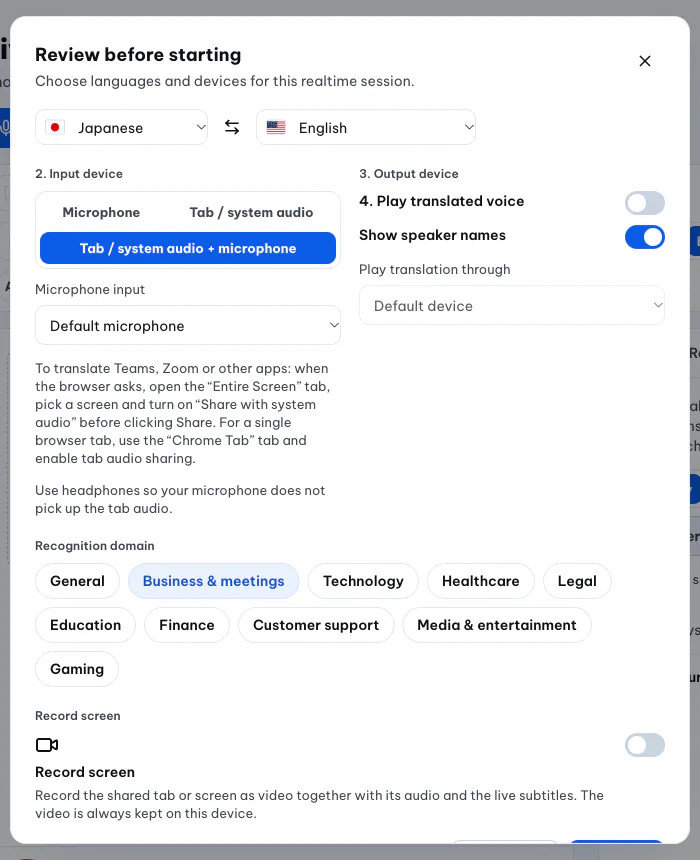
- Step 1
Choose the language pair and the domain
Press Start in AudioDich and pick the language your client speaks and the language you want to read. Choose the Business & meetings domain so work vocabulary is favoured.
- Step 2
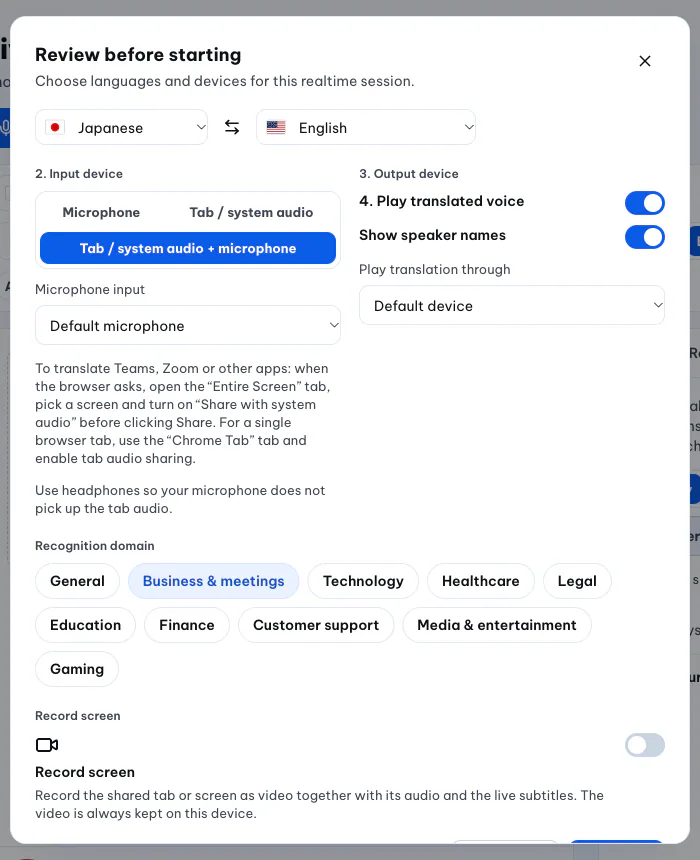
Choose where AudioDich listens
Pick tab or system audio plus microphone to catch both your client and your own voice, then follow the on-screen guide to share the audio. To hear the translation spoken, turn on translated voice and wear headphones so the microphone does not pick up the speakers.
- Step 3
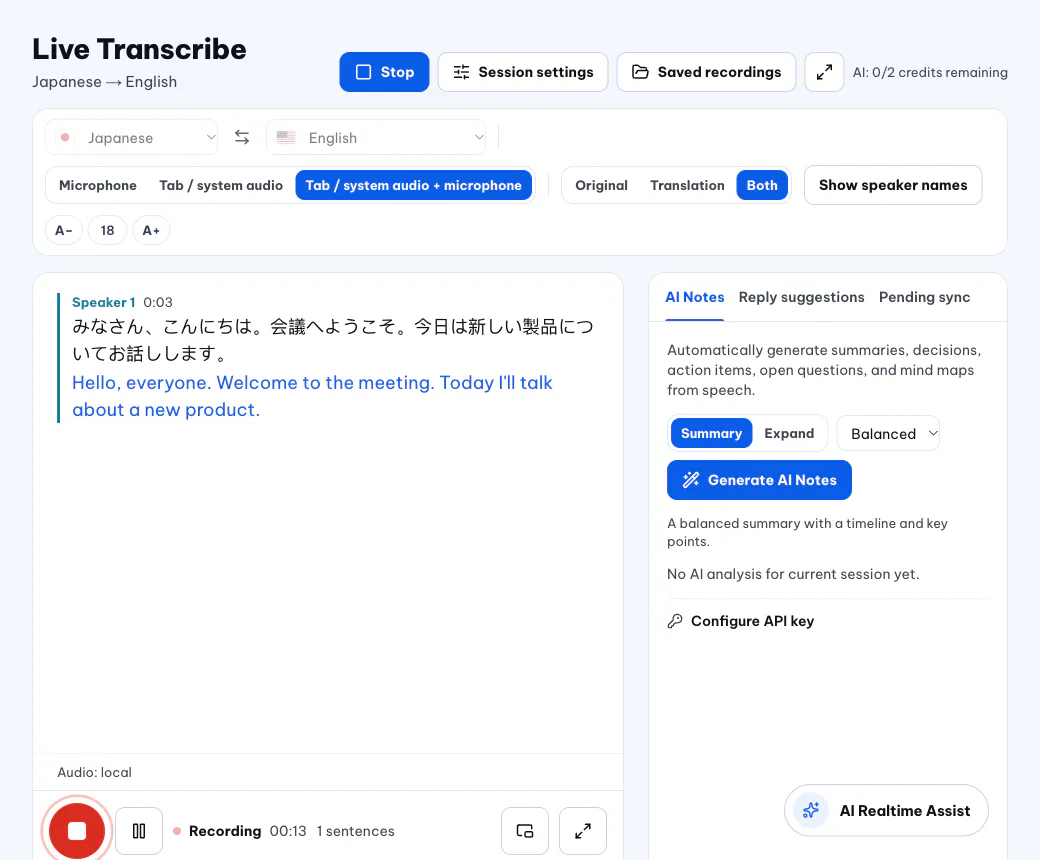
Run Zoom as usual and read live subtitles
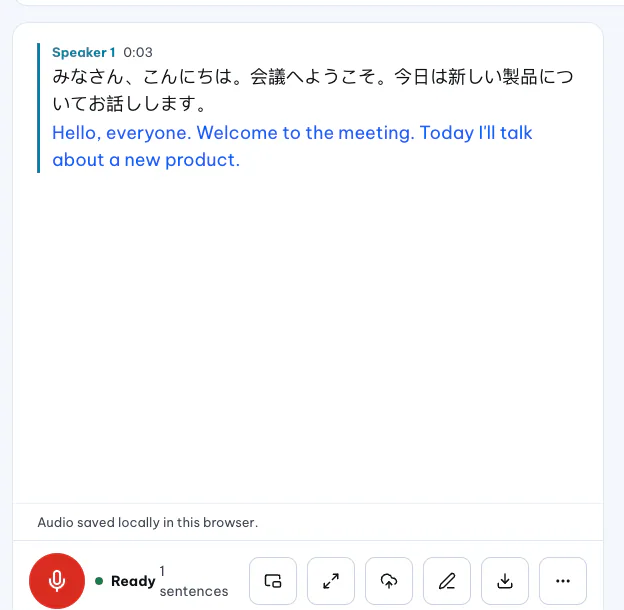
Join the Zoom room with your usual link. Each sentence your client says appears as the original with its translation right below; you can change the text size and show the original, the translation or both. The desktop app also offers a floating subtitle window you can place next to Zoom.
- Step 4
After the meeting: transcript and AI notes
The session is saved so you can review, edit and download it or paste it into a follow up email. AI Notes can summarise it and list decisions and action items, using the AI credits in your account.
Two views of a two-way call room
When both sides want to speak their own language and hear the translation, open an AudioDich call room next to Zoom: you create the room, send the link, and your guest joins without an account.
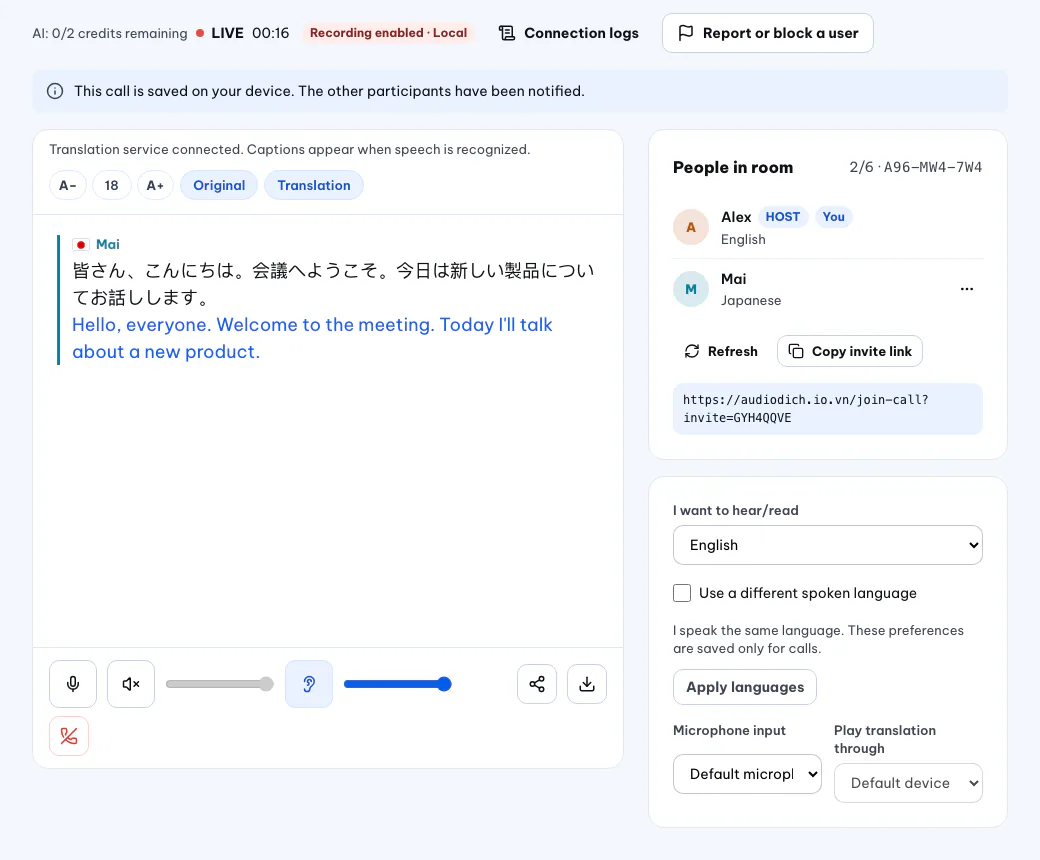
The person who creates the room
You see who is in the room, each person's language, and every sentence as the original with its translation.
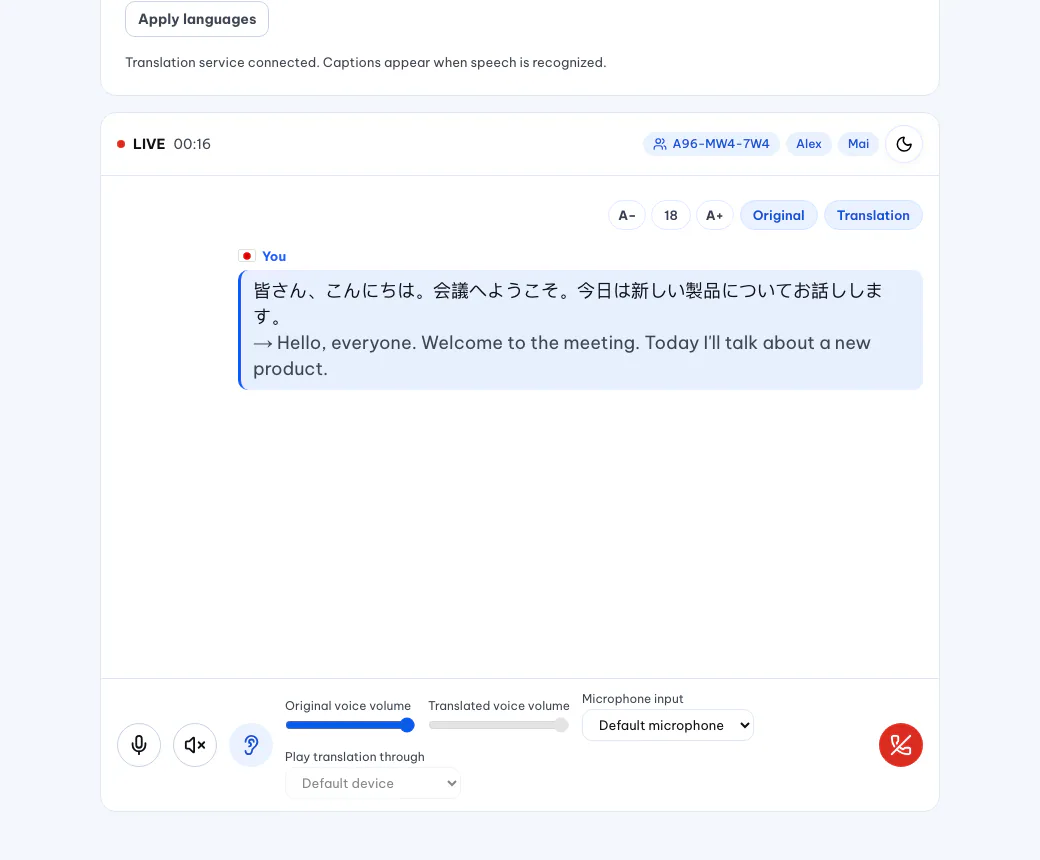
The guest who joins by link
Your guest only opens the link, types a name and picks the language they want to read or hear. No app to install and no account to create.
Which apps it works with
AudioDich listens to the audio on your computer instead of plugging into each app, so there is no plug-in to install and it works alongside the meeting, calling and video apps you already use.
 Zoom
 Microsoft Teams
 Google Meet
 Zalo
 WhatsApp
 Messenger
 WeChat
 KakaoTalk
 LINE
Zoom, Microsoft Teams, Google Meet, Zalo, WhatsApp, Messenger, WeChat, KakaoTalk and LINE are trademarks of their respective owners. AudioDich is not affiliated with or endorsed by these companies; the logos only show the apps you can translate alongside.
Main features for translating Zoom
Real-time bilingual subtitles
Recognition and translation in more than 60 languages, showing the original with its translation sentence by sentence.
Listen to Zoom through a tab or system audio
The Chrome extension listens to a browser tab; the desktop app on macOS and Windows captures system audio, including a microphone plus system audio mode.
Floating subtitle window on desktop
Place the subtitles next to or over the Zoom window, change the text size, pin it and let mouse clicks pass through.
Spoken translation
Turn on translated voice to listen as well as read. The Chrome extension can also send the translated voice into the microphone stream of a meeting running in the browser.
Two-way call room
Each side speaks their own language. Guests join by link and need no account.
Transcript and AI Notes
Save the session to review and download. AI Notes summarises it and lists decisions and action items, using the AI credits in your account.
Comparison: AudioDich, Zoom's own translated captions and a human interpreter
Each option suits a different situation. This table helps you choose quickly; it is not meant to rule any of them out.
| Criteria | AudioDich | Zoom's own translated captions | Human interpreter |
|---|---|---|---|
| Who switches it on and controls it | You, on your own computer, with no need for the host to enable anything. | Usually switched on by the host or an account admin, depending on the Zoom plan. | Arranged in advance by the organiser. |
| Languages | More than 60 languages for recognition and translation. | The languages Zoom offers for this feature. | Depends on the interpreter you hire. |
| How you get the translation | Bilingual text, with optional spoken translation through headphones. | Text captions inside the meeting window. | Live speech. |
| Transcript and summary | Saves a transcript; AI Notes summarises and lists action items. | Depends on the plan and on the recording or summary features of the account. | Usually none unless requested separately. |
| Use outside Zoom | One tool for Meet, Teams, chat apps and videos. | Only inside Zoom meetings. | Per the booking you make. |
| Cost and accuracy | Free trial, then pay by the hour; machine translation can get names, numbers and jargon wrong, so confirm key points. | Depends on the plan or add-on; also machine translation. | Paid by the hour and booked ahead; best for contracts, legal, medical and sensitive negotiations. |
Checked in November 2026 against Zoom's public documentation. Zoom's features and plans can change, so see Zoom's support pages for the latest details.
Business Information
Official operator information and contact channels for AudioDich.
- Vietnamese registered name
- HỘ KINH DOANH HỘ KINH DOANH NGUYỄN LÊ TOÀN
- Household business registration No. (also the tax code)
- 035085005366
- Phone
- 0943 943 647
- Support email
- letoan_ng [at] yahoo.com.hk
Why multilingual Zoom meetings go wrong
In an international Zoom meeting people listen, take notes and guess the context all at once. For sales, study-abroad advisers, recruiters and support teams, misunderstanding a contract condition, a delivery date or a technical requirement can mean costly rework after the meeting.
Opening another translation tool or asking a colleague to take notes is usually too slow. Listeners need the translation while the conversation is happening and a transcript to review afterwards, because meeting audio has delay, noise and unfinished sentences.
How AudioDich sits next to Zoom
AudioDich does not replace Zoom and does not ask you to change how you meet. You keep your invite links, calendar and company meeting account. AudioDich listens to the audio on your computer, turns speech into text, translates it into your language and shows subtitles; there is no Zoom API integration and no bot joins the room.
Before an important meeting, run a few test sentences to check the microphone, speakers, browser permissions and network. If you save a transcript or a recording, let the participants know.
Who it is for
B2B sales teams understanding client needs in discovery calls; support teams following questions from foreign customers and keeping a transcript for tickets; learners attending online classes, webinars or workshops with a translation to reread; recruiters interviewing international candidates without stopping to translate by hand. For content with legal weight or large financial decisions, treat AudioDich as a support tool next to a professional interpreter.
Quick answers
The questions people ask most before using AudioDich in a real Zoom meeting.
What is AudioDich for Zoom?
A tool that listens to your meeting audio on your own computer, recognises the speech, translates it and shows bilingual subtitles in real time, can read the translation aloud and saves a transcript. It runs next to Zoom and does not replace it.
Do I need a Zoom plug-in or the host to turn something on?
No. AudioDich listens through your computer (a browser tab or system audio), so it needs no permission from the host. If you save a transcript or a recording, tell the participants.
Who is AudioDich for?
Founders, sales, advisers, recruiters, teachers and webinar attendees: anyone who has to understand and respond live in a Zoom meeting in a language they do not fully master.
How does it compare with a human interpreter?
AudioDich is faster, cheaper and available any time, which suits quick meetings, discovery calls, demos and webinars. For contracts, legal, medical or sensitive negotiations, use an interpreter and let AudioDich serve as a cross-check.
How does it compare with Zoom's own translated captions?
Zoom's translated captions are usually switched on by the host or an account admin depending on the plan. AudioDich is in the listener's hands, works with Meet, Teams, chat apps and videos too, and adds spoken translation and a transcript. On the other hand, Zoom's captions are built into the meeting window. See the comparison table above.
How are audio and data handled?
AudioDich processes audio to create transcripts, translations, subtitles or spoken translation depending on the features you turn on. Transcripts, recordings and translations should only be saved when you enable storage, cloud sync or choose to save them in your account.
Which languages are supported and what does it cost?
More than 60 languages for recognition and translation, including Vietnamese, English, Japanese, Korean and Chinese. Your first sign-in includes a 20-minute free trial, then 10 minutes every day; when you need more, choose an hourly or monthly plan on the Pricing page. No credit card is needed to try it.
Start with AudioDich
Try AudioDich in a real meeting, video, or call. When you need more time, compare hourly and monthly plans.