

Transcribe meetings with AI: upload a recording, get the full text and a summary
You already have a meeting recording but no time to listen to it from the start. Upload the file to AudioDich and the AI writes it out as text with timestamps. Then ask AI for a meeting summary or a list of action items, download the text in several formats and save the minutes to quick notes.
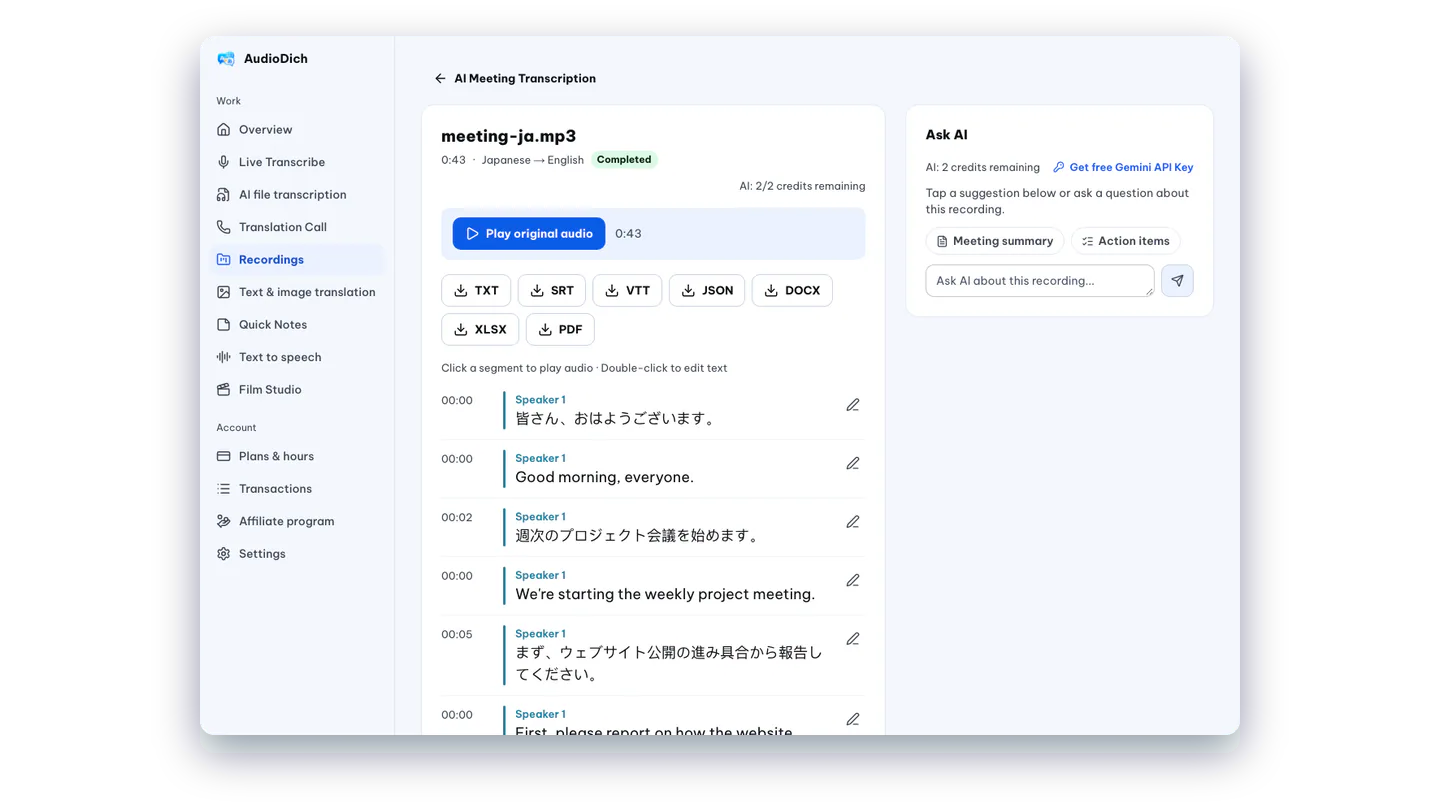
Why transcribing a meeting by hand is hard
Manual transcription takes hours
Replaying and typing out a long meeting takes longer than the meeting itself, and unclear passages have to be rewound again and again.
Decisions and tasks get lost
Without a written text, who owns which task and by when lives only in the memory of the people who attended.
Outsourced transcription is slow and hard to control
Sending the file out means waiting and paying by the hour of audio, while meeting content is often internal.
Transcribing a meeting with AI, step by step
Four steps, each a real screenshot of AudioDich processing a meeting recording. You do not need to record again inside the app.
- Step 1
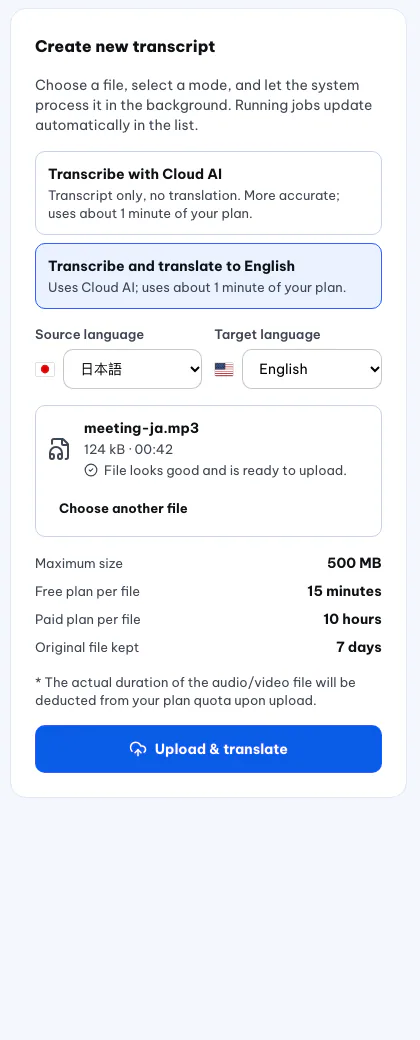
Upload the recording and choose the language
Open AI file transcription, pick a meeting audio or video file already on your computer, choose the language spoken in the file and the language you want to read, then click Upload & translate. Long files are processed in the background.
- Step 2
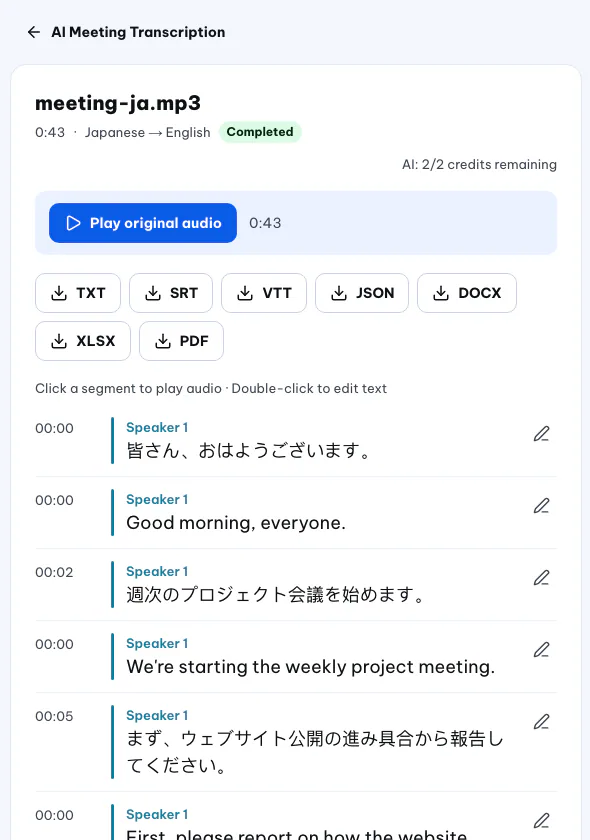
Read the transcription with timestamps
When it finishes, every sentence shows a timestamp, a speaker label and a translation. Click a sentence to play it back, double-click to edit it, then download as TXT, SRT, VTT, JSON, DOCX, XLSX or PDF.
- Step 3
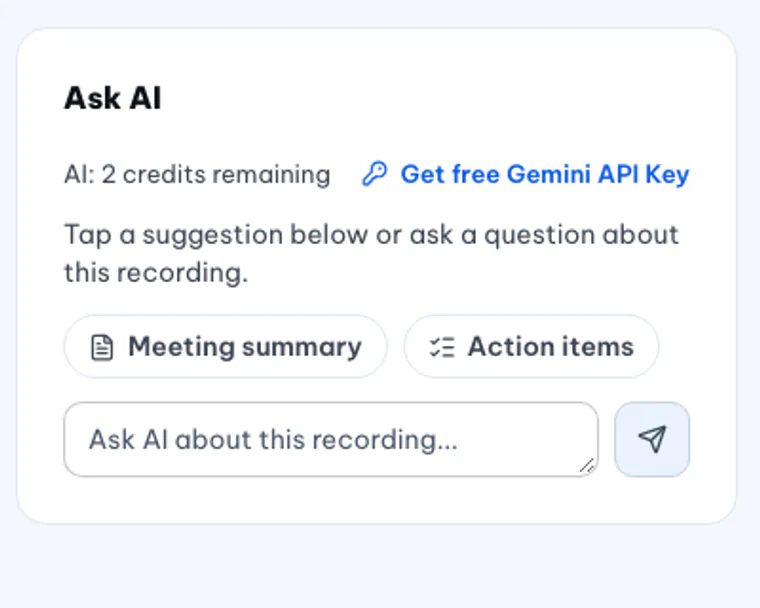
Ask AI about the meeting
In the Ask AI panel, click the Meeting summary or Action items suggestion, or type any question about what was said. Using AI draws on the AI allowance of your current plan.
- Step 4
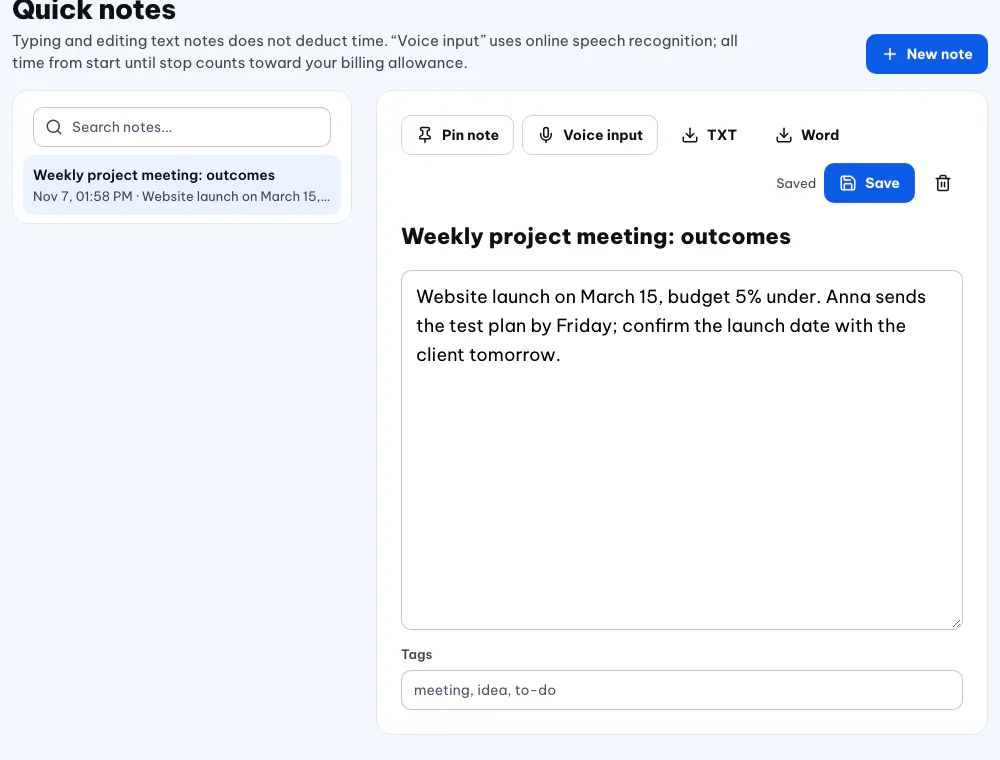
Save the minutes to quick notes
Right after the meeting, write the conclusions, owners and deadlines in Quick Notes so you can find them later.
Main features for transcribing meetings with AI
Upload an existing audio or video file
Common audio and video formats are accepted; there is no need to record inside the app.
Timestamps and translation
Each sentence has a timestamp, a speaker label and a translation into the language you choose.
Ask AI about the content
Meeting summary and Action items suggestions, plus free questions based on the written text.
Download in several formats
TXT, SRT, VTT, JSON, DOCX, XLSX and PDF.
Quick Notes
Save conclusions, owners and deadlines after the meeting.
Business Information
Official operator information and contact channels for AudioDich.
- Vietnamese registered name
- HỘ KINH DOANH HỘ KINH DOANH NGUYỄN LÊ TOÀN
- Household business registration No. (also the tax code)
- 035085005366
- Phone
- 0943 943 647
- Support email
- letoan_ng [at] yahoo.com.hk
For internal meetings, interviews and training sessions
Upload a recording from a phone, a voice recorder or a video of the meeting. Long files are processed in the background, so you do not need to keep the browser open. Distant, noisy or overlapping speech makes results less accurate.
Notes on accuracy, recording and data
Ask attendees for permission before recording or saving a written version. The AI transcription and summary can get names, terms and numbers wrong; for official minutes, have someone review them before they are issued.
Quick answers
The questions people ask most before transcribing a meeting with AudioDich.
What is AI meeting transcription in AudioDich?
It turns a meeting audio or video file into text with timestamps, lets you ask AI for a summary or a list of action items, and lets you download the text in several formats.
Do I need to record inside AudioDich?
No. You can upload any audio or video file already on your computer.
Can long recordings be processed?
Yes. Long files are processed in the background, so you do not need to keep the browser open while waiting.
Can I fully trust the transcription and the AI summary?
No. The transcription and summary can get names, terms and numbers wrong. For important content or anything with legal weight, have someone check it again.
Which languages, how is data handled and what does it cost?
60+ languages. Audio is processed to produce the written text and translation for the features you turn on, and is stored only if you enable storage or save it yourself. Your first login includes 20 free minutes, then 10 minutes per day, with no credit card needed; if you need more, see the Pricing page.
Start with AudioDich
Try AudioDich in a real meeting, video, or call. When you need more time, compare hourly and monthly plans.