

VIDEO:/tutorials/mcp-claude-case.mp4|Screen capture of the real conversation: one question typed in Claude, Claude finding the recording in AudioDich, then the answer (21 seconds, no sound).
To have Claude or ChatGPT summarize a meeting, you do not need to copy the transcript into the chat. There are three ways to give the recording to an AI: paste it, upload a file, or connect directly so the AI reads the recording itself when you ask. The third saves the most effort if you meet often; the first two are enough for a one-off meeting.
This article compares the three, then walks through the third on a real recording in AudioDich, including where the AI’s answer is not perfect.
Three ways to give a meeting recording to Claude or ChatGPT
| Method | What you do | Good when | Limits |
|---|---|---|---|
| Paste | Copy the transcript, paste it into the chat, explain who is who | One short meeting, a quick question | Repeated for every meeting; a long transcript can exceed the chat limit; you explain the participants yourself |
| Upload a file | Export the transcript to a file and upload it to the conversation | One long meeting, asked once | Export every time; each conversation only knows the files you uploaded |
| Connect directly (connector) | Add the connection once, then just ask | You meet often and want to ask across meetings | Needs a recording service that supports it, and usually a paid plan |
Connecting directly uses an open standard called MCP. You do not need to understand the technical side: it is simply a way to let Claude or ChatGPT read your data in another app, only when you ask. You grant the access and you can revoke it.
A real example: asking Claude about a 4 min 41 s recording
We tried it on a real recording in AudioDich, 4 minutes 41 seconds, spoken in Vietnamese: a person introducing a business group. The people named in it agreed to share it. Nothing was edited, neither the recording nor the answer.
The question typed in Claude (in Vietnamese): "Use AudioDich, read the transcript of the recording "Phiên 12:09 16/11/26" and summarize it in 3 main points. Then list the number of industrial parks for each province mentioned."
Claude found the recording in AudioDich, saw two recordings with the same name (one 281 seconds, one 5 seconds), read both and set the 5-second one aside because it was only background radio. From the long one it gave three main points: a network of about 700 members nationwide, each introduced on screen at least twice a month; a region of 4 provinces with 70 industrial parks in total; and a team belonging to a business association founded under a decision dated 18 July 2023.
For the per-province list: Hải Dương 23, Hải Phòng 21, Quảng Ninh 14, Thái Bình 12, adding up to exactly 70. Claude checked this total itself and warned that automatic speech recognition can misspell proper names. That is also where you should double-check: the AI reads the transcript, and an automatic transcript is not perfect.
Demo: ask Claude in the middle of a meeting what the customer just asked
VIDEO:/tutorials/mcp-claude-live-demo.mp4|Staged demo (20 seconds, no sound): AudioDich records the question, you ask Claude, and Claude reads the live session and suggests answers.
This is a staged demo, not a customer story: the "customer" question is read aloud by the computer’s Vietnamese voice while AudioDich is recording. While the session is still recording, you can ask Claude: "What did the customer just ask in the meeting being recorded? Suggest how I should answer."

Claude reads the live session, quotes the customer’s question ("Can you deliver the remaining 600 products before the end of this month?") and suggests three replies: a firm one, a conditional one, and a split delivery. Placeholders such as [30/11] are left for you to fill in, and Claude says the recording was only about 50 seconds long, so it had no context about the contract or the schedule.
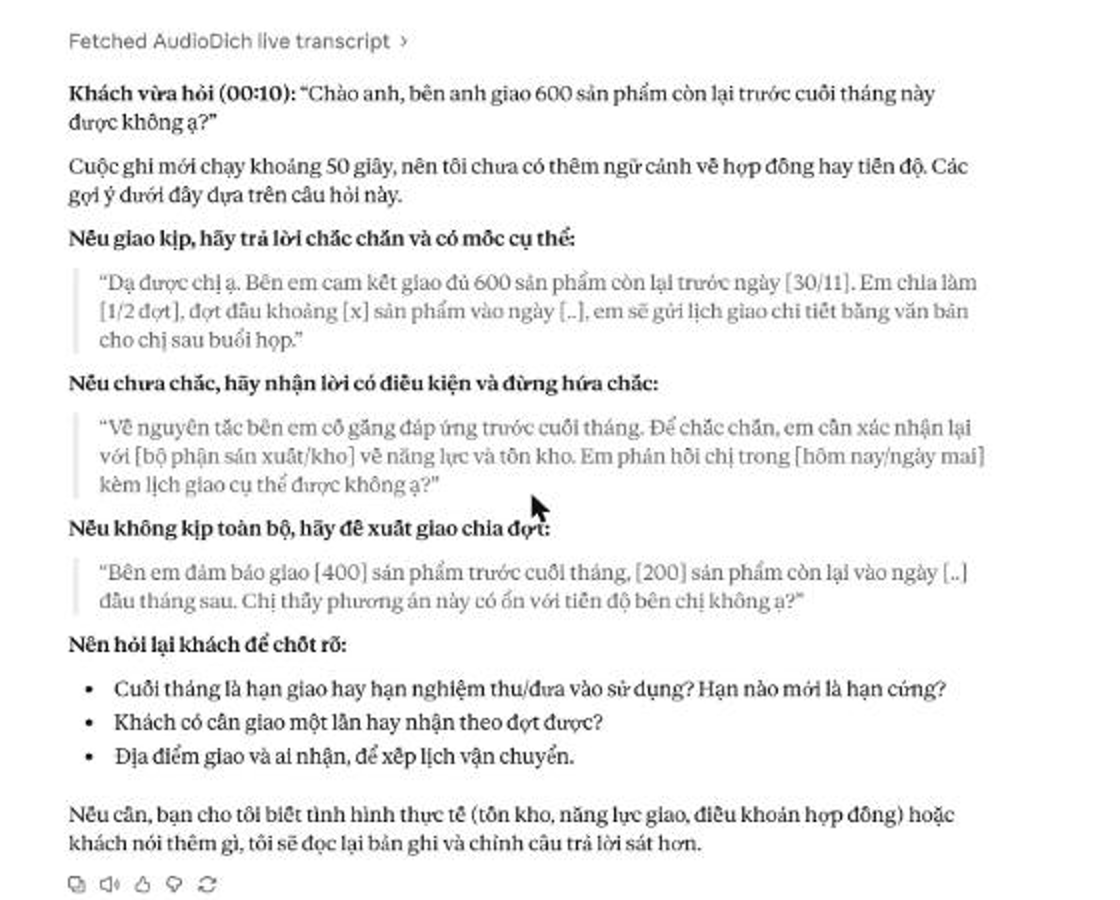
The live-session option must be ticked when you connect (off by default). The suggestions are drafts: check them against your stock, capacity and terms before you answer the customer.
Five questions to try on your own recordings
What did we decide about pricing in yesterday’s meeting?
Find every time a delivery date was mentioned in my recordings.
Write the to-dos from the latest meeting, with owners.
List my recordings this week.
Summarize the last five minutes of the session I am recording (needs the live-session option ticked when you grant access).
Privacy and limits to know
With AudioDich the connection is read-only: the AI cannot edit or delete anything. Only text (transcripts and recaps) is shared, never audio or video files, and only when you ask a question that needs them. Each account only sees its own data, and you can revoke access in AudioDich at any time.
Three limits to know up front: a paid AudioDich plan is required; recordings that belong to an organization (Business plan) cannot be read through the connection yet; and Claude and ChatGPT are supported, not Gemini. On Claude, AudioDich is currently a Community connector: Claude runs automated checks but Anthropic does not verify the developer, so connect only developers you trust. The Claude or ChatGPT plan needed to add a connector can differ, so check in your app.
Connecting: the quick way or four steps
The quickest way: open a new conversation in Claude and type a sentence like "I want to ask about my meeting recordings in AudioDich. Please help me connect." Claude shows an AudioDich card with a Connect button. Click Connect, sign in to AudioDich, choose Allow, then send any message in the conversation to keep asking.
If you would rather add it yourself, follow these four steps.
1. Open claude.ai, go to Customize, then Connectors.
2. Type AudioDich in the search box, open AudioDich (it has a Community label) and click Connect.
3. Sign in with your paid AudioDich account (if the page asks which account, choose Personal) and click Allow.
4. Start a new conversation and ask, for example: "Summarize my latest recording and list the to-dos".
ChatGPT and Claude Code work slightly differently and use the connector address directly; see the full step-by-step connection guide.
Frequently asked questions
Does Claude get my audio files? No. Only the transcript text and the summary are read, and only when you ask.
Do I have to paste the transcript every time? No. After connecting once you just ask; the AI finds and reads the recording it needs in your account.
What if the AI gets a person’s or company’s name wrong? An automatic transcript can misspell proper names. Check against the original recording when accuracy matters, and ask the AI again quoting the exact passage you want to verify.
Can I use it for a meeting that is still going on? Yes, if you tick the live-session option when you grant access. It is off by default, and when it is on, other people’s words in the session are also sent to the AI when you ask.