

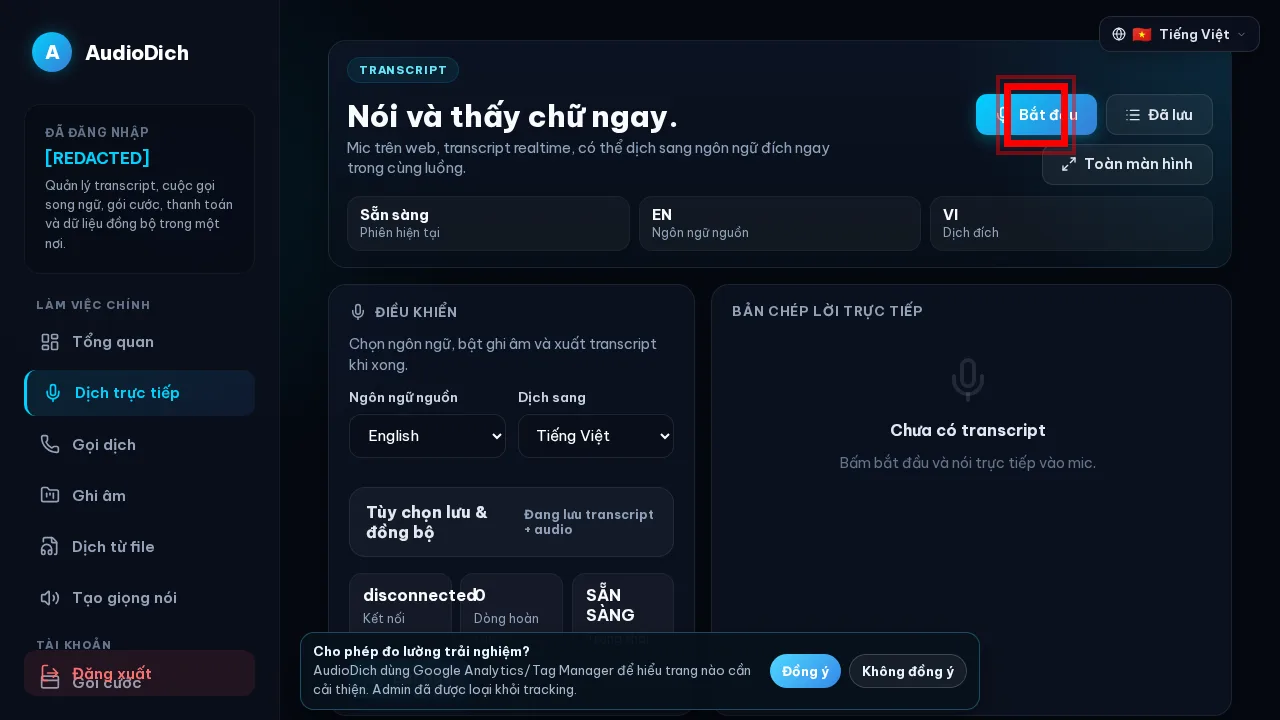
Why this topic matters
The need for how to translate youtube subtitles when a video has no english subtitles usually appears in moments where people cannot pause the conversation to translate every sentence. The audio is live, the context changes quickly, and the person on the other side expects a useful response rather than a long silence.
AudioDich is useful in this situation because it turns spoken language into subtitles, translation, and a transcript that can be reviewed later. The goal is not to replace judgment; it is to reduce the language load so the user can focus on the actual work.
Practical process
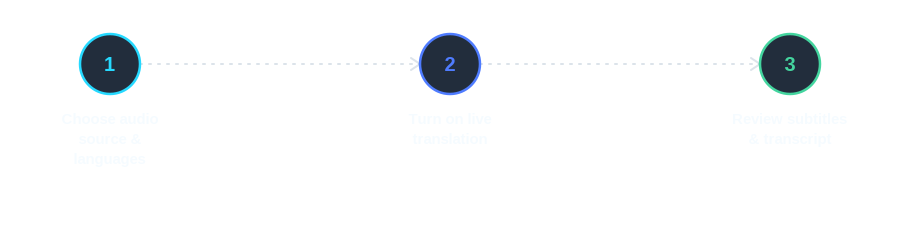
Start by choosing the correct audio source, source language, and target language. If the conversation happens in a browser, the extension or web app is usually the fastest path. If both sides need translated output, use the call room process instead.
During the session, speak in short chunks, avoid talking over others, and confirm important details such as price, date, scope, names, order numbers, or next steps. After the session, use the transcript to write a clear summary instead of relying on memory.
Real-life example
A user tests the process in a low-risk session, verifies names and numbers, and reviews the transcript before sharing a summary.
This process is most valuable when the conversation is important enough to review, but not so formal that a certified interpreter is required from the start. It helps teams learn faster, ask better follow up questions, and keep a written record of what happened.
When to use AudioDich
Use AudioDich for online meetings, customer calls, support sessions, webinars, interviews, lessons, and video review where live subtitles and transcripts make the work easier. It is especially practical for small teams that need to move before they can hire multilingual staff.
For legal, medical, financial, or contract-heavy conversations, use AudioDich as an assistant layer and still verify the final wording with a qualified person. Live translation is best treated as a productivity tool, not certified translation.
Data and transcript notes
When other people are present, tell them if audio may be processed, translated, recorded, or stored as a transcript. A clear notice builds trust and prevents transcripts from being used outside the expected context.
Review transcript access after the session. Keep only what is useful for follow up, support case handling, training, or learning, and avoid sharing raw transcripts when a short checked summary is enough.
Step-by-step setup
First, open AudioDich before the real conversation starts and choose the process that matches the source: Web App for browser-based work, Chrome Extension for tab audio, or call room for two-way conversations. Second, test one short sentence so you know the microphone, audio source, and target language are correct.
Third, keep the subtitles visible but not in the way of slides or shared screens. Fourth, write down only the points that need human confirmation. The transcript will hold the full context, so your live notes can stay focused on decisions and follow up actions.
Common mistakes to avoid
The first mistake is opening the translation tool only after the important part has already started. The second is treating every live subtitle as final wording. Live translation helps you follow the conversation, but details like names, numbers, deadlines, and legal terms still deserve confirmation.
The third mistake is saving transcripts without a rule for who can read them. For team use, define whether transcripts go into CRM, support tickets, training notes, or private notes, and delete anything that is not needed for the stated purpose.
How to measure success
After a few sessions, evaluate practical outcomes instead of vague accuracy claims. Did the team ask better follow up questions? Did summary writing become faster? Were fewer details missed in tickets, meeting notes, or customer emails? These are the signals that matter in real work.
If the process works, document it for the team and link to the relevant AudioDich guide, pricing page, and registration page. A repeatable process is more valuable than a one-time demo because it lets new users start without guessing which feature to use.
Translate YouTube and Netflix on your phone
On Android 10 or later, the AudioDich app translates the audio of YouTube, Netflix and other video apps and shows floating translated subtitles over the video.
1. Install the AudioDich Android app and sign in (your account needs real-time included time).
2. Open the Video tab and choose the source language, target language and the video app.
3. Grant the floating display permission and the system audio capture permission when Android asks.
4. Tap "Start video translation", then switch to YouTube or Netflix and play the video.
5. Translated subtitles float on screen. You can turn on spoken translation or show the translation only.
Netflix and some DRM apps can block system audio capture. If that happens, switch the audio source to "Microphone (DRM)", play through the speaker (no headphones) and keep the room quiet.
On iPhone, AudioDich does not yet support translating YouTube or Netflix videos. If you use an iPhone, open the video on a computer and use the Chrome extension described above.
Paste-link tools vs. translating audio as it plays
There are two main approaches. Paste-link tools process the whole YouTube video and return subtitles or a transcript, which suits you when you need a file to edit. Translating the audio as it plays, as AudioDich does, shows subtitles while the video runs, so it works for livestreams and for videos inside apps.
| Criteria | Paste-link tools | AudioDich (live translation) |
|---|---|---|
| How it works | Paste a link, wait for the result | Open the video and turn on translation |
| Livestreams | Usually not suitable | Supported |
| Videos inside apps (Android) | Usually not | Supported, including Netflix |
| Subtitle file to publish | Usually yes | Transcript for review only; edit before publishing |
| Requirements | Varies by tool | Sign-in and included time |
Choose a paste-link tool if your goal is a subtitle file. Choose live translation if you want to understand the video while you watch.
Q: Can I translate YouTube videos on an iPhone? A: The AudioDich iPhone app does not support YouTube video translation yet. Use a computer with the Chrome extension, or an Android phone running Android 10 or later.
Q: Does it translate Netflix? A: Yes on Android 10+, but Netflix may block system audio capture. If no transcript appears after a few seconds, switch to Microphone mode and play through the speaker.
Q: Does phone translation keep running in the background? A: Yes on Android. The session runs in the background with a persistent notification, as Android requires, and you stop it in the app.