

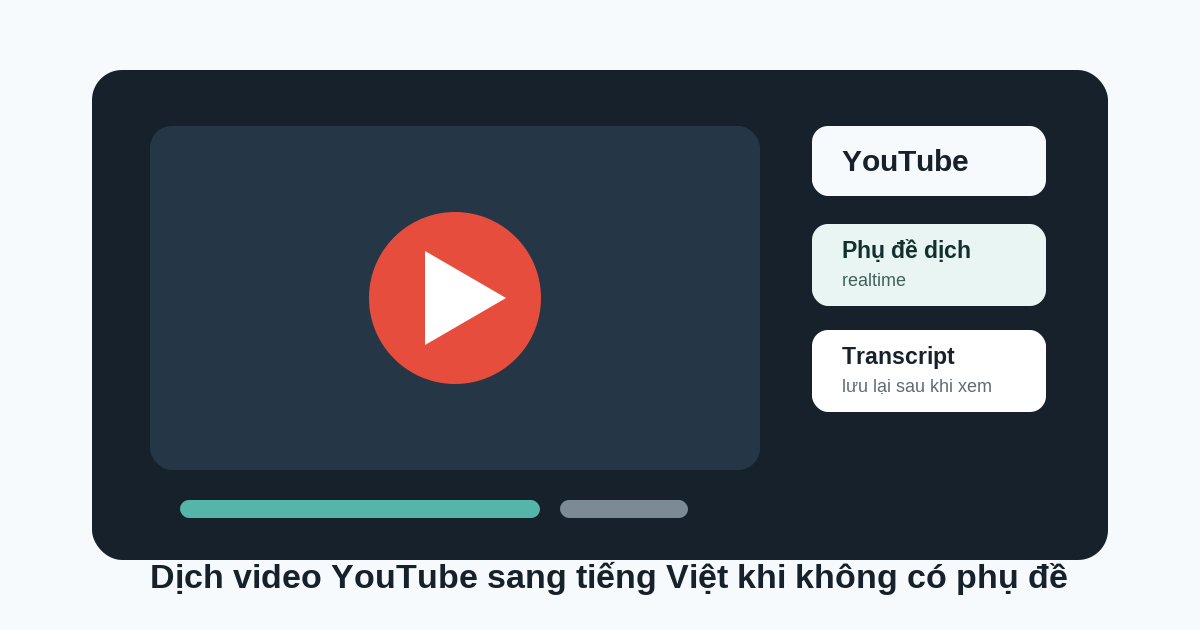
Quick answer: add the AudioDich Chrome extension, open the video, choose English as the target language and press start. English subtitles appear over the video while it plays, even when YouTube offers no captions at all. It is free to start: 20 minutes on your first sign-in, then 10 minutes every day.
Why some YouTube videos have no English subtitles
YouTube only shows a subtitle button when a caption track exists. The creator may never have uploaded one, automatic captions may be switched off, or the audio may be in a language or of a quality that YouTube does not caption automatically. Live streams are the hardest case: captions often arrive late or not at all.
The built-in Auto-translate option does not solve this. It translates a caption track that is already there. With no captions to start from, there is nothing for it to translate, and the menu stays empty.
That leaves the sound itself. If a tool can listen to what is being said, it does not matter whether the video has captions.
How translating the audio works
AudioDich listens to the audio of the tab that is playing, turns the speech into text, translates that text into English and shows it as subtitles a moment after each sentence is spoken. Nothing is downloaded and you do not paste a link: you watch the video on YouTube as usual, with a subtitle bar on top.
Because it works from the sound, the same steps apply to a recorded lecture, a product review, a podcast episode or a stream that is live right now. The original sentence and its English translation are both kept in a transcript, so you can go back to a passage after the video ends.
Step by step on a computer
- Add the AudioDich extension to Chrome and sign in to your AudioDich account.
- Open the YouTube video you want to watch.
- Open the AudioDich extension and choose the language spoken in the video. If you are not sure, leave it on automatic detection.
- Choose English as the target language.
- Press start and play the video. English subtitles appear over the player.
- Save the transcript if the video is long or you want to review it later.
If the video plays outside Chrome, for example in a desktop player or a training platform that opens its own window, use the AudioDich desktop app for Windows or macOS. It captures the sound of the whole computer instead of a single tab.
On an Android phone, including Netflix
On Android 10 or later, the AudioDich app translates the sound of YouTube, Netflix and other video apps and floats the subtitles over the video.
- Install the AudioDich app for Android and sign in.
- Open the Video tab, then choose the source language, English as the target language and the app you watch in.
- Allow the app to display over other apps and to capture system audio when Android asks.
- Tap the button to start video translation, switch to YouTube or Netflix and play the video.
- Read the floating subtitles. You can also have the translation read aloud through the speaker.
Netflix and some other protected apps block system audio capture. If no text appears after a few seconds, switch the audio source to microphone mode, play the video through the phone speaker rather than headphones and keep the room quiet.
On iPhone, AudioDich does not translate YouTube or Netflix videos yet. If you use an iPhone, open the video on a computer and use the Chrome extension.
Paste-a-link tools or live audio translation
There are two families of tools. Paste-a-link tools process the whole video and return a subtitle file or a transcript, which suits you if you need a file to edit. Live audio translation, the approach AudioDich takes, shows subtitles while the video plays, so it also works for live streams and for videos inside apps.
| What you compare | Paste-a-link tools | AudioDich (while the video plays) |
|---|---|---|
| How you use it | Paste the link and wait for the result | Open the video and press start |
| Live streams | Usually not supported | Supported |
| Videos inside Android apps | Usually not supported | Supported, Netflix included |
| Subtitle file for publishing | Usually provided | A transcript for review; edit it before you publish anything |
| What you need | Depends on the tool | An account and remaining minutes |
Choose a paste-a-link tool when the goal is a subtitle file. Choose live translation when the goal is to understand the video now.
When this is the right approach
- The video has no captions, or only captions in the original language.
- Automatic captions exist but the translation is hard to follow or loses technical terms.
- A live stream is running and you need to keep up as it happens.
- The video is long and you want a transcript to search afterwards.
- You follow lectures, webinars, interviews or product reviews in Japanese, Korean, Chinese, Vietnamese, German or another language you do not speak.
Tips for more accurate subtitles
- Pick the spoken language yourself when you know it. Automatic detection is convenient, but a fixed language is steadier.
- Clear speech translates best. Loud background music and several people talking at once lower the quality.
- If the speaker is very fast, set the YouTube playback speed to 0.75 so the subtitles keep up.
- For specialist content, check names, figures and technical terms in the transcript before you rely on them.
What to do with the transcript
A saved transcript turns a video into something you can search. You can find the minute where a tool or a number was mentioned, copy the key points into your notes, or share them with a colleague who has no time to watch the whole thing.
If reading is not convenient, voice playback reads the English translation aloud. That helps when you are taking notes in another window or watching with someone who would rather listen. Treat it as a help for following along, and go back to the transcript for anything that has to be exact.
Where real-time translation stops
Real-time subtitles are made for understanding, not for publishing. If you need subtitles to publish, to quote in academic work or to use in a commercial video, treat the result as a first draft and check names, numbers and terminology yourself.
The original video still belongs to its creator. Do not republish a transcript or subtitles made from someone else's video without permission.
Frequently asked questions
Is it free?
You can start for free: 20 minutes on your first sign-in and 10 minutes every day after that. Paid plans add more hours when you need them.
Does it work when the video has no captions at all?
Yes. The subtitles are made from the audio of the video, not from an existing caption track.
Does it work with YouTube live streams?
Yes, as long as the sound of the tab or the device can be captured. Subtitles follow the speaker a moment behind.
Can I use it on an iPhone?
Not for YouTube videos at the moment. Use a computer with the Chrome extension, or an Android phone running Android 10 or later.
Can I download an .srt file?
Live translation gives you a transcript to read back, not a subtitle file that is ready to publish. If you need a file, edit the transcript first.
Do I need to install anything?
On a computer you add the Chrome extension, which takes a few seconds. On Android you install the app. The web app also translates speech picked up by your microphone without any installation.
The short version
A YouTube video without English subtitles is still watchable. Translate its audio instead of its captions: add the extension, choose English, press start, and keep the transcript for later.