

Going live for international viewers: where it gets hard
Many people who go live on TikTok to sell, teach or chat start seeing viewers from other countries join the room. They ask questions in another language, stay for a few seconds, then leave because they cannot follow what the host is saying.
There are three usual workarounds, and each has a catch. Speaking a foreign language yourself takes real fluency, and doing it for hours is exhausting. Hiring an interpreter to sit next to you is expensive and hard to keep up every day. Text captions make viewers read while they watch the product, and many people listen rather than read the screen closely.
AudioDich takes a different route: you keep speaking naturally in your own language, the software translates what you say, reads the translation in a clone of your own voice, and feeds that voice into the stream as if it were a microphone.
How it works: you speak, viewers hear the translation
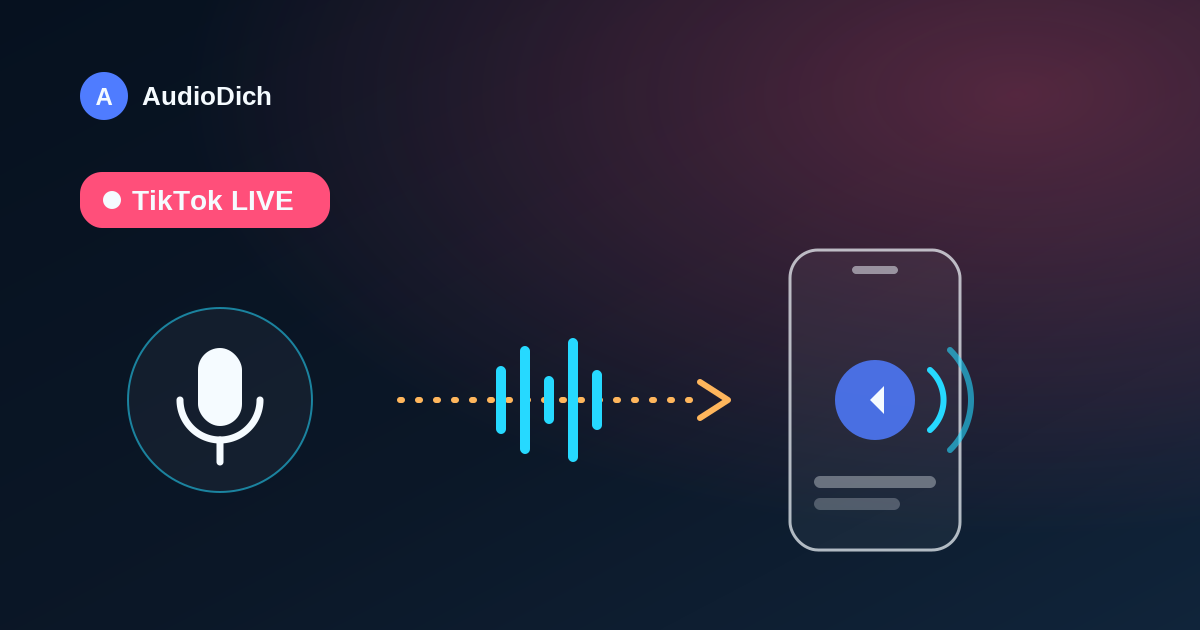
The AudioDich desktop app listens to your microphone, turns your speech into text, translates it and reads the translation in your cloned voice. The translated audio plays into a virtual audio cable. In TikTok LIVE Studio or OBS you pick that cable as the microphone, so viewers hear the translation. The app's subtitle window can also be added to the stream so viewers can read along.
This article uses English to Spanish as the example. You can choose another language pair in the app. Listen to your cloned voice in the target language before going live for real.
| What you want | Can AudioDich do it |
|---|---|
| You speak English, viewers read Spanish subtitles | Yes, add the subtitle window to the stream |
| You speak English, viewers hear Spanish | Yes, through a virtual audio cable |
| Viewers hear the Spanish translation in your own voice | Yes, with cloned-voice reading turned on |
| A guest speaks another language and you read it in English | Yes, with system audio capture turned on |
| Translate the text comments in the LIVE room | Not yet |
| Go live straight from the TikTok phone app | No, you need to stream from a computer |
What you need
- A Windows or macOS computer with the latest AudioDich desktop app.
- A way to go live on TikTok from a computer: TikTok LIVE Studio, or OBS with a stream key. TikTok only grants these to some accounts, so check your account first.
- A virtual audio cable: VB-Cable on Windows or BlackHole on macOS. These are free third-party tools that you install yourself.
- Your cloned voice. For now the clone is created in the AudioDich Chrome extension from a short recording, and the desktop app reuses it.
- Headphones, so the translated voice does not leak back into your microphone.
Step-by-step setup
Step 1: Create your cloned voice. Open the AudioDich Chrome extension and record a short voice sample somewhere quiet. The clone belongs to your account, so the desktop app can use it as soon as you sign in with the same account.
Step 2: Install the AudioDich desktop app. Set the audio source to Microphone, the spoken language to English and the translation language to Spanish, then turn on spoken translation.
Step 3: In Settings, tick "Read translations with my cloned voice". The hint below it shows which cloned voice is in use. If the account has no clone yet, the app reads with a standard voice and reminds you to create one.
Step 4: Under "Play translated voice through", pick the virtual audio cable (for example CABLE Input from VB-Cable, or BlackHole).
Step 5: In TikTok LIVE Studio or OBS, choose that cable as the microphone. To show subtitles as well, add the AudioDich subtitle window as a source with window capture.
Step 6: Do a test stream in private mode or with a second account, check that the translated voice reaches the stream, and only then go live for real.
Do viewers hear your real voice or the translation?
With the setup above, the stream's microphone is the virtual cable, so viewers only hear the translated voice. This is the simplest option when most of your viewers are international.
If you want viewers to hear both your real voice and the translation, use OBS to mix two sources, your real microphone and the virtual cable, each at its own volume. Keeping your real voice quieter usually stops the two voices from talking over each other.
When a guest speaks another language
If you go live with a guest who joins through a call on your computer, set the audio source to System Audio or Both. AudioDich then translates the guest into your language in the subtitle window so you can keep up and reply.
On macOS, capturing system audio requires granting AudioDich the Screen Recording permission in System Settings.
Checks before you go live
- Delay: the translated voice arrives about 1–3 seconds after you speak. Short sentences with clear pauses help the translation keep up and sound better.
- Volume: balance the translated voice against background music and other sounds in LIVE Studio or OBS.
- Echo: always wear headphones. If the translated voice plays through speakers, the microphone picks it up and the app translates its own translation.
- Names, prices and discount codes: repeat them clearly or put them on screen, because machine translation can mishear them.
- Connection: speech recognition, translation and voice reading run on servers, so a weak connection makes the translated voice slower.
Who this is for
Live sellers who want to reach international customers, creators growing an international audience, and teachers or skill coaches with students who do not speak their language. What they share is wanting to keep their natural way of speaking while viewers still understand.
If you only want to watch someone else's live stream with subtitles in your language, that is a different need: use the AudioDich Chrome extension or desktop app to translate the audio that is playing.
Frequently asked questions
Can I do this from the TikTok app on my phone? No. The translated voice reaches the stream through a virtual audio cable on a computer, so you need to stream with TikTok LIVE Studio or OBS on Windows or macOS.
Will viewers notice it is a translated voice? The clone keeps the character of your voice, but it is still synthetic and arrives about 1–3 seconds after you speak. Tell viewers you are using an AI translated voice: it is transparent and makes them more forgiving when a translation is off.
Does AudioDich translate viewer comments? Not yet. AudioDich translates speech, not the text comments in a TikTok LIVE room.
What if I do not have a cloned voice yet? The app still reads the translation with a standard voice. You can create a clone in the AudioDich Chrome extension at any time, then turn cloned-voice reading back on.
Which languages can it translate into? You choose the language pair in the app. Cloned voice quality can differ between languages, so listen to the target language before you go live.