

Translate webinars and online events in real time: subtitles, large text and a transcript
A webinar happens once, the speaker does not stop and you cannot rewind a live talk. Open the webinar in a browser tab, start AudioDich beside it, choose the tab as the audio source and read translated subtitles sentence by sentence; a large-text subtitle window helps you read from a distance, and afterwards you have a transcript to read by topic.
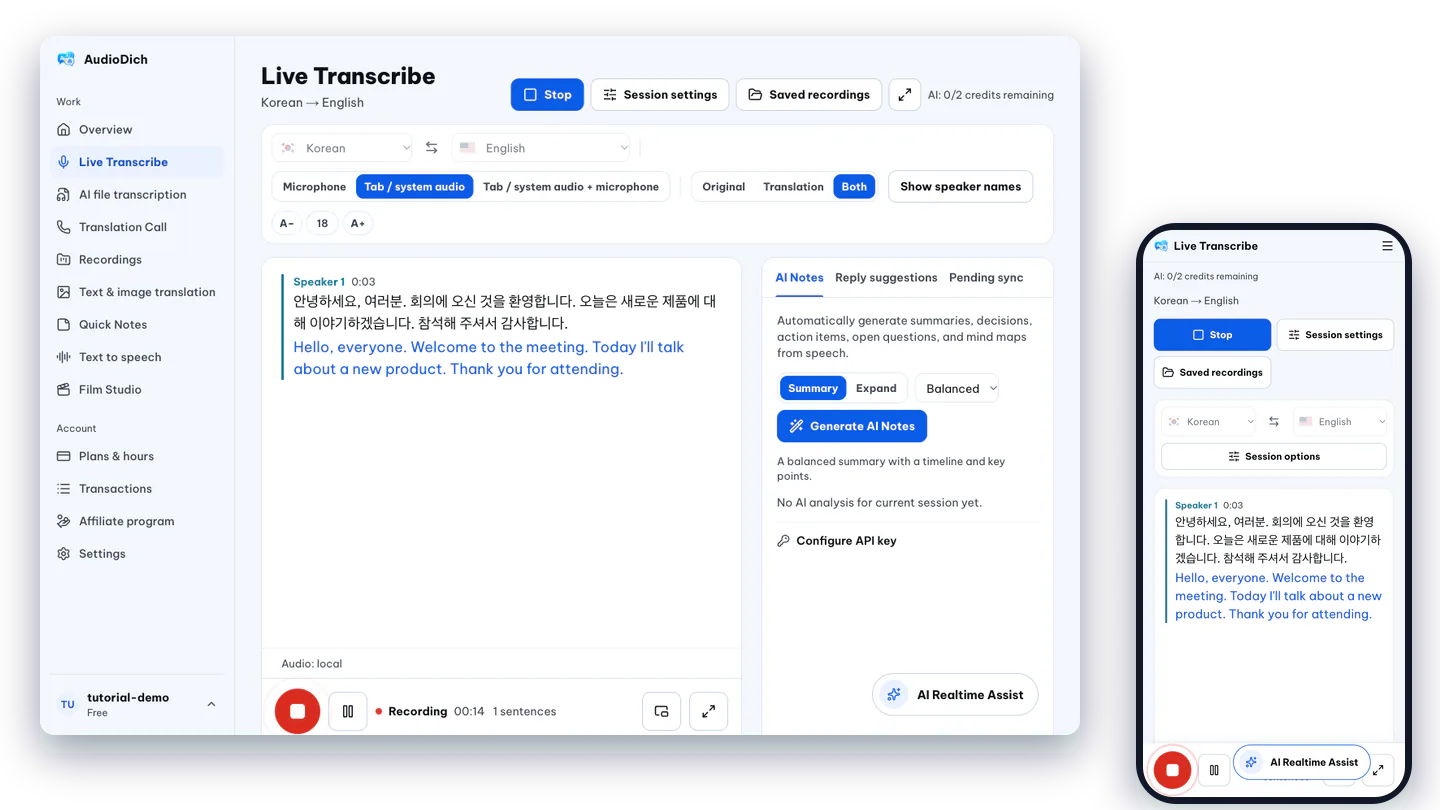
Real problems of following a webinar in another language
A live talk cannot be rewound
The presenter keeps going, slides change and the Q&A moves fast. If you lose a sentence in another language, it is gone.
Subtitles cover the slides
Most of a webinar's information is on the slides. Captions over the slides, or tiny text in a side window, are hard to read.
The recording arrives late, or never
A recording may arrive days later, if at all, and not always with subtitles in your language.
Translating a webinar with AudioDich, step by step
Four steps, each a real screenshot of AudioDich running. You install nothing in the webinar platform.
- Step 1
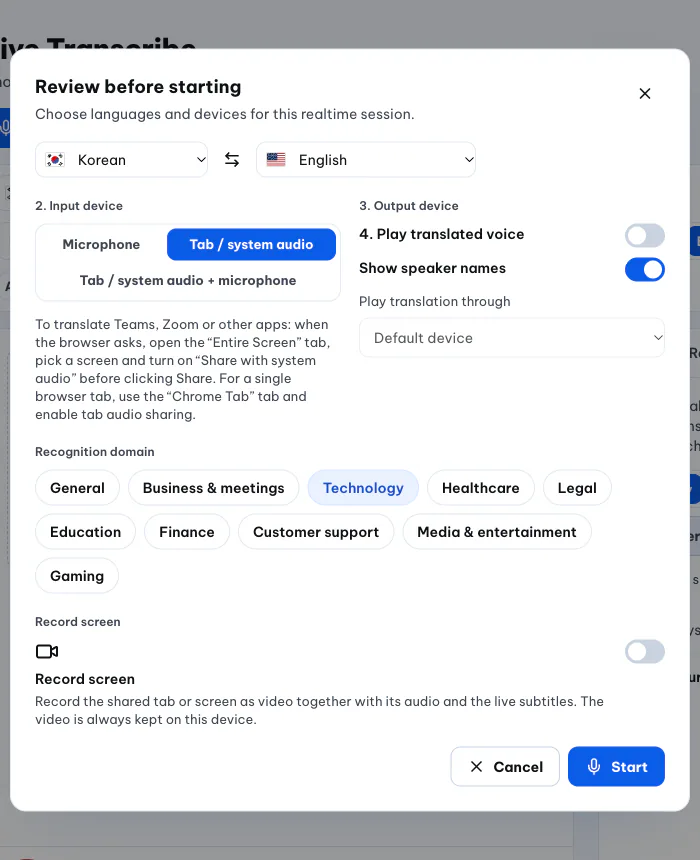
Check the audio and the language pair before it starts
Open AudioDich a few minutes early. Press Start, pick the language the speaker uses and the one you want to read, choose a domain close to the topic (for example Technology) and select tab / system audio so AudioDich listens to the webinar tab. Do this before the start, because you cannot ask the speaker to repeat.
- Step 2
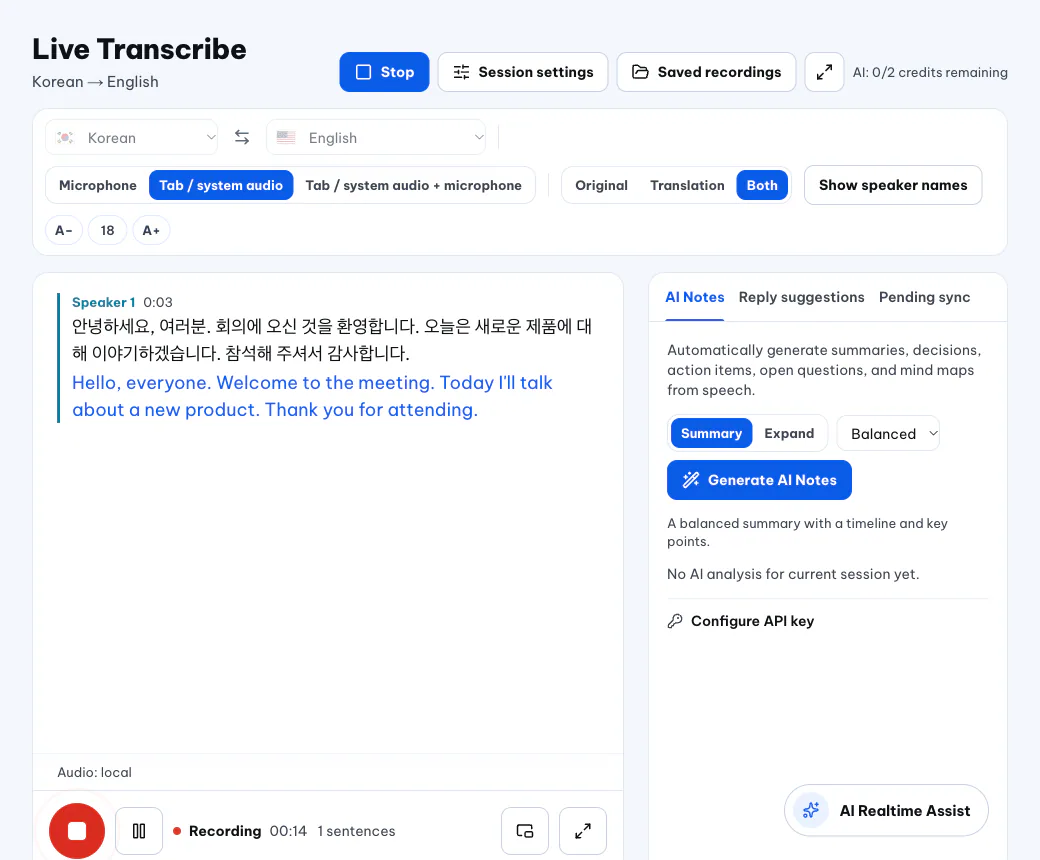
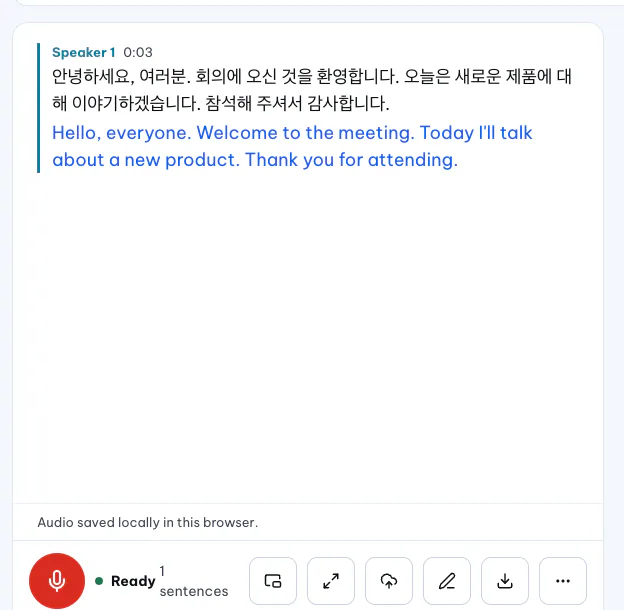
Follow live subtitles beside the slides
Keep the webinar in one tab and AudioDich in another window or on a second screen. Each sentence appears as the original with its translation below; you can change the text size and show the original, the translation or both.
- Step 3
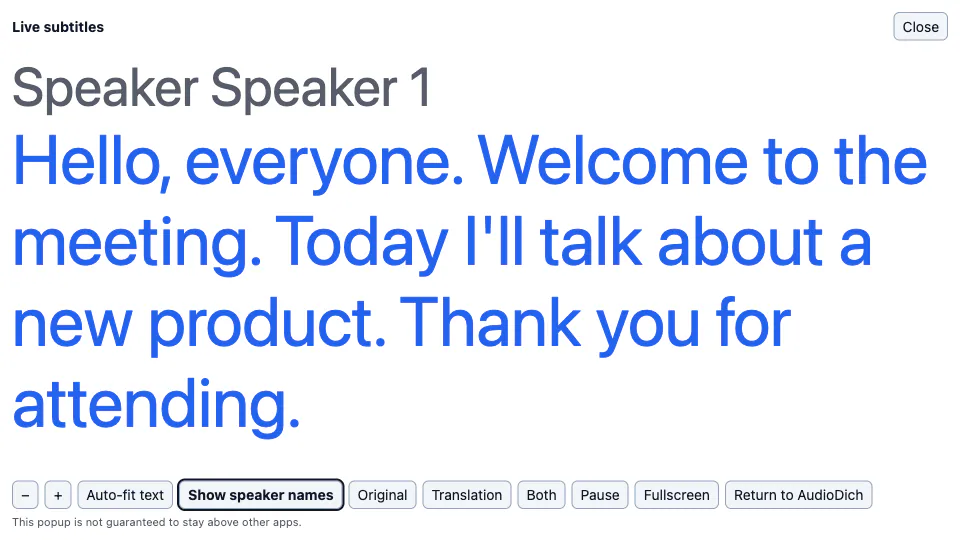
Open the large-text subtitle window
From the controls under the transcript, open the subtitle window: large live text with buttons for text size, original, translation, pause and fullscreen, so you can read from further away or place it beside the slides.
- Step 4
After the webinar: read the transcript by topic
The session is saved so you can review, edit and download it. Read it by topic rather than from the start: mark new terms, the speaker's examples and the Q&A. AI Notes can summarise it, using the AI credits in your account.
Main features for translating webinars and online events
Real-time bilingual subtitles
Recognition and translation in more than 60 languages, with the original and its translation sentence by sentence.
Large-text subtitle window
Large text, adjustable size, original, translation or both, with pause and fullscreen.
Browser tab or system audio
The web app and the Chrome extension listen to a browser tab; the desktop app on macOS and Windows captures system audio and has a floating subtitle window.
Spoken translation
Turn on translated voice and wear headphones to listen as well as read.
Transcript and AI Notes
Save the session to review and download. AI Notes summarises it and lists decisions and action items, using the AI credits in your account.
Comparison: AudioDich, the webinar platform's own captions and a human interpreter
Each option suits a different situation. This table helps you choose quickly; it is not meant to rule any of them out.
| Criteria | AudioDich | The webinar platform's own captions | Human interpreter |
|---|---|---|---|
| Who switches it on and controls it | You, on your own computer, with no need for the organiser to enable anything. | Switched on by the organiser if their platform and plan offer it. | Arranged in advance by the organiser. |
| Languages | More than 60 languages for recognition and translation. | Depends on the platform and plan the event uses. | Depends on the interpreter hired. |
| How you get the translation | Bilingual text, a large-text window and optional spoken translation through headphones. | Usually text captions inside the event window, if offered. | Live speech. |
| Use across platforms | One tool for webinars, Zoom, Meet, Teams and videos. | Only inside that platform. | Per the organiser's booking. |
| Cost and accuracy | Free trial, then pay by the hour; machine translation can get names, numbers and jargon wrong, so confirm key points. | Depends on the plan; usually machine translation too. | Paid by the hour and booked ahead; best for legal, medical and financial content. |
Webinar platforms differ and change over time; check the caption features of the platform your event uses.
Read the detailed guides
Business Information
Official operator information and contact channels for AudioDich.
- Vietnamese registered name
- HỘ KINH DOANH HỘ KINH DOANH NGUYỄN LÊ TOÀN
- Household business registration No. (also the tax code)
- 035085005366
- Phone
- 0943 943 647
- Support email
- letoan_ng [at] yahoo.com.hk
Why webinars are hard to follow in another language
A webinar has many listeners, little chance to ask again and a continuous presentation. So check the audio and the language pair before the start rather than while it plays, and put the subtitles beside the shared screen or on a second screen so you still see the slides, where most of the important information is.
When to hire an interpreter instead
When an event carries high commitments, has legal, medical or financial content, or the organiser is responsible for the accuracy of every sentence, use an interpreter. AI suits following and recording the content; if you save a transcript or a recording, tell the participants and ask the speaker before publishing anything.
Quick answers
The questions people ask most before using AudioDich for a real webinar.
What is AudioDich for webinars?
A tool that listens to the audio of your webinar tab on your own computer, recognises the speech, translates it and shows bilingual subtitles in real time, with a large-text window and a saved transcript. It runs next to the webinar and does not replace the event platform.
Do I need to install anything in the webinar platform?
No. AudioDich listens through your computer (a browser tab or system audio), so it needs no permission from the organiser.
Where should I put the subtitles so they do not cover the slides?
On a second screen if you have one, or beside the shared screen. The large-text subtitle window helps when you sit far from the screen or want to read while still looking at the slides.
How does it compare with a human interpreter?
AudioDich is faster, cheaper and available any time, which suits following the content. For legal, medical or financial content, or when the organiser guarantees the accuracy of every sentence, use an interpreter.
How does it compare with the platform's own captions?
Built-in captions are switched on by the organiser and depend on the platform and plan. AudioDich is in the listener's hands and works across platforms, and adds a large-text window, spoken translation and a transcript. On the other hand, the platform's captions are built into the event window.
Which languages, how is data handled and what does it cost?
More than 60 languages. Audio is processed to create transcripts, translations, subtitles or spoken translation depending on the features you turn on, and is only saved when you enable storage or choose to save. Your first sign-in includes a 20-minute free trial, then 10 minutes every day, with no credit card; for more, see the Pricing page.
Start with AudioDich
Try AudioDich in a real meeting, video, or call. When you need more time, compare hourly and monthly plans.