

- Back to the guide
- Video tutorials
- Ask Claude about your recordings
Ask Claude about your recordings
Connect Claude to AudioDich once, then ask about your recordings and meetings, including a session that is still recording.
This tutorial is for paid AudioDich users who want an AI assistant to read their transcripts. The connector gives Claude read-only access to text transcripts and recaps, never to audio or video files.
Steps
Add AudioDich as a custom connector in Claude.
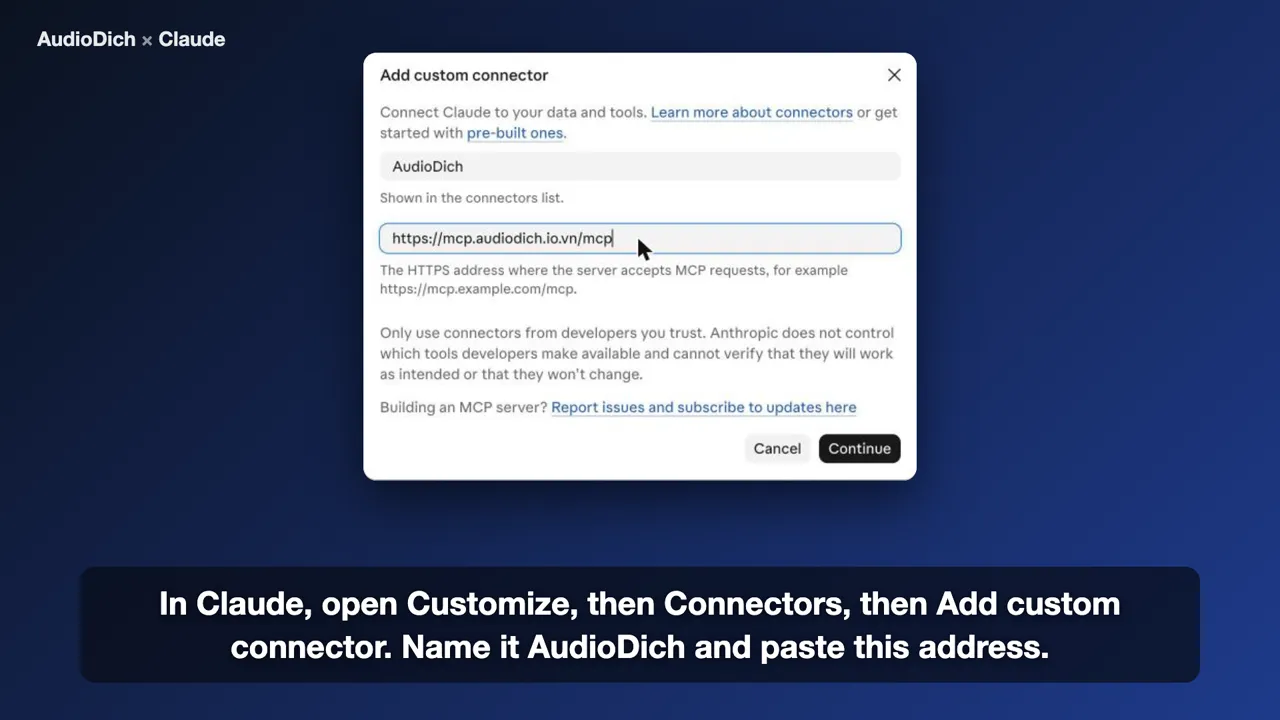
In Claude, open Customize, then Connectors, type AudioDich in the search box and press Connect (AudioDich is listed there with a Community label). The video shows the other way, which also works: Add custom connector, name it AudioDich, paste https://mcp.audiodich.io.vn/mcp and continue.
Sign in to your paid AudioDich account and choose Allow.
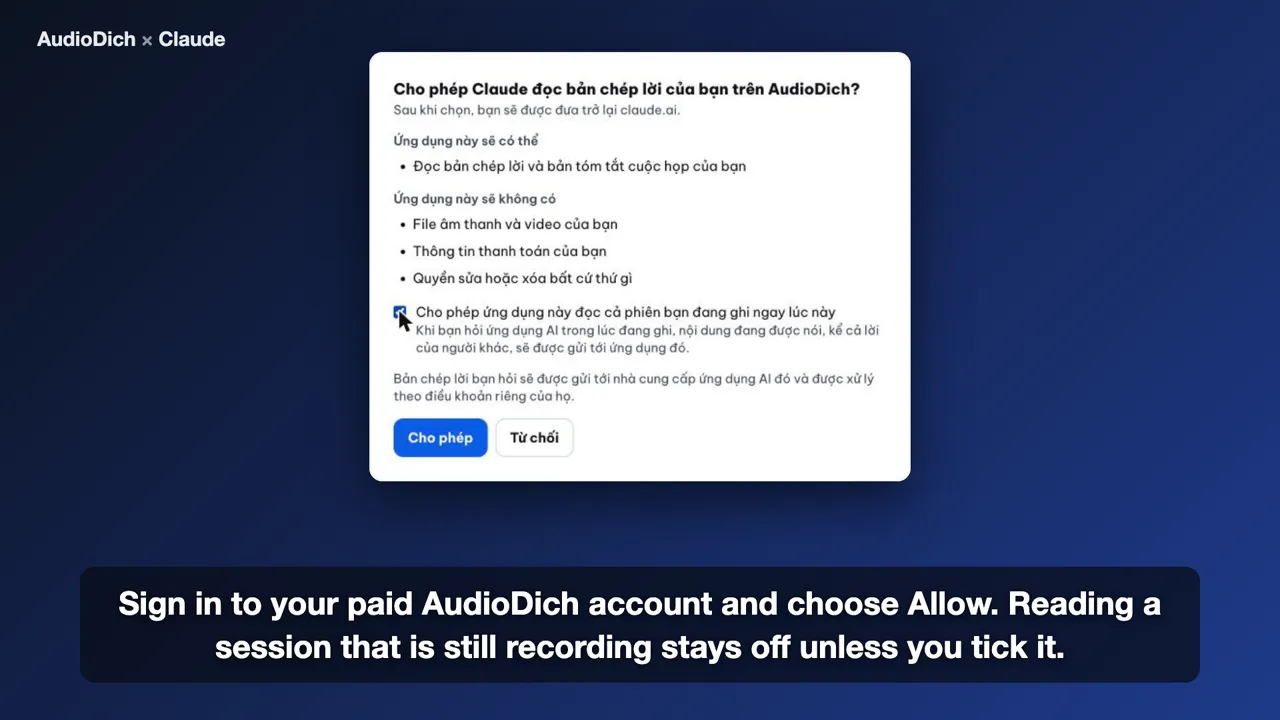
AudioDich opens a consent page. Sign in with your paid account and choose Allow. Reading a session that is still recording stays off unless you tick it.
Check the five read-only tools Claude receives.
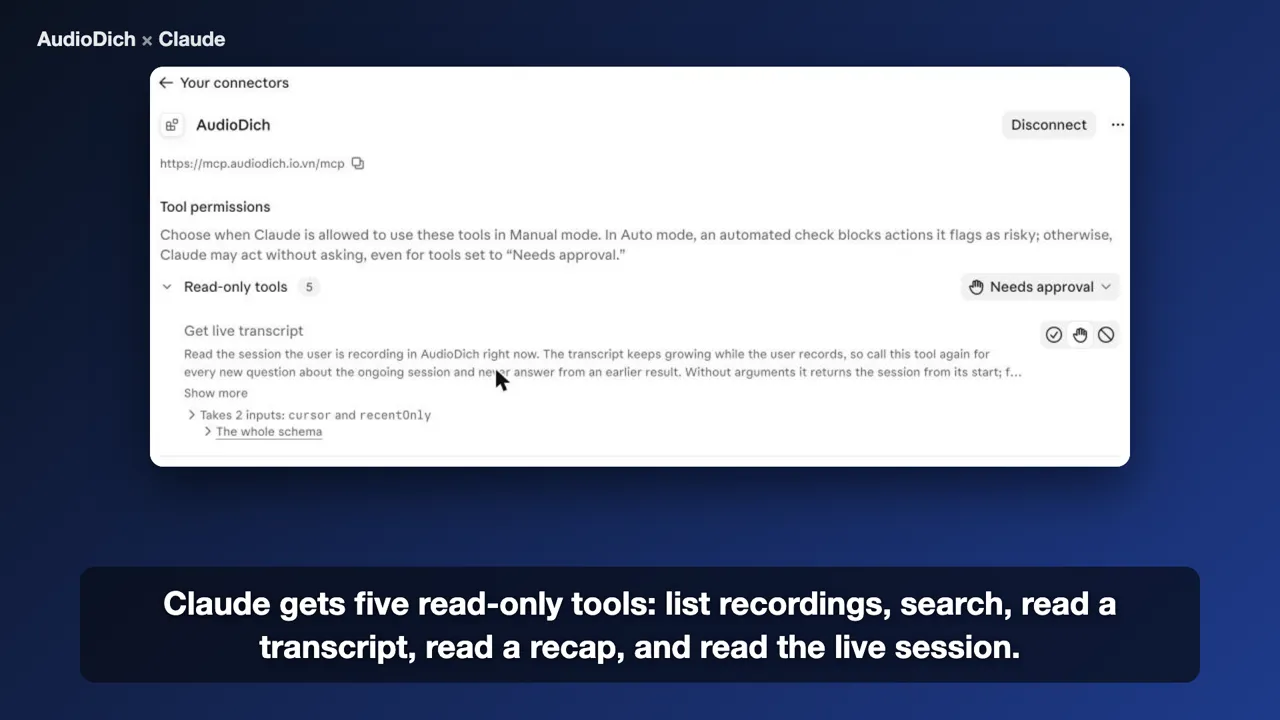
Claude lists five tools: list recordings, search, read a transcript, read a recap and read the live session. All of them only read.
Ask Claude about your latest recording.
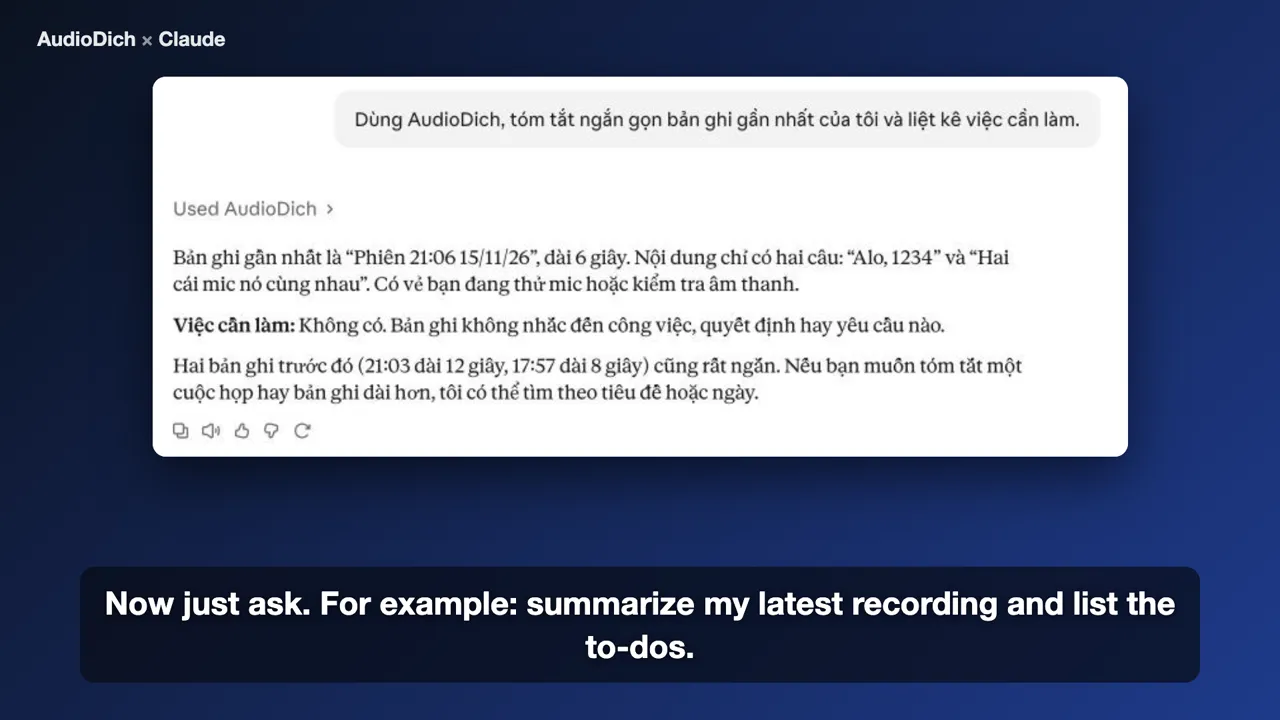
Start a chat and ask, for example, to summarize your latest recording and list the to-dos. Claude calls AudioDich and answers from your transcript.
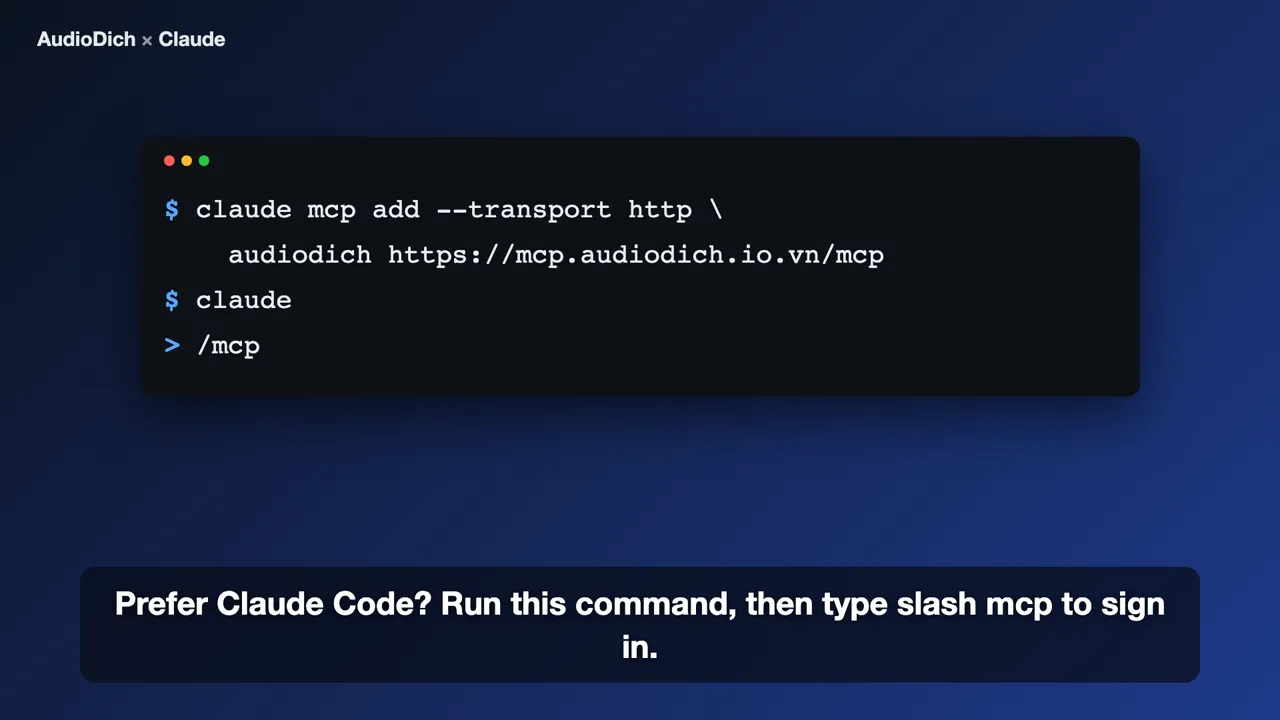
Or add it to Claude Code with one command.
In Claude Code, run claude mcp add --transport http audiodich https://mcp.audiodich.io.vn/mcp, then type /mcp and sign in the same way.
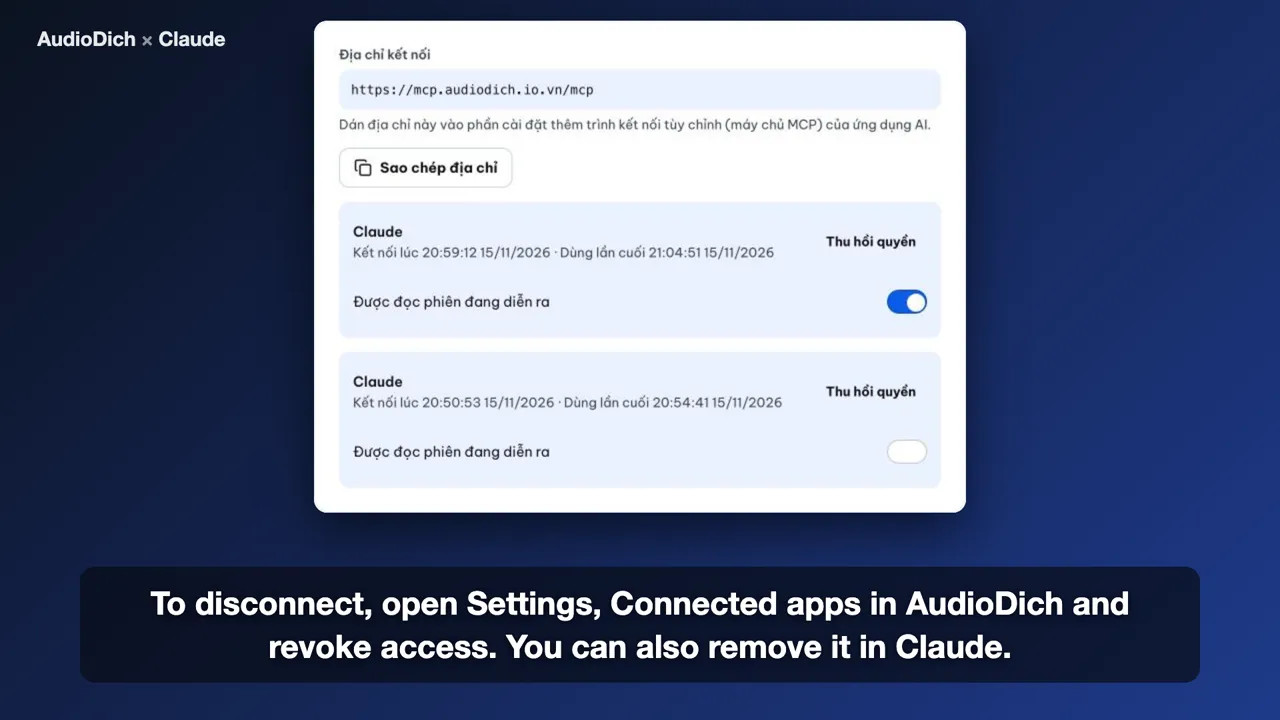
Revoke access in AudioDich whenever you like.
In AudioDich open Settings, Connected apps and choose Revoke access. Removing the connector in Claude only removes it from Claude's list.
Tips
- Only paid plans can use the connector. If a plan expires, the connection stays but the tools ask you to upgrade.
- Only text is shared: transcripts and recaps, never audio, video, payment details or the ability to edit or delete anything.
- Records that belong to an organization are not visible to the connector yet.
- Live reading works only for sessions that go through the AudioDich speech service, not for sessions that use your own speech key or an offline engine.
- In Claude, AudioDich is a Community connector: Claude runs automated checks but Anthropic does not verify the developer, so connect only developers you trust.
Common problems
- Claude says the connector needs a paid plan.
- Upgrade your personal AudioDich plan, then ask again.
- Claude cannot see the session I am recording.
- Revoke access and connect again with the live-session option ticked, and make sure the session does not use your own speech key.
- The consent page does not open.
- Sign in to AudioDich in the same browser first, then connect again.
Frequently asked questions
Does Claude get my audio files?
No. Only text transcripts and recaps can be read.
Can I use it with other AI apps?
Yes. The same address works in ChatGPT; see the full guide on the AudioDich website. Gemini is not supported yet.
How do I stop sharing?
Open Settings, Connected apps in AudioDich and revoke access.
Does it cost extra?
Reading costs no hours, but you need a paid plan.
Video transcript
Ask Claude about your AudioDich recordings. Connect once, then just ask. In Claude, open Customize, then Connectors, then Add custom connector. Name it AudioDich and paste this address. Sign in to your paid AudioDich account and choose Allow. Reading a session that is still recording stays off unless you tick it. Claude gets five read-only tools: list recordings, search, read a transcript, read a recap, and read the live session. Now just ask. For example: summarize my latest recording and list the to-dos. Prefer Claude Code? Run this command, then type slash mcp to sign in. To disconnect, open Settings, Connected apps in AudioDich and revoke access. You can also remove it in Claude. Read the full guide on the AudioDich website.