

- Back to the guide
- Video tutorials
- Live translation in action
Live translation in action
Choose languages, turn on the microphone and watch speech appear as text with a real-time translation.
This tutorial is for anyone who wants to see live translation working from start to finish: choose languages, start, watch the captions and the translation appear, then stop and keep the transcript.
Steps
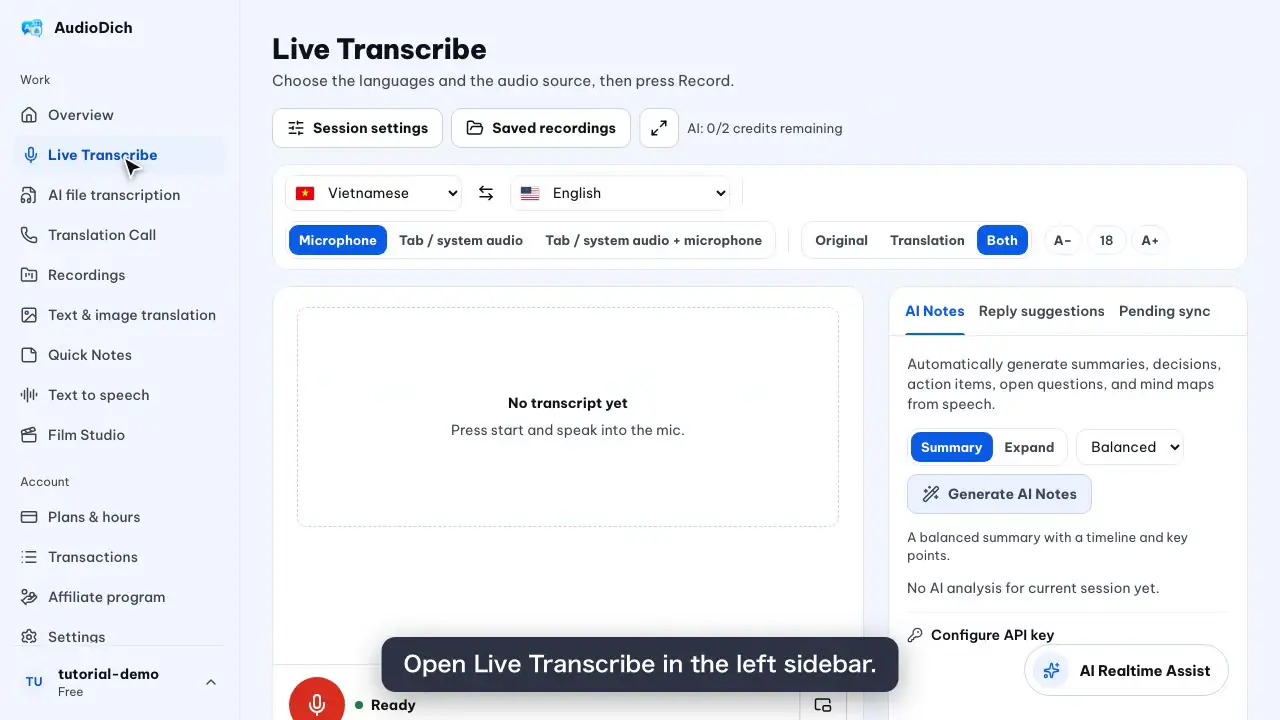
Open Live Transcribe in the left sidebar.
Click Live Transcribe in the left sidebar to open the live session screen.
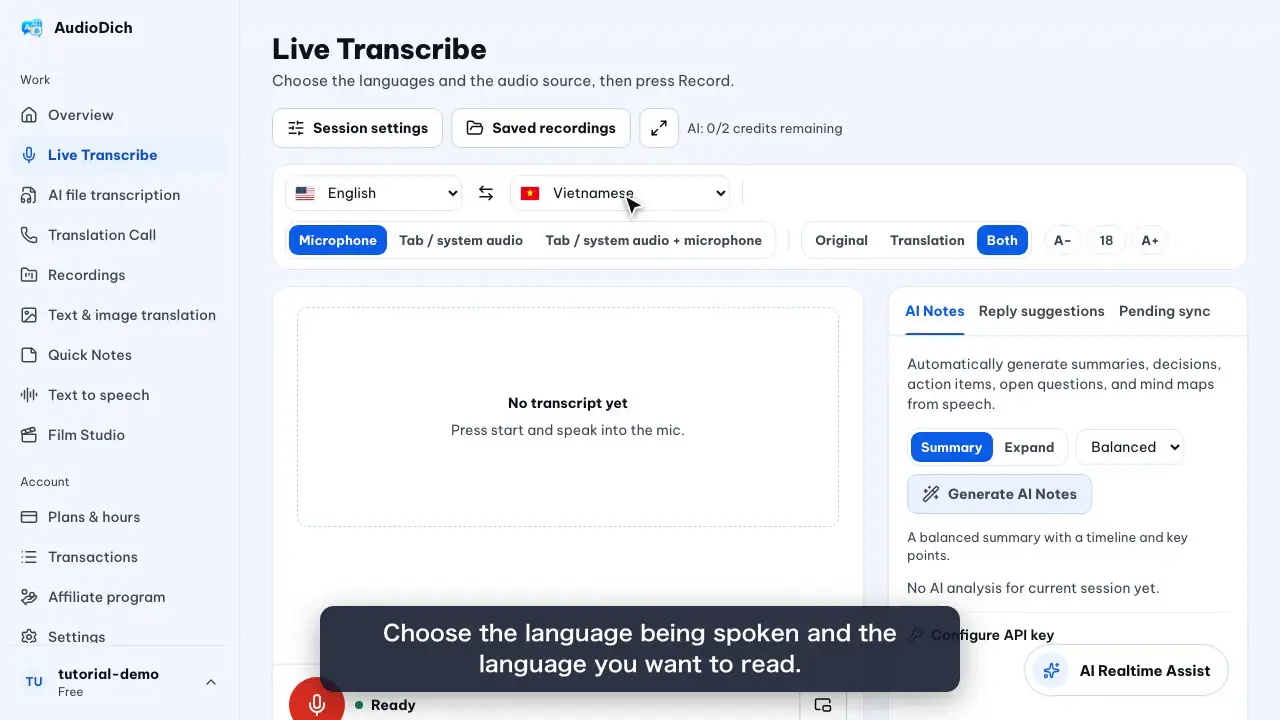
Choose the language being spoken and the language you want to read.
Choose the language being spoken and the language you want to read. The language bar locks while a session is running.
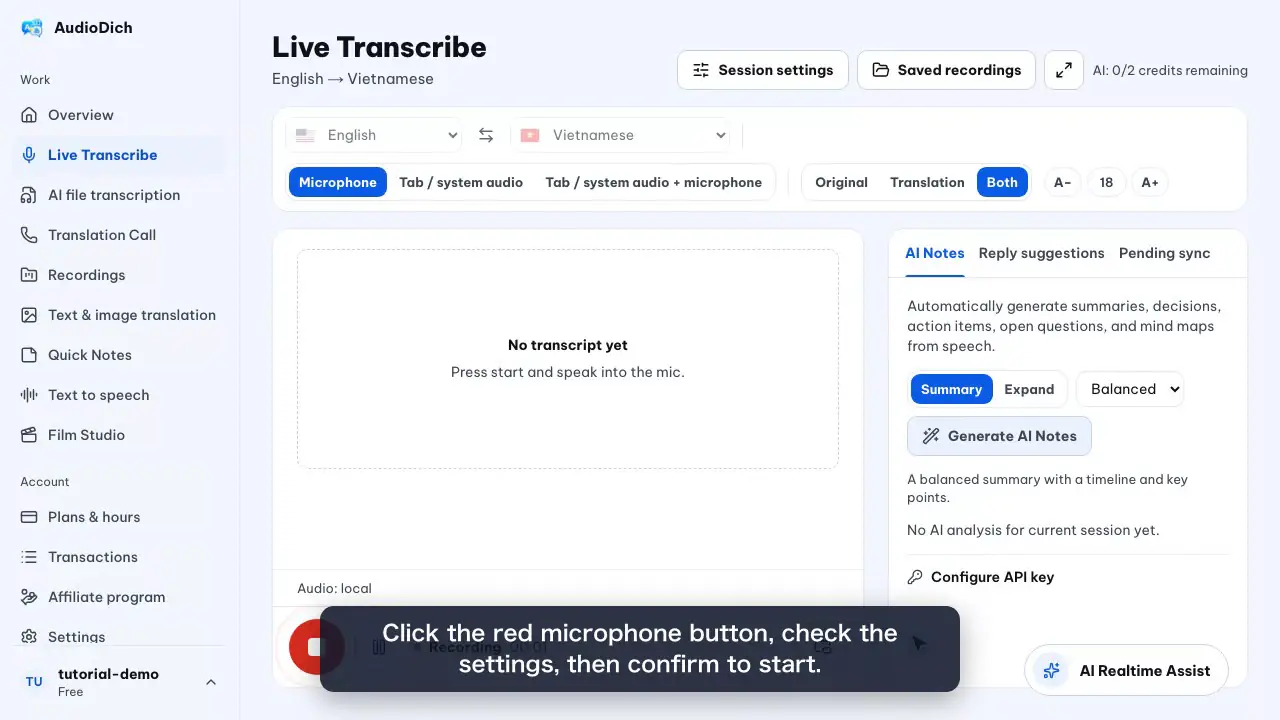
Click the red microphone button, check the settings, then confirm to start.
Click Start. In the review window confirm the languages and devices, then confirm to begin.
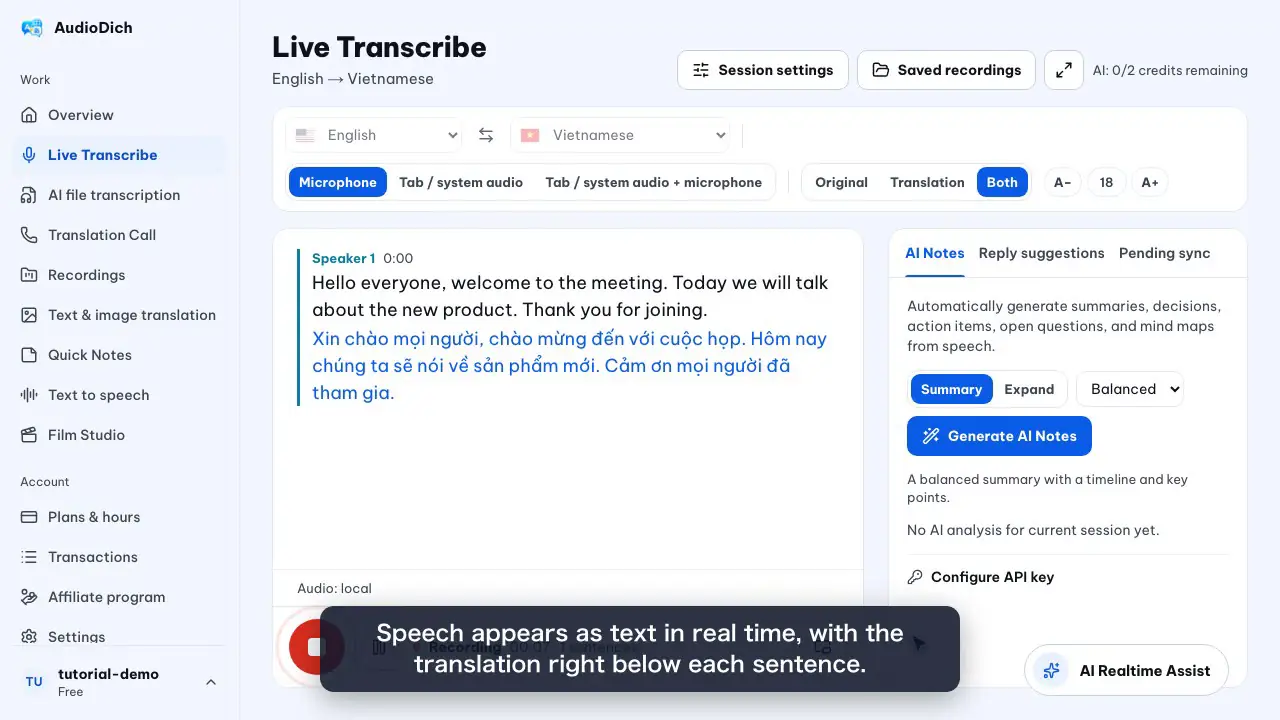
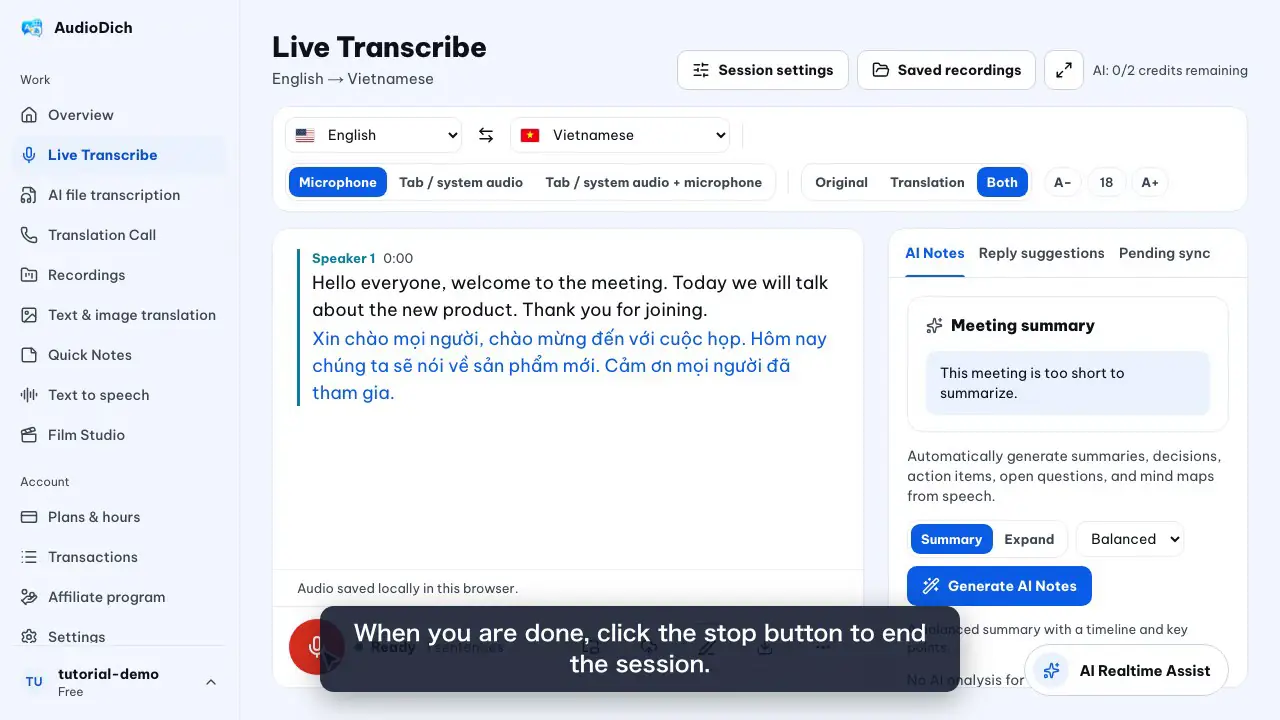
Speech appears as text in real time, with the translation right below each sentence.
Speak or play audio. The original text appears line by line and the translation follows under each line.
When you are done, click the stop button to end the session.
Click Stop when you are done. The transcript is saved to your account and you can export it.
Tips
- Use headphones if the translation voice is on, so the microphone does not pick up the voice that is played back.
- Echo cancellation is available in the options and reduces speaker sound feeding back into the microphone.
- If a session is interrupted, AudioDich offers to resume it and append to the same local recording.
- Pick a line splitting style in settings: sentence by sentence, balanced or long paragraphs.
- Free accounts can run a live session with the daily free minutes, so you can try this tutorial without buying a plan.
Common problems
- I see a message about no remaining quota.
- Your account has no realtime time left. Add time on Plans & hours or claim your daily free minutes.
- Nothing is recognized.
- Check the microphone or the shared audio source and the source language, then restart the session.
- The translation voice is silent.
- Choose a translation language, because the voice needs one, and check that your browser allows audio playback.
Frequently asked questions
How long is my transcript kept?
On the cloud, 5 days for free accounts and 30 days for paid accounts.
Can I export the transcript?
Yes, from the export menu after the session.
Does live translation use my minutes?
Yes, while a session is running it uses your shared time.
Can I pause a session?
Yes, a pause control is available and audio stays blocked until the server confirms it.
Video transcript
Open Live Transcribe in the left sidebar. Choose the language being spoken and the language you want to read. Click the red microphone button, check the settings, then confirm to start. Speech appears as text in real time, with the translation right below each sentence. When you are done, click the stop button to end the session.
See it in a real situation
- Translate ZoomBilingual subtitles, spoken translation and a transcript inside your Zoom meetings with foreign clients.
- Lectures and classesFollow an online class, transcribe recorded lectures and keep quick notes to revise from.
- Online interviewsInterview international candidates or employers without stopping to translate.
- Face-to-face translationPut the phone between you, each person speaks their own language and reads the translation on their half of the screen.