

- Back to the guide
- Video tutorials
- Manage your recordings
Manage your recordings
Find a recording, open its transcript, replay the original audio and download it in many formats.
This tutorial is for people who run meetings or interviews and want to find them again. Recordings keeps your sessions so you can search, replay and export what was said. Everything stays tied to your account.
Steps
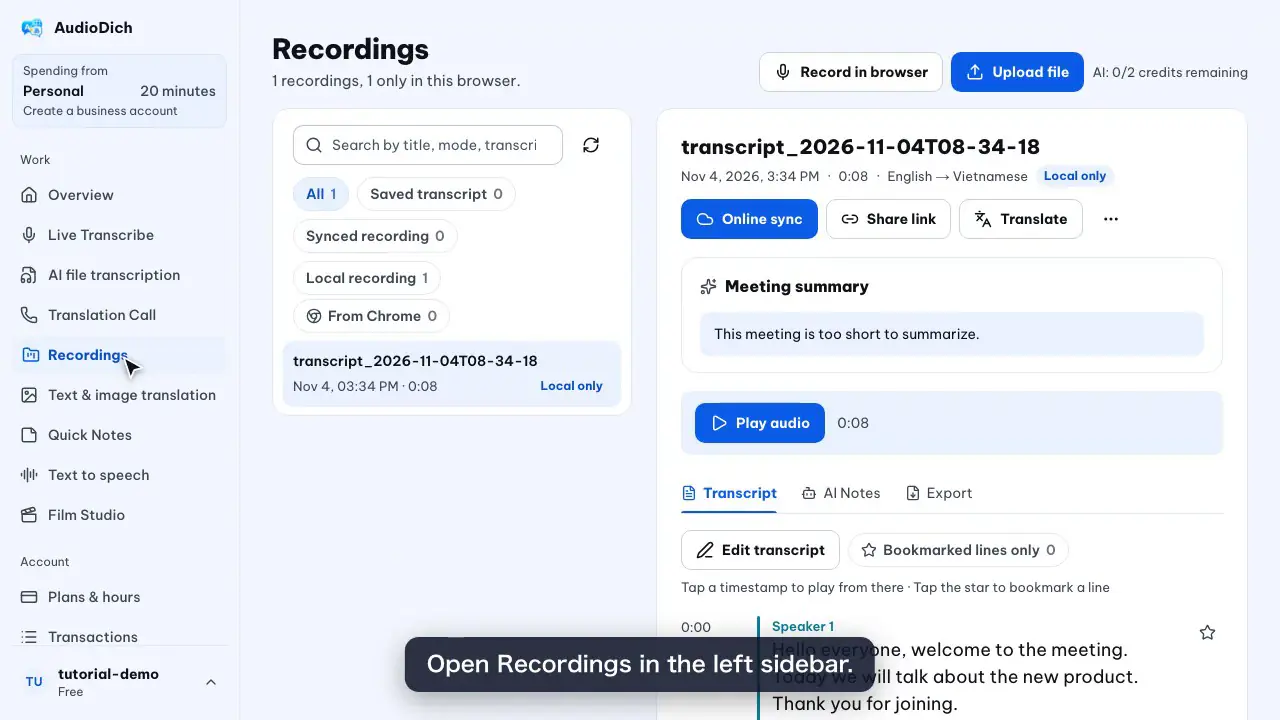
Open Recordings in the left sidebar.
Click Recordings in the left sidebar to see your saved sessions.
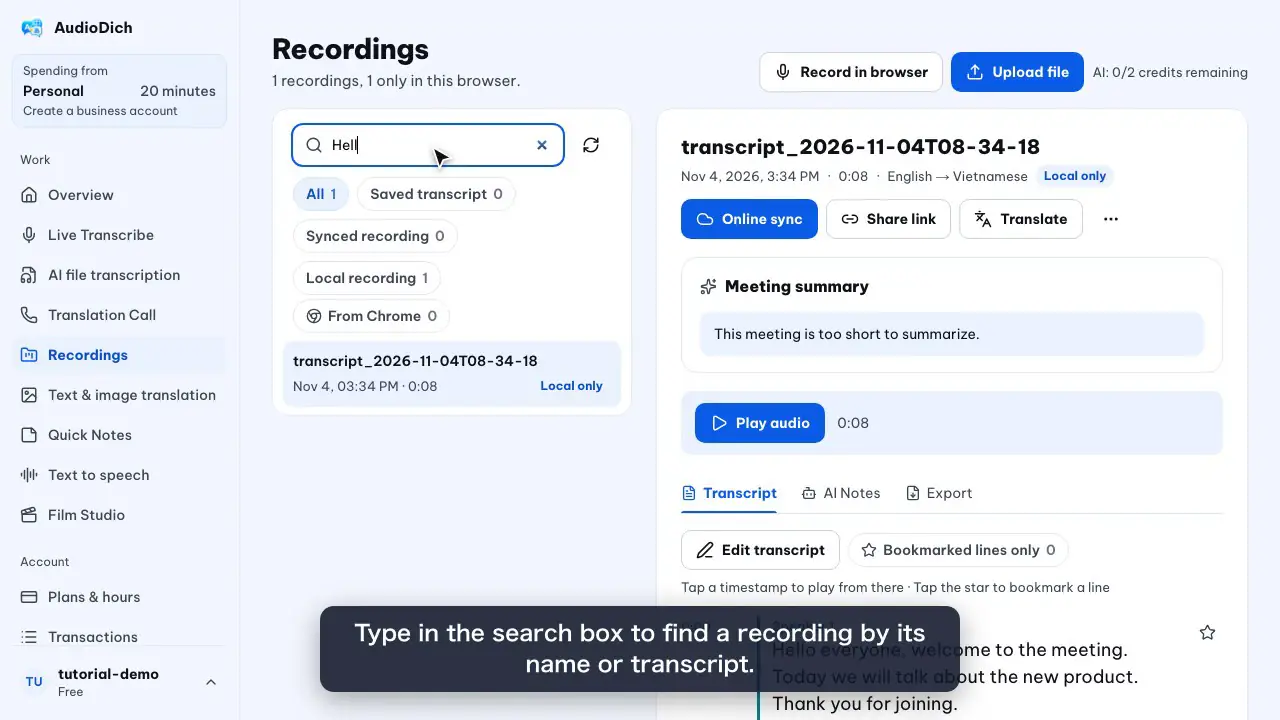
Type in the search box to find a recording by its name or transcript.
Type a keyword in the search box to filter the list by title or content.
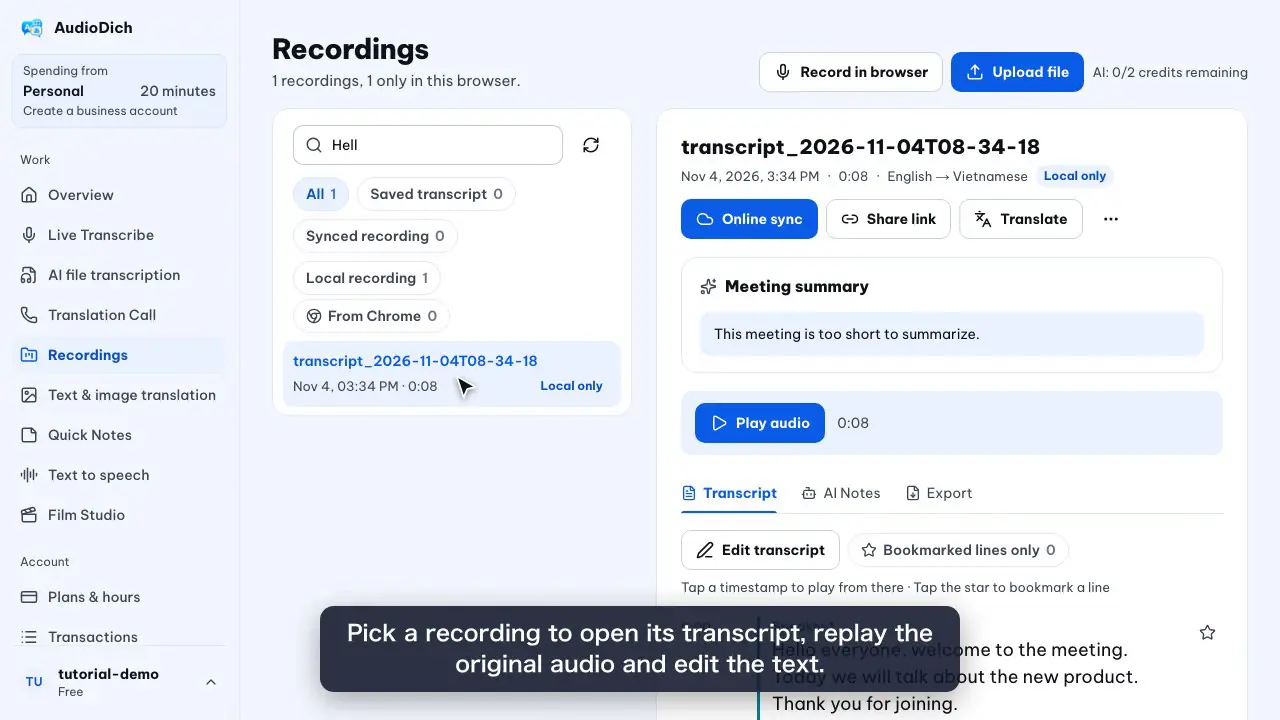
Pick a recording to open its transcript, replay the original audio and edit the text.
Click a recording to open it. Click a segment to play its audio, and double-click a segment to edit the text.
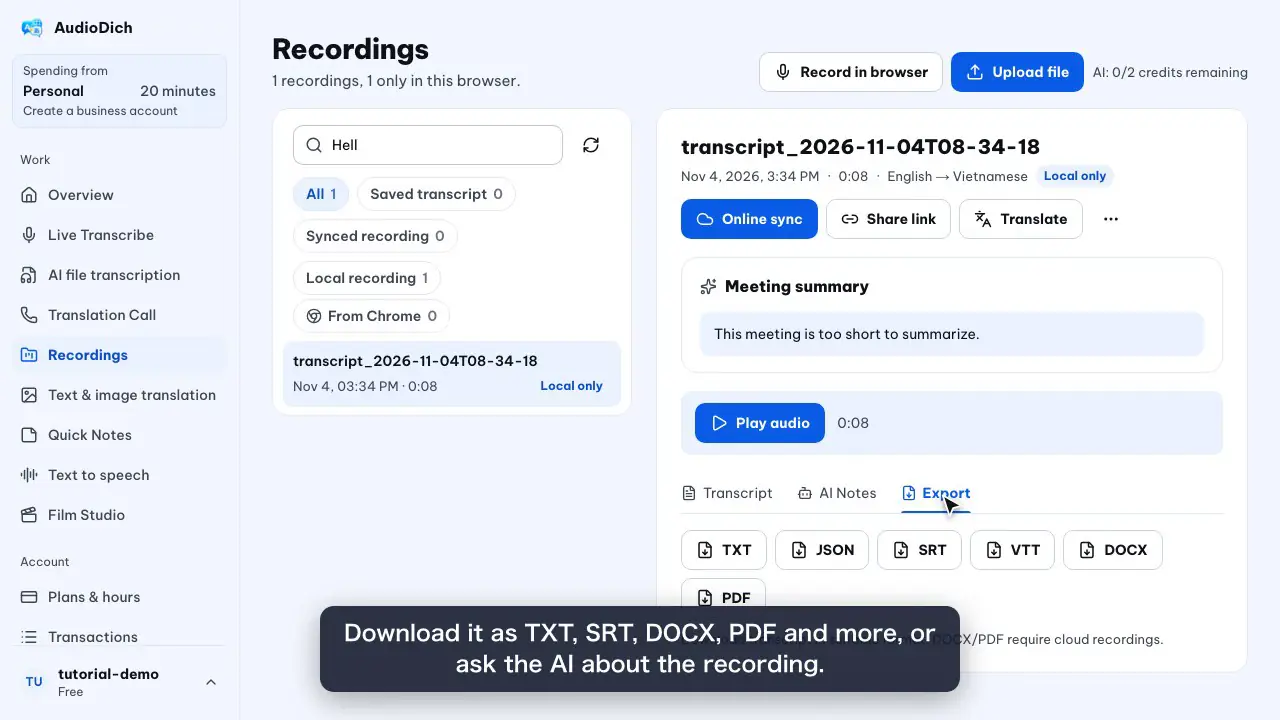
Download it as TXT, SRT, DOCX, PDF and more, or ask the AI about the recording.
Open the export tab to download the transcript, or ask AI for a summary of the meeting.
Tips
- Audio is saved on this device first. Online storage of recordings is available on paid plans.
- If the network drops while recording, the recording is kept locally and can be synced later.
- A recording from another device may show only the transcript until its audio file is synced to the cloud.
- Sending a recording for transcription or translation deducts about its duration from your plan, and the page tells you the amount first.
- Search covers the title, the mode and the transcript text, so a distinctive word spoken in the meeting is a quick way back to the recording.
Common problems
- I cannot play the audio.
- The audio file is not on the server. Sync the audio from the device where it was recorded.
- My recording is not in the list.
- It may be saved locally in this browser. Look in All Recordings.
- The search finds nothing.
- Try a different keyword, or sync more recordings from your devices.
Frequently asked questions
Can I edit the transcript?
Yes. Double-click a segment to edit its text.
Where are my recordings stored?
Locally first, and in the cloud if you save them there on a paid plan.
Can I get an AI summary?
Yes. Transcribe the meeting with AI to get a written transcript and ask AI about it.
How do I get a file?
Use the export tab of a recording.
Video transcript
Open Recordings in the left sidebar. Type in the search box to find a recording by its name or transcript. Pick a recording to open its transcript, replay the original audio and edit the text. Download it as TXT, SRT, DOCX, PDF and more, or ask the AI about the recording.