

- Back to the guide
- Video tutorials
- Translate text
Translate text
Paste text, choose a language and get the translation in seconds.
This tutorial is for people who need a quick translation of a message, a paragraph or a picture with text. Paste or upload, pick a language and copy the result.
Steps
Open Text & image translation in the left sidebar.
Click Text & image translation in the left sidebar to open the translator.
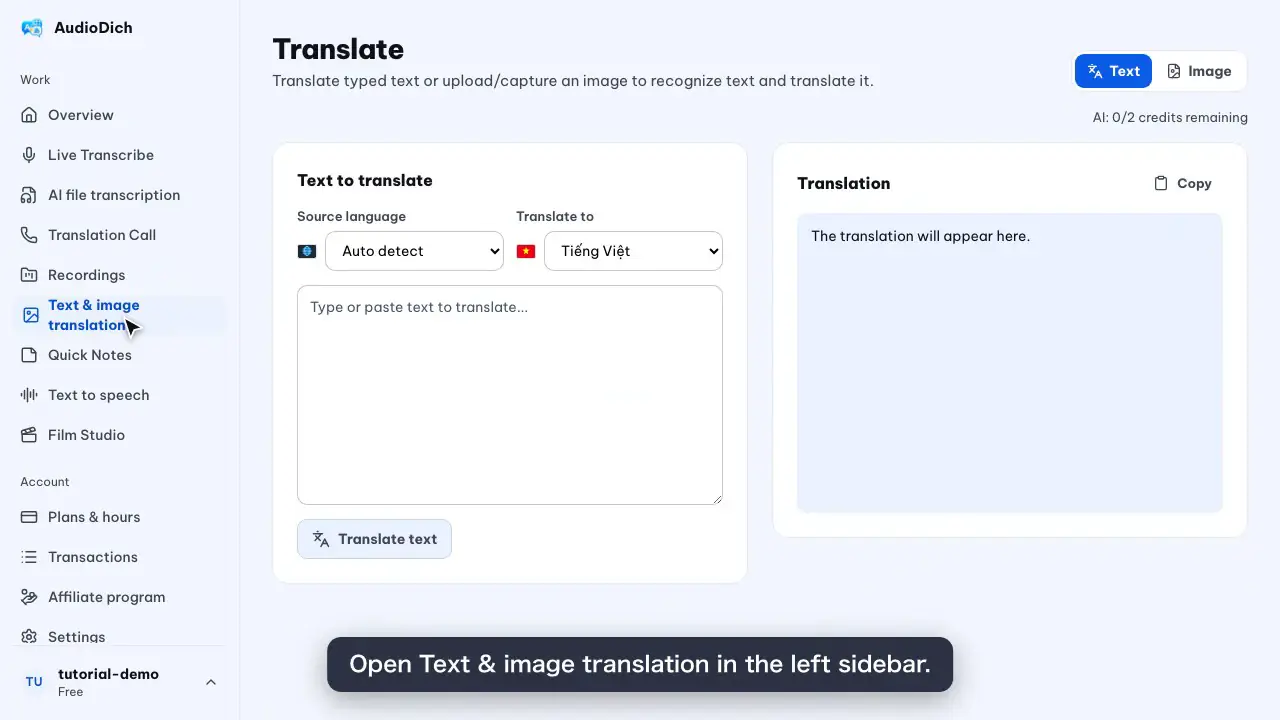
Type or paste the text you want to translate.
Type the text, or paste it from another page, into the input box.
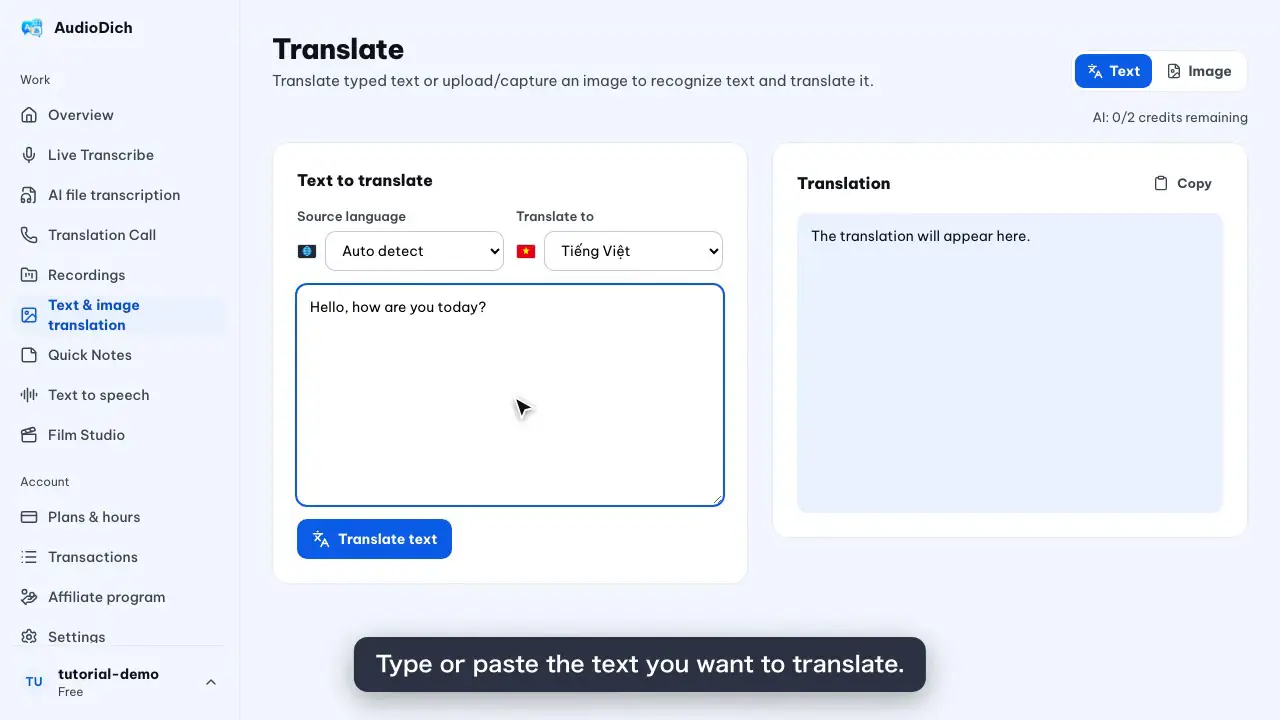
Choose the language to translate into.
Choose the language to translate into. The source language is recognized from your text.
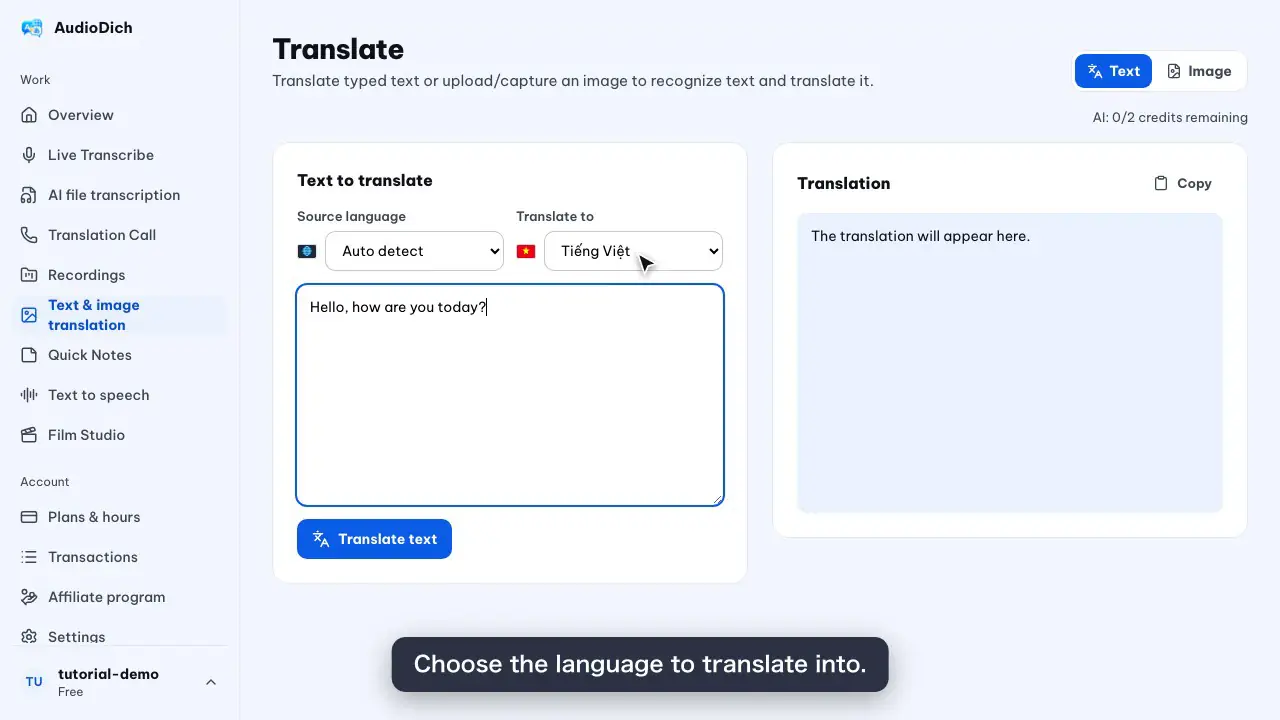
Click Translate text.
Click the translate button and wait a moment while the translation is produced.
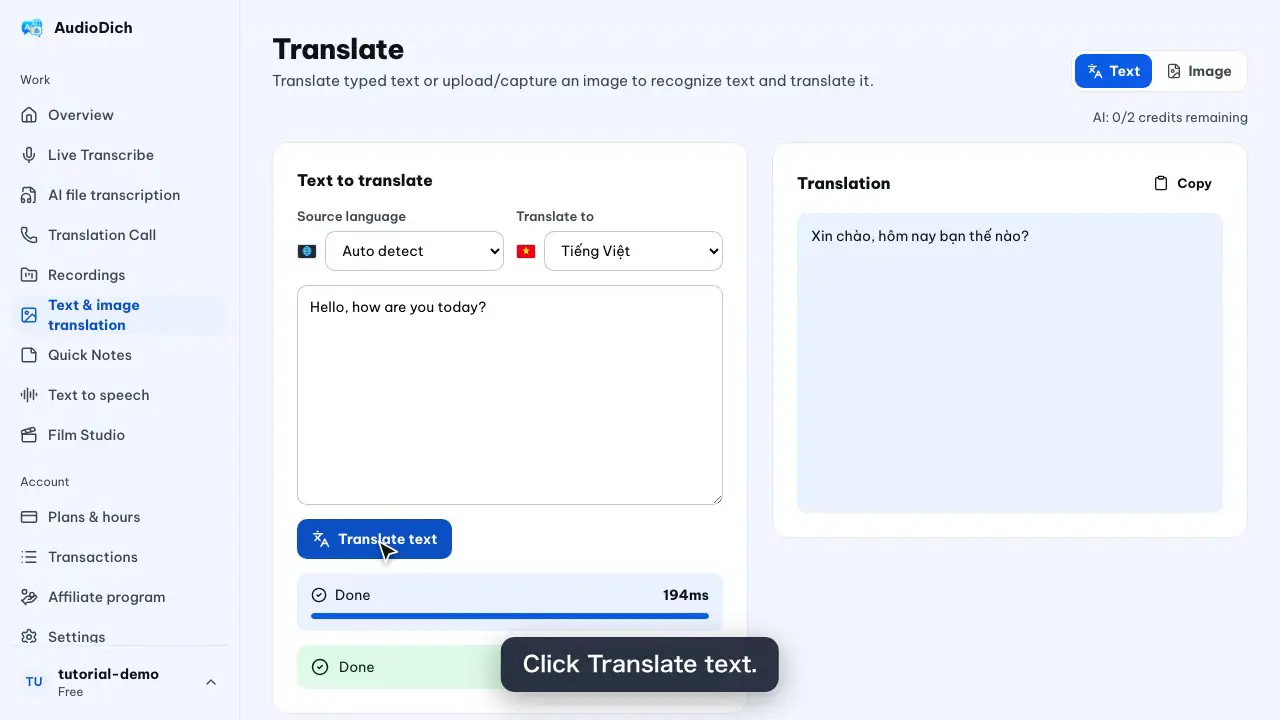
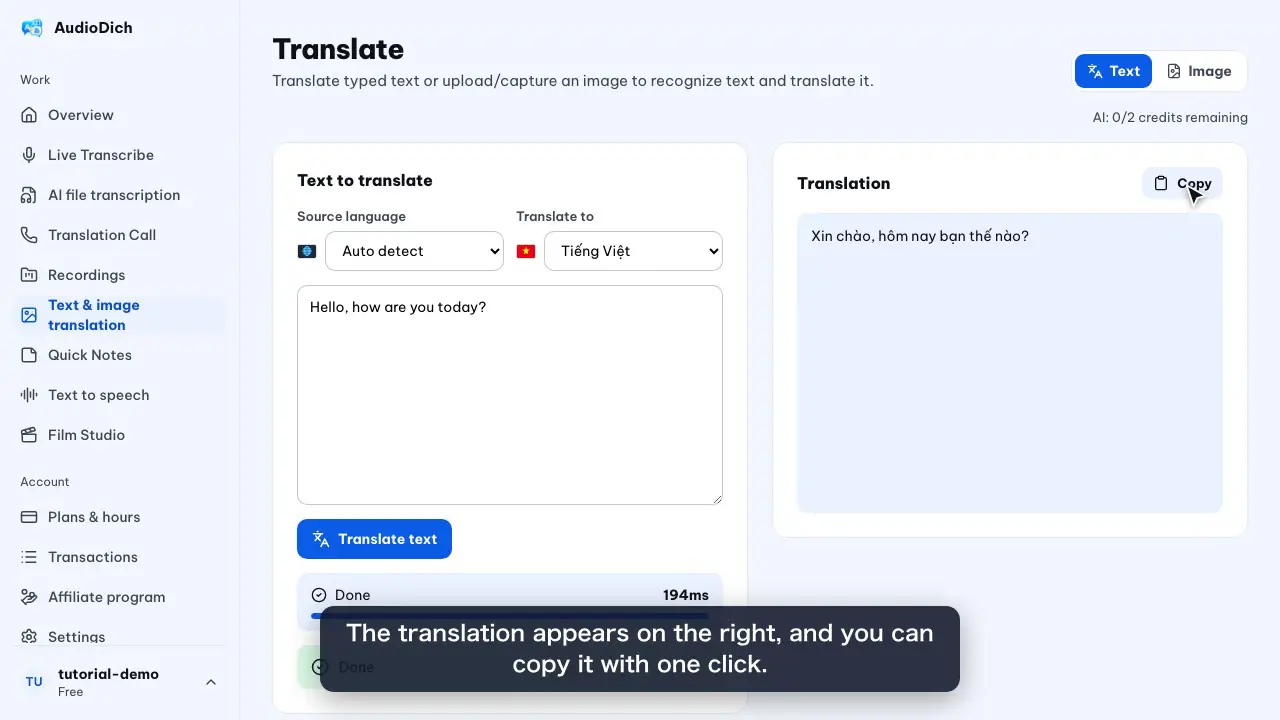
The translation appears on the right, and you can copy it with one click.
The translation appears on the right. Copy it with one click, or double-click the text to edit it.
Tips
- You can also upload or capture an image. PNG, JPG, WEBP and non-animated GIF files up to 20 MB are accepted, and AudioDich recognizes and translates the text in them.
- Image results are saved to a history. Original images are deleted after 5 days on free accounts and 30 days on paid accounts, but the recognized text stays.
- Large images are translated in the background, so you can leave the page and find the result in the history later.
- Use Ctrl or Command with the scroll wheel to zoom into an image result and drag to move it.
- For audio, video or a whole meeting use AI file transcription or Live Transcribe instead. This page is built for text and images.
Common problems
- It says no text was found in my image.
- Use a sharper image with larger text, or crop the picture to the text area.
- The translation shows my original text.
- The translation service may be temporarily unavailable. Try again in a moment.
- The image is rejected.
- Use PNG, JPG, WEBP or a non-animated GIF no larger than 20 MB.
Frequently asked questions
Can I translate a screenshot or a photo?
Yes. Upload or capture the image and AudioDich reads the text before translating it.
Is my history kept?
Image results are saved to a history that you can reopen or delete.
Can I fix a mistake in the result?
Yes. Double-click the text to edit or copy it.
Does this work for long documents?
Paste the text in parts for the best result; for audio or video files use AI file transcription instead.
Video transcript
Open Text & image translation in the left sidebar. Type or paste the text you want to translate. Choose the language to translate into. Click Translate text. The translation appears on the right, and you can copy it with one click.