

- Back to the guide
- Video tutorials
- Turn text into speech
Turn text into speech
Type your text, pick a voice and speed, and create an MP3 file.
This tutorial is for creators, teachers and anyone who needs a voice-over without recording. You will turn written text into an MP3 file with the voice and speed you choose, in about 20 seconds of screen time.
Steps
Open Text to speech in the left sidebar.
Click Text to speech in the left sidebar. The page has the text box at the top and your audio history below.
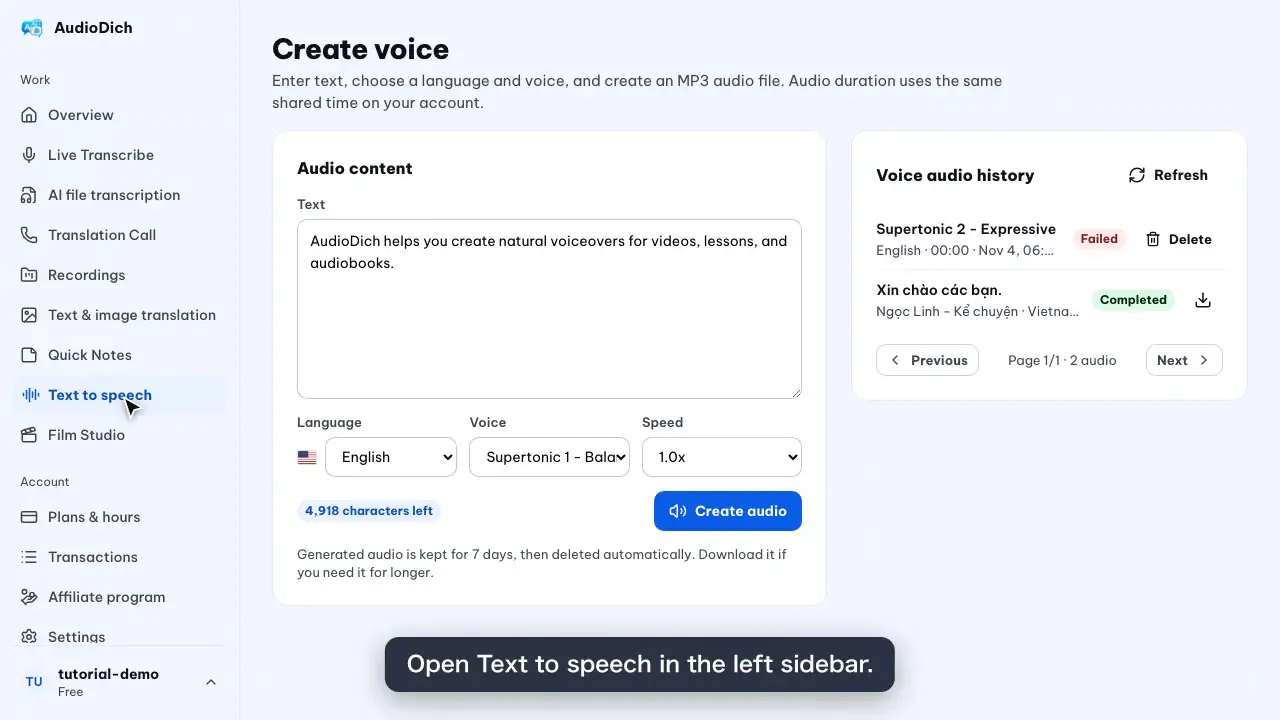
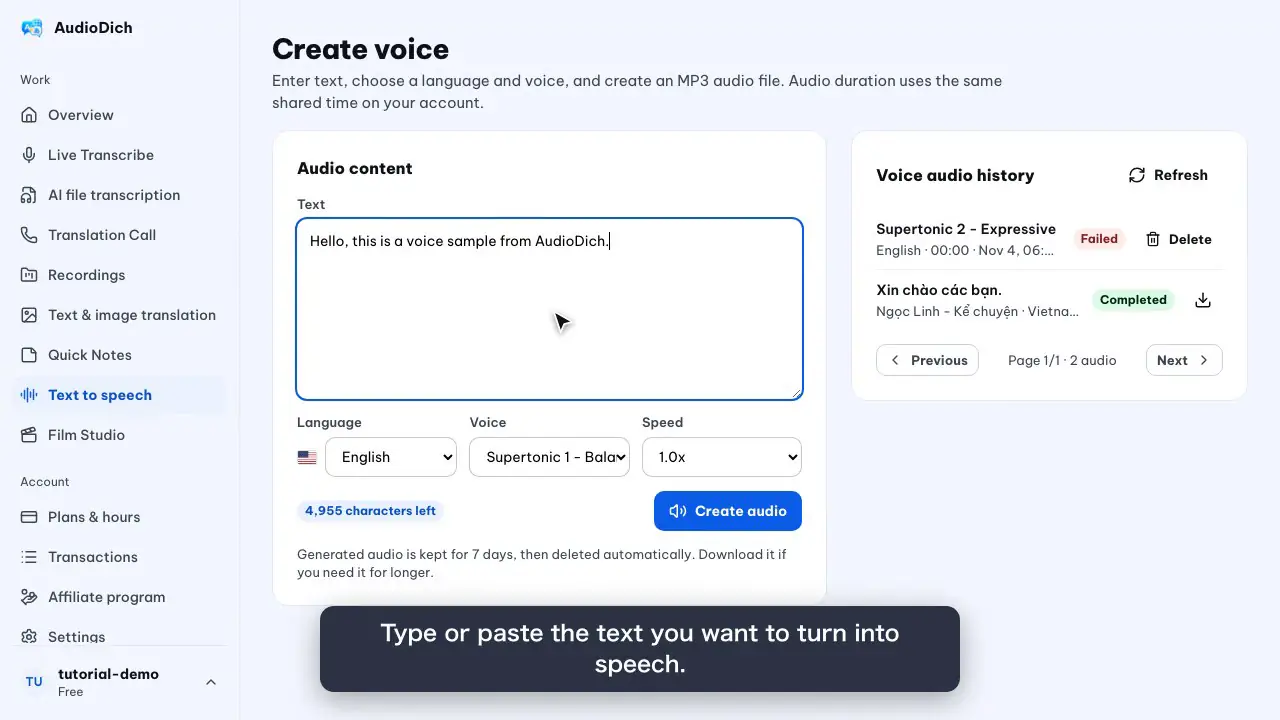
Type or paste the text you want to turn into speech.
Type your text or paste it from another document. Short, clean sentences with normal punctuation sound the most natural.
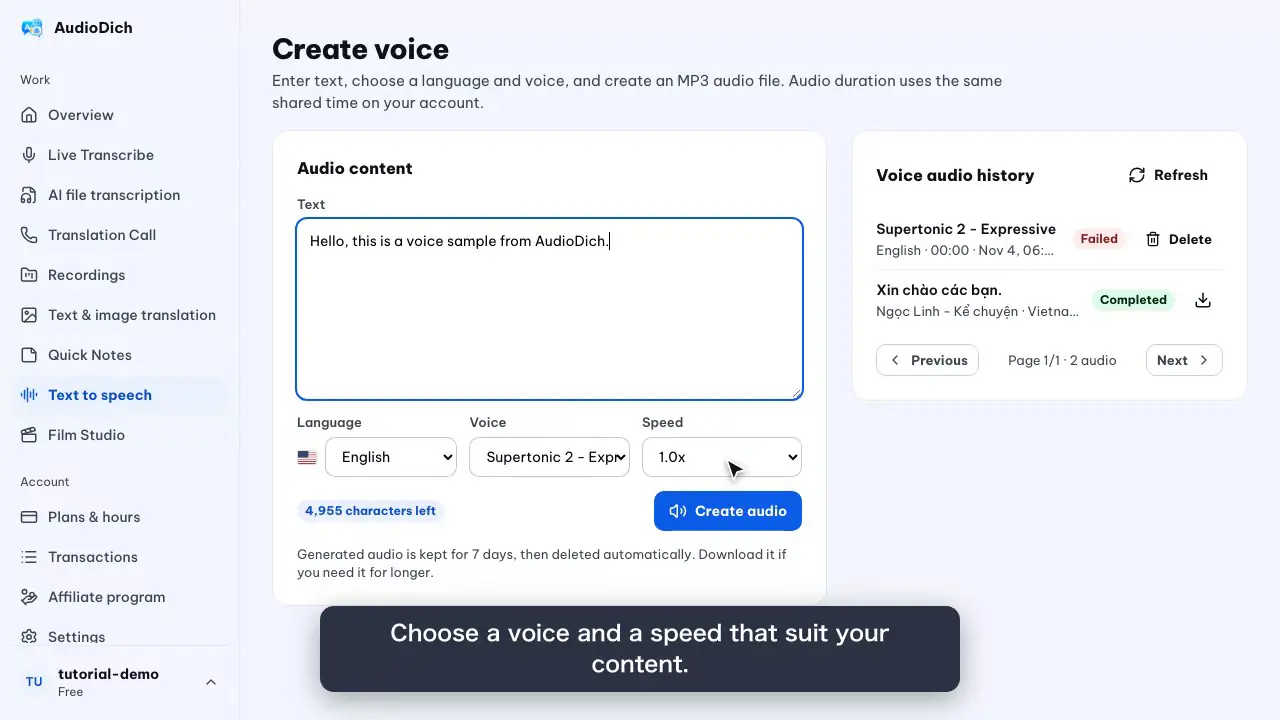
Choose a voice and a speed that suit your content.
Pick the language, a voice and a speed. Press the preview button next to a voice if you want to hear a sample first.
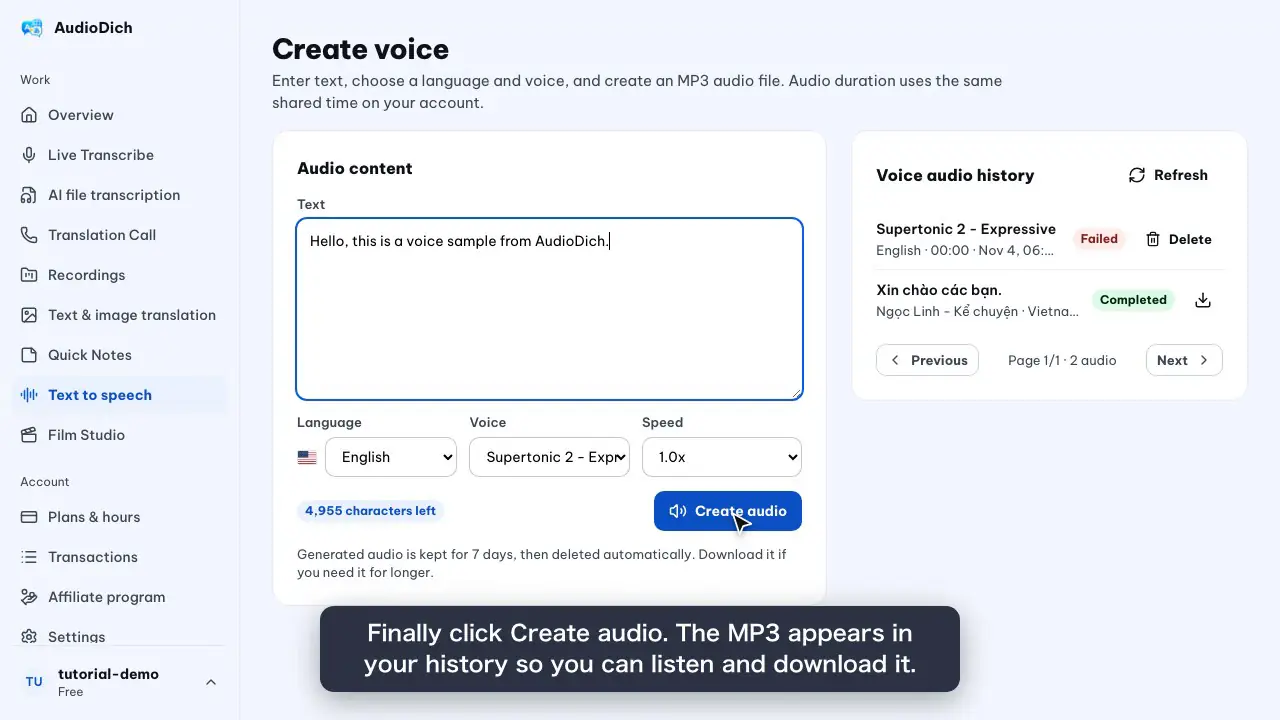
Finally click Create audio. The MP3 appears in your history so you can listen and download it.
Click Create audio. The request is processed in the background, and the finished MP3 appears in your history, where you can play and download it.
Tips
- Audio duration uses the same shared time as the rest of your account, so check your remaining hours on the Plans & hours page before a long job.
- For some languages the audio is billed at a multiple of its duration. The page shows a notice with the exact multiplier before you create the audio.
- Generated audio is kept for 7 days and then deleted automatically. Download the files you want to keep.
- You can insert expression cues such as a laugh or a sigh directly into the text. The page lists the exact cues and what each one does.
Common problems
- The audio is not in my history yet.
- Jobs run in the background. Keep the page open or come back later; the list refreshes and the job moves to done when the MP3 is ready.
- The voice reads a word wrongly.
- Rewrite the word the way it should sound, split long sentences with punctuation and create the audio again.
- I get an error when I create audio.
- Check that you still have time left and that the text is not empty, then try again. If the error repeats, contact support.
Frequently asked questions
Which file format do I get?
An MP3 file that you can play in the history list or download.
Does text to speech use my minutes?
Yes. Audio duration counts against the same shared time as live translation and calls.
Can I create a voice that sounds like me?
The page has a section for your own voice profile. Only the account owner's own voice is accepted, and you must confirm the consent statements.
How long are my audio files stored?
For 7 days. After that they are deleted automatically, so download anything you need to keep.
Video transcript
Open Text to speech in the left sidebar. Type or paste the text you want to turn into speech. Choose a voice and a speed that suit your content. Finally click Create audio. The MP3 appears in your history so you can listen and download it.