

- Back to the guide
- Video tutorials
- Transcribe audio and video files
Transcribe audio and video files
Upload a file, get an AI transcript and download it as TXT, SRT, DOCX or PDF.
This tutorial is for anyone with an interview, lecture, podcast or meeting recording who wants a written transcript or subtitles. You upload the file, let AI do the work in the background and download the result.
Steps
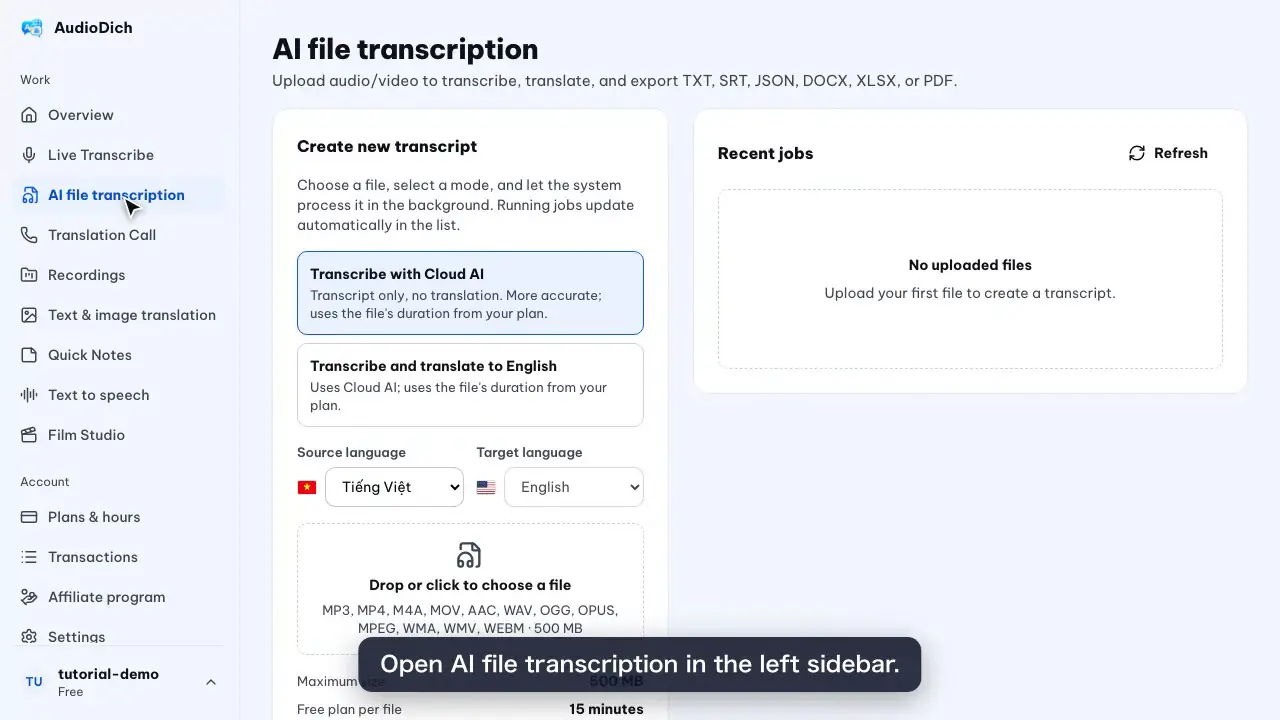
Open AI file transcription in the left sidebar.
Click AI file transcription in the left sidebar to open the upload page and the list of your files.
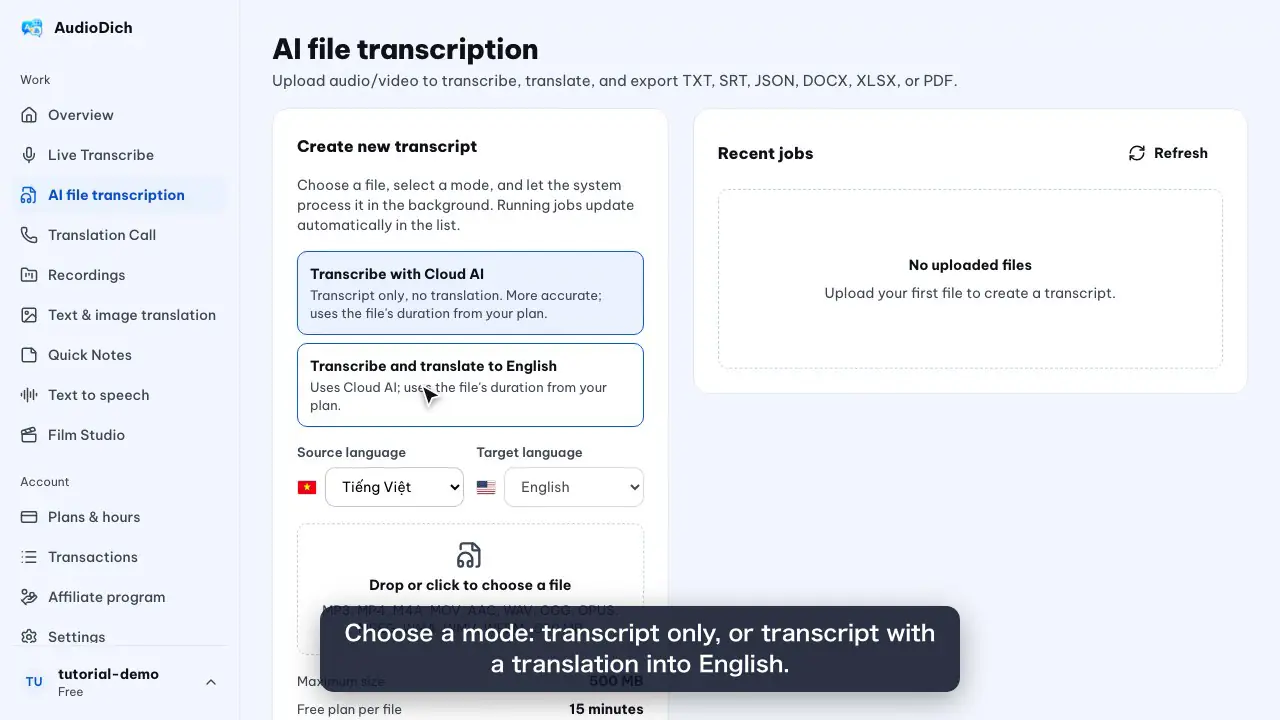
Choose a mode: transcript only, or transcript with a translation into English.
Choose a mode: transcript only, or transcript with a translation. Transcript only is more accurate when you do not need another language.
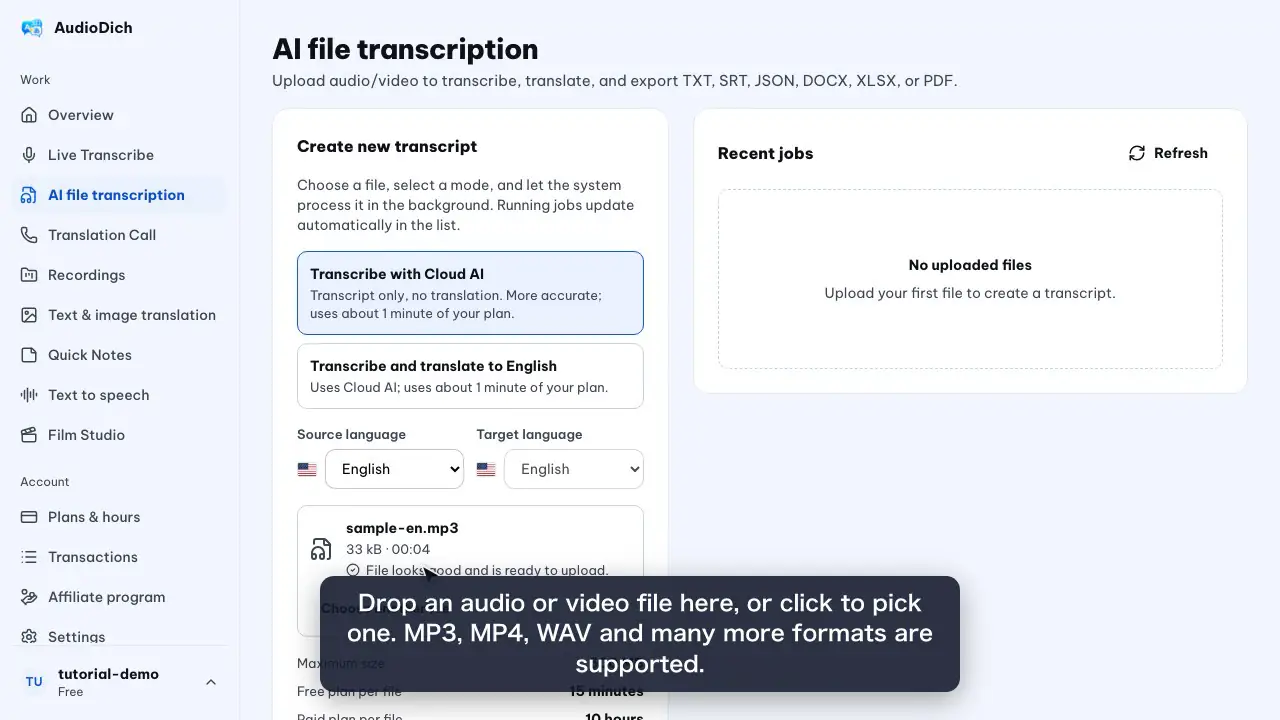
Drop an audio or video file here, or click to pick one. MP3, MP4, WAV and many more formats are supported.
Drop an audio or video file on the drop area, or click it to pick one. Choose the language spoken in the file as well.
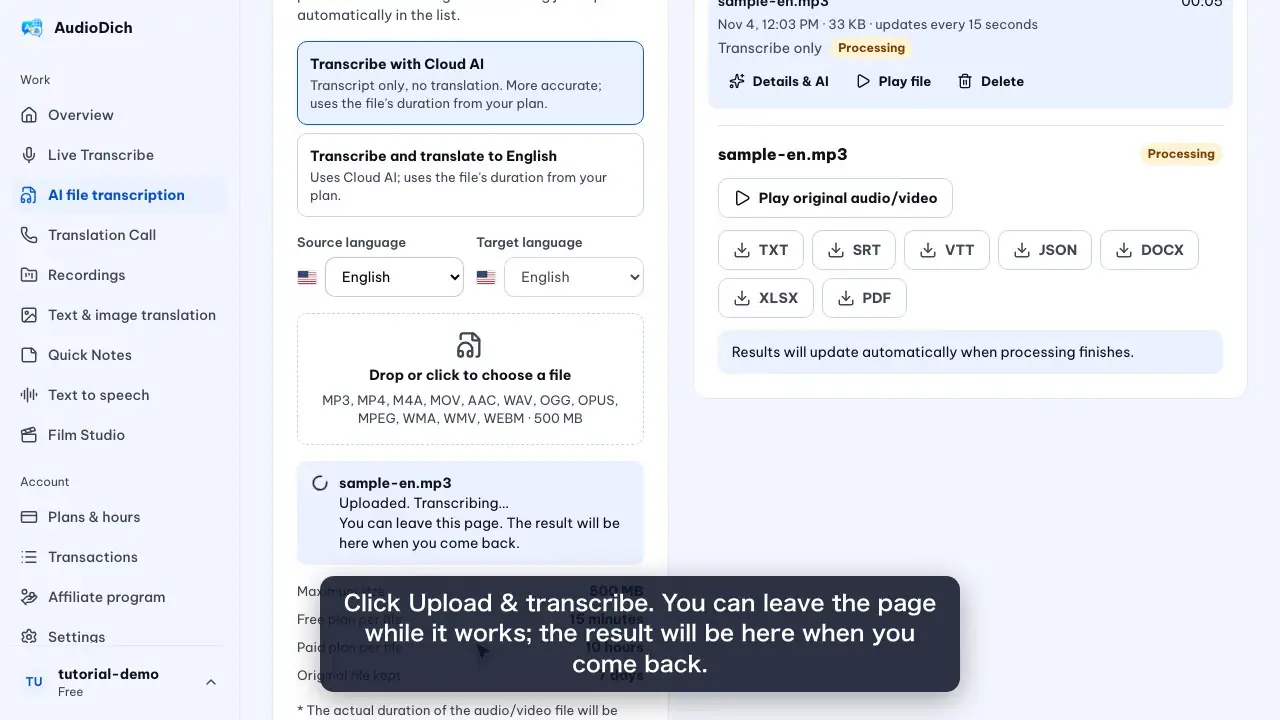
Click Upload & transcribe. You can leave the page while it works; the result will be here when you come back.
Click the upload button. You can leave the page while the file is processed; the result will be in the list when you return.
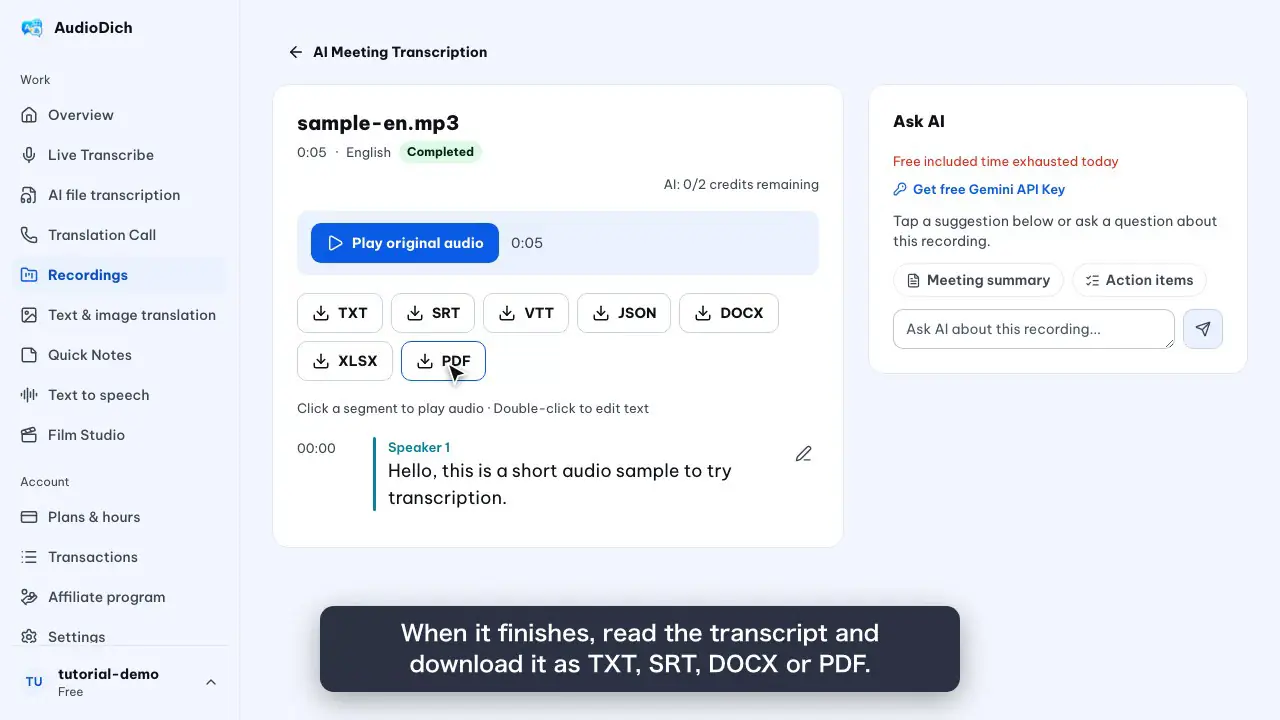
When it finishes, read the transcript and download it as TXT, SRT, DOCX or PDF.
When the job is done, read the transcript and download it in the format you need, such as TXT, SRT, DOCX or PDF.
Tips
- Supported formats include MP3, MP4, M4A, MOV, AAC, WAV, OGG, OPUS, MPEG, WMA, WMV and WEBM.
- The actual duration of the file is deducted from your plan when you upload, so check that you have enough time first. Each plan also has a maximum duration and file size.
- If the connection drops during a large upload, AudioDich waits and retries the interrupted part automatically.
- Subtitle files in SRT format keep the timing, which makes them handy for video editors. Other exports include JSON and XLSX.
Common problems
- The file is rejected.
- Check the format against the supported list and the size and duration limits of your plan. The page names the exact limit.
- The result says no speech was detected.
- The file may be silent, too quiet or without clear speech. Try a better recording.
- A job failed.
- Speech recognition can fail temporarily. Try again later, or upload the file once more if the original could not be found.
Frequently asked questions
Which export formats are available?
TXT, SRT, JSON, DOCX, XLSX and PDF.
How much of my time does a file use?
About the duration of the file. The hint under the mode buttons shows the estimate.
Do I have to wait on the page?
No. Processing runs in the background, and the list updates when the job finishes.
Can the transcript include a translation?
Yes. Choose the mode that transcribes and translates, and pick the target language.
Video transcript
Open AI file transcription in the left sidebar. Choose a mode: transcript only, or transcript with a translation into English. Drop an audio or video file here, or click to pick one. MP3, MP4, WAV and many more formats are supported. Click Upload & transcribe. You can leave the page while it works; the result will be here when you come back. When it finishes, read the transcript and download it as TXT, SRT, DOCX or PDF.
See it in a real situation
- AI meeting transcriptionUpload a recording and get a transcript by speaker, a summary and action items.
- Translate YouTube videos to VietnameseWatch foreign-language videos with Vietnamese subtitles that follow the speech in real time.