

- Back to the guide
- Video tutorials
- Summarize and ask AI about a recording
Summarize and ask AI about a recording
Create a recap of a recorded meeting, ask AI about its content and buy more AI uses when you need them.
This tutorial is for people who have recorded a meeting or call with AudioDich and want to grasp the content quickly without rereading the whole transcript. AI summarizes the meeting, lists the action items and answers your questions based on that recording itself.
Steps
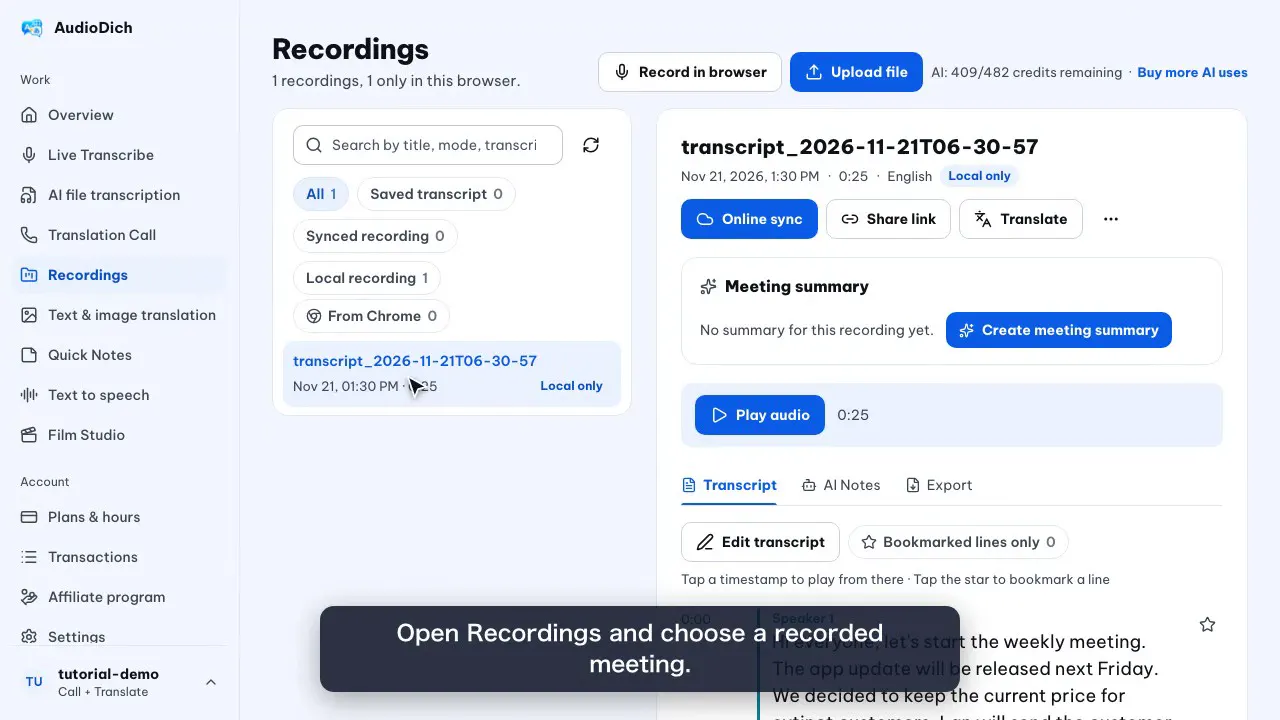
Open Recordings and choose a recorded meeting.
Choose Recordings in the left sidebar, then click the meeting you want to view in the list.
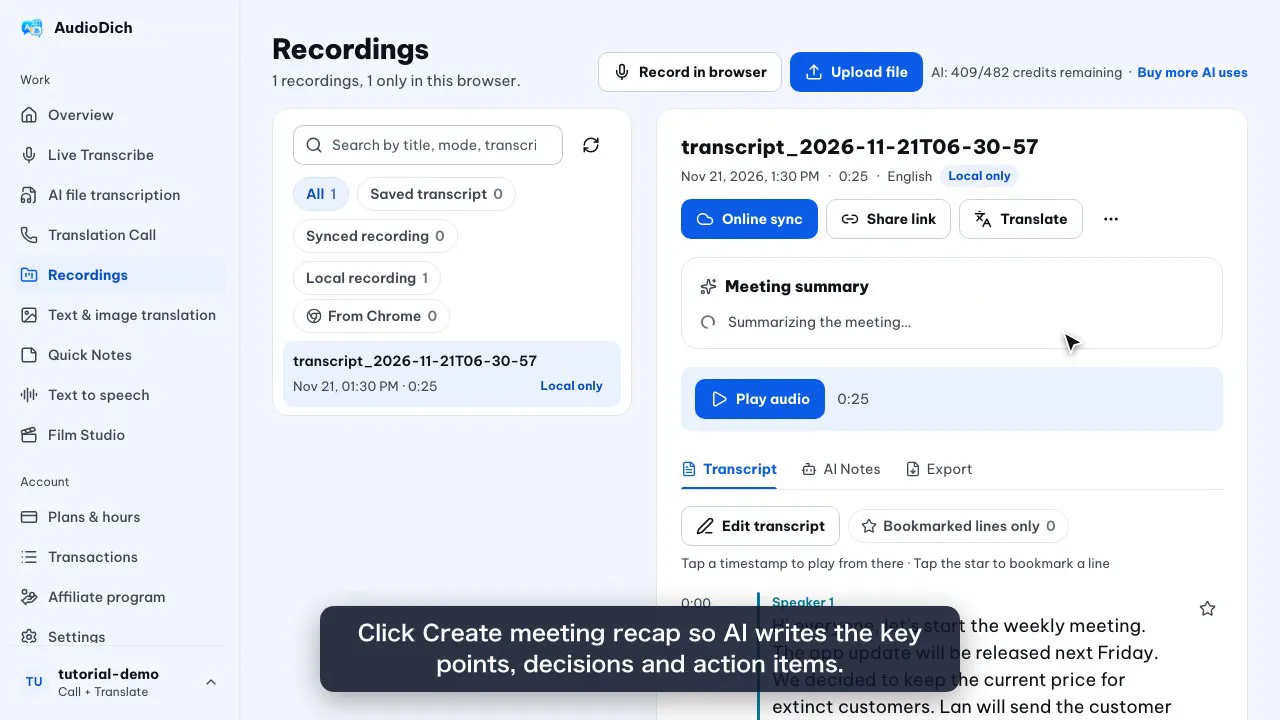
Click Create meeting recap so AI writes the key points, decisions and action items.
In the Meeting recap panel, click Create meeting recap. AI splits the result into a summary, key points, decisions, action items and open questions.
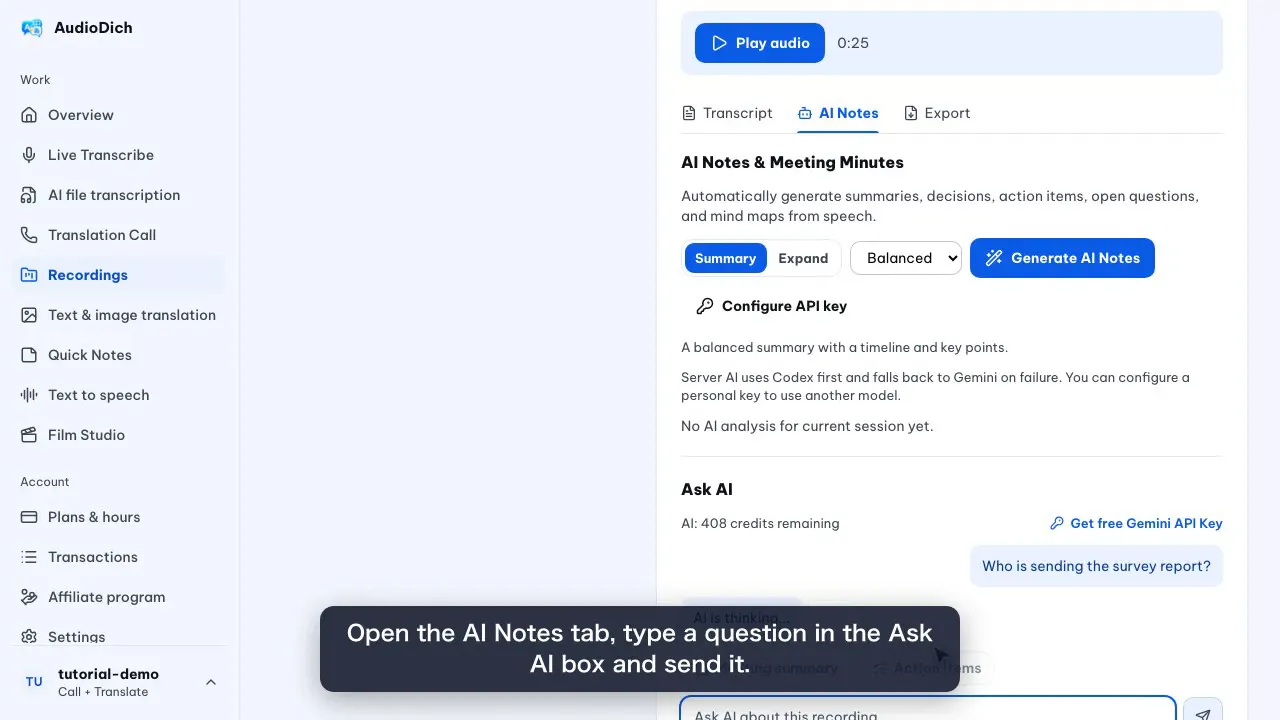
Open the AI Notes tab, type a question in the Ask AI box and send it.
Open the AI Notes tab and scroll down to the Ask AI box. Pick a ready-made suggestion such as Action items, or type your own question about the recording and send it.
Each recap or question uses an AI use; the remaining number is shown at the top of the page.
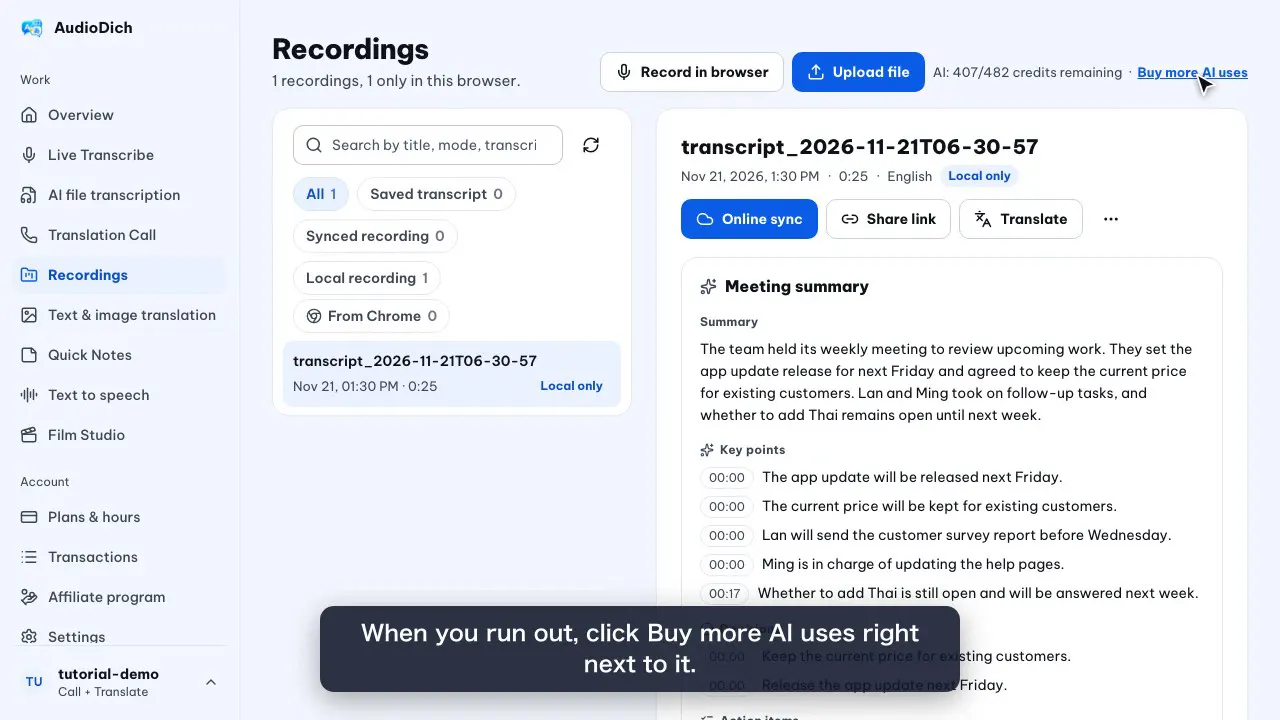
Each time you create a recap or ask AI, it uses an AI use. The remaining number appears at the top of the page in the form "AI: …/… credits remaining".
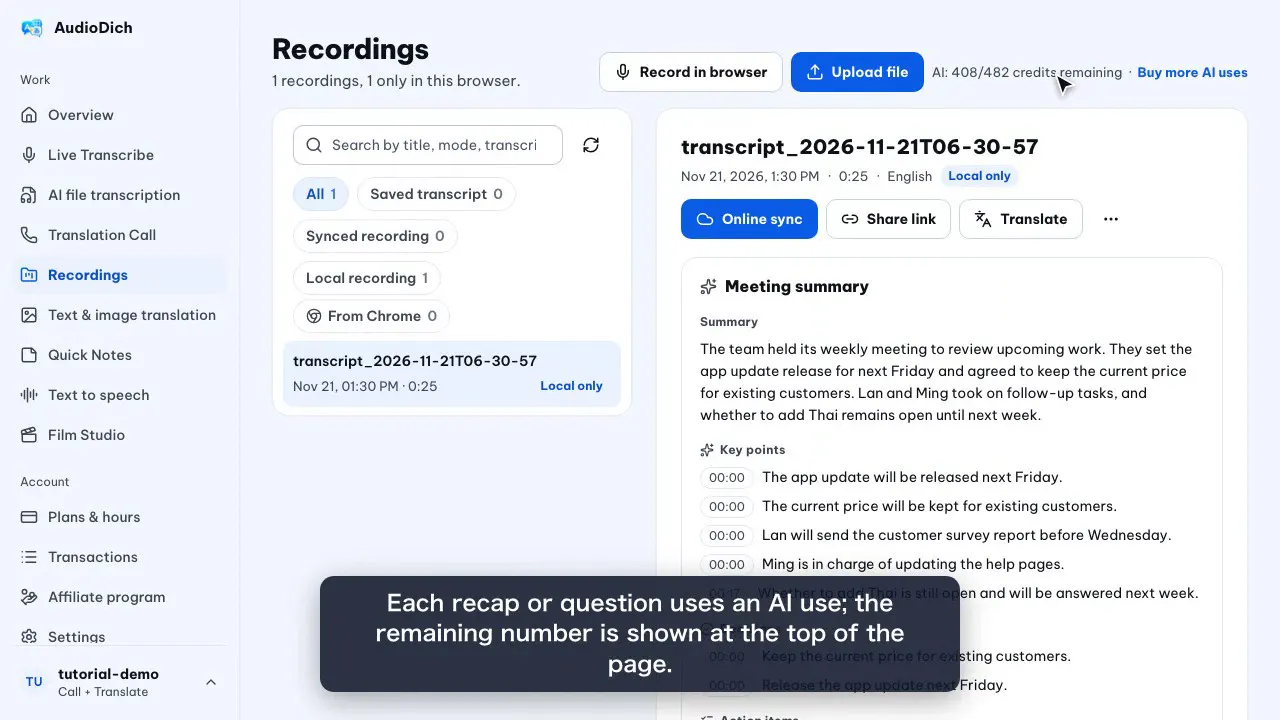
When you run out, click Buy more AI uses right next to it.
When you run out, click Buy more AI uses next to the number to open the AI-use packs section in Plans & hours. The pack is a one-time purchase and does not expire.
Tips
- The clearer and longer the recording, the fuller the recap. A very short meeting may not have enough content to summarize.
- An AI-generated recap may not be accurate; check it against the transcript before sending it to others.
- Click Copy to paste the recap into an email or your work notes.
- For organization accounts, extra AI uses you buy are added to the organization's shared AI pool.
Common problems
- Part of the recap is hidden.
- Free accounts only see a preview. Upgrade to a paid plan or use your own Gemini API key to see it in full.
- It says you have run out of AI uses.
- Click Buy more AI uses, or add your own Gemini API key to keep going without using up AI uses.
- The recap could not be created.
- Check that your email is verified and that the recording has enough content, then click Try again.
Frequently asked questions
How many AI uses does each recap cost?
Each time you create or regenerate a recap it uses 1 AI use. Each question you send to AI also uses an AI use.
Do extra AI uses expire?
No. AI-use packs are a one-time purchase and do not expire.
Can I use my own Gemini API key?
Yes. When you add your own Gemini API key, you see the full recap and it does not use up your AudioDich AI uses.
Does AI answer using information outside the recording?
AI answers based on the content of the recording you have open. Ask about what was said in the meeting.
Video transcript
Open Recordings and choose a recorded meeting. Click Create meeting recap so AI writes the key points, decisions and action items. Open the AI Notes tab, type a question in the Ask AI box and send it. Each recap or question uses an AI use; the remaining number is shown at the top of the page. When you run out, click Buy more AI uses right next to it.
See it in a real situation
- AI meeting transcriptionUpload a recording and get a transcript by speaker, a summary and action items.
- Ask AI about your meetingsConnect Claude or ChatGPT to your transcripts and ask about past recordings or the session you are recording now.