

- Back to the guide
- Video tutorials
- Film Studio: subtitles and dubbing
Film Studio: subtitles and dubbing
Upload a video, let the AI create subtitles and a translation, then edit and export the video or subtitle files.
This tutorial is for video creators who want subtitles or a dub in another language. You upload a video, choose the languages and let AI recognize speech, translate it and, if you wish, synthesize a new voice.
Steps
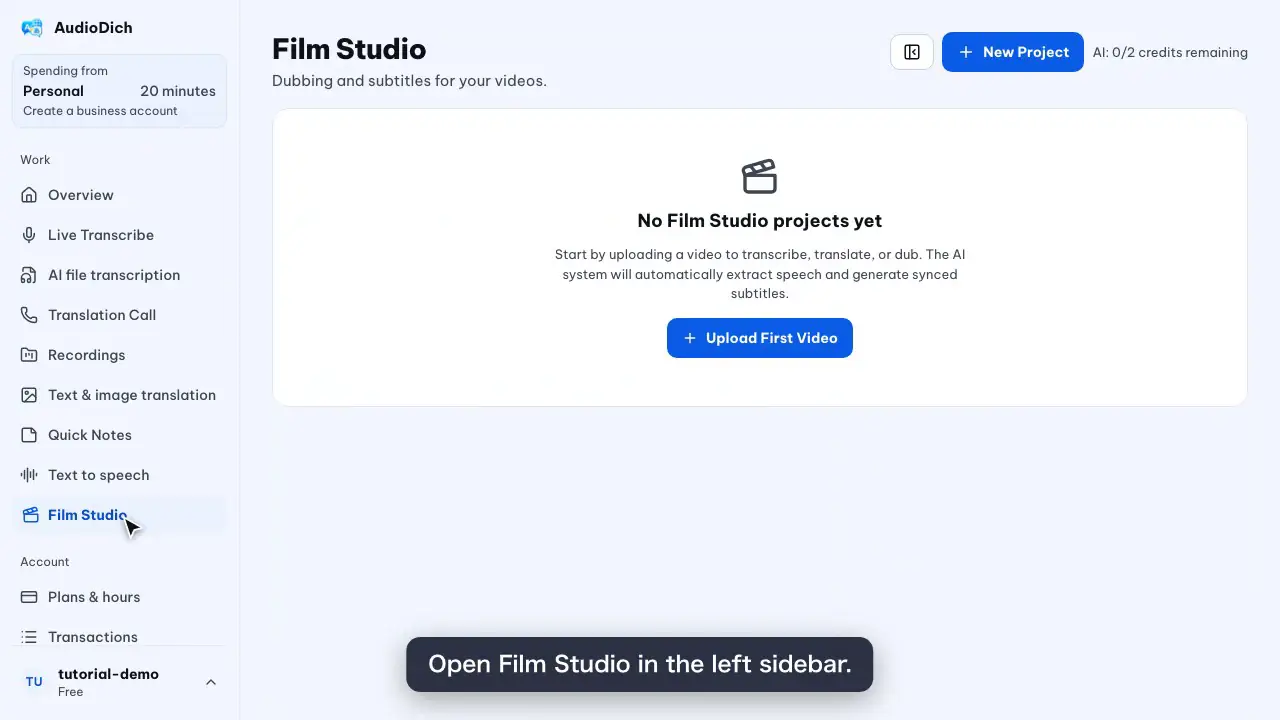
Open Film Studio in the left sidebar.
Click Film Studio in the left sidebar to open your project list.
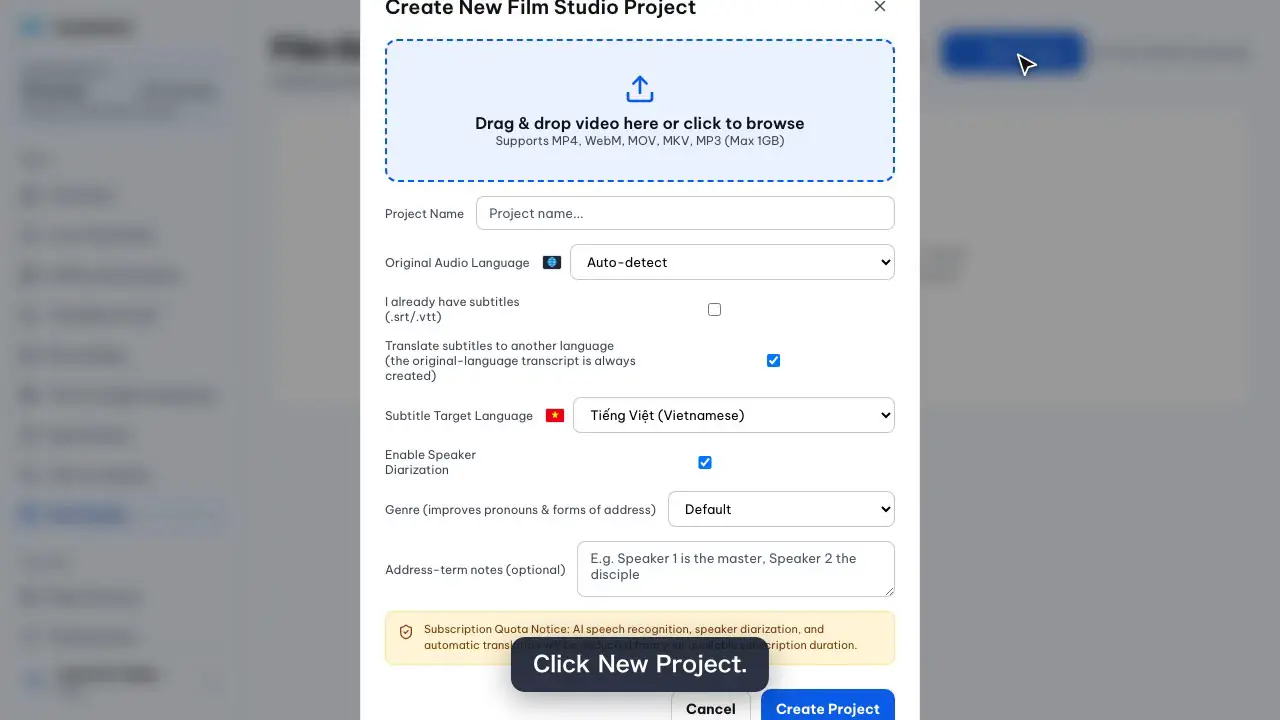
Click New Project.
Click the new project button to start a project.
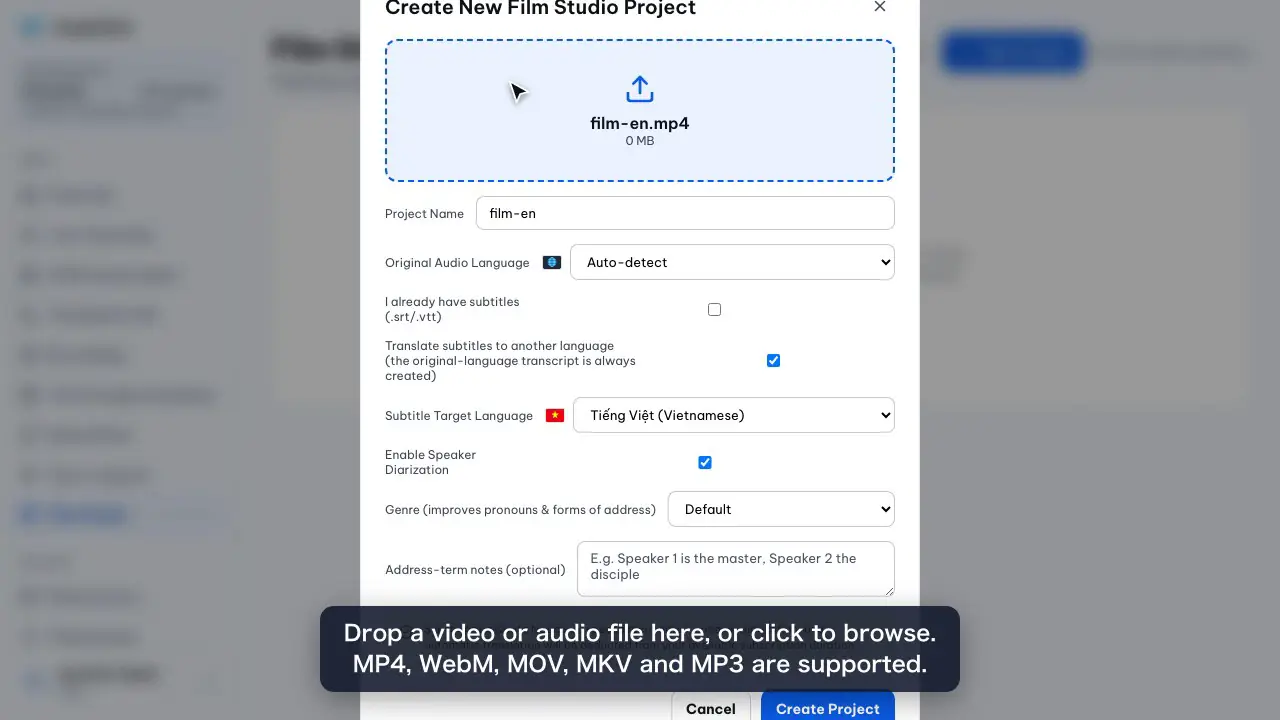
Drop a video or audio file here, or click to browse. MP4, WebM, MOV, MKV and MP3 are supported.
Drop your video on the upload area or click it to pick the file.
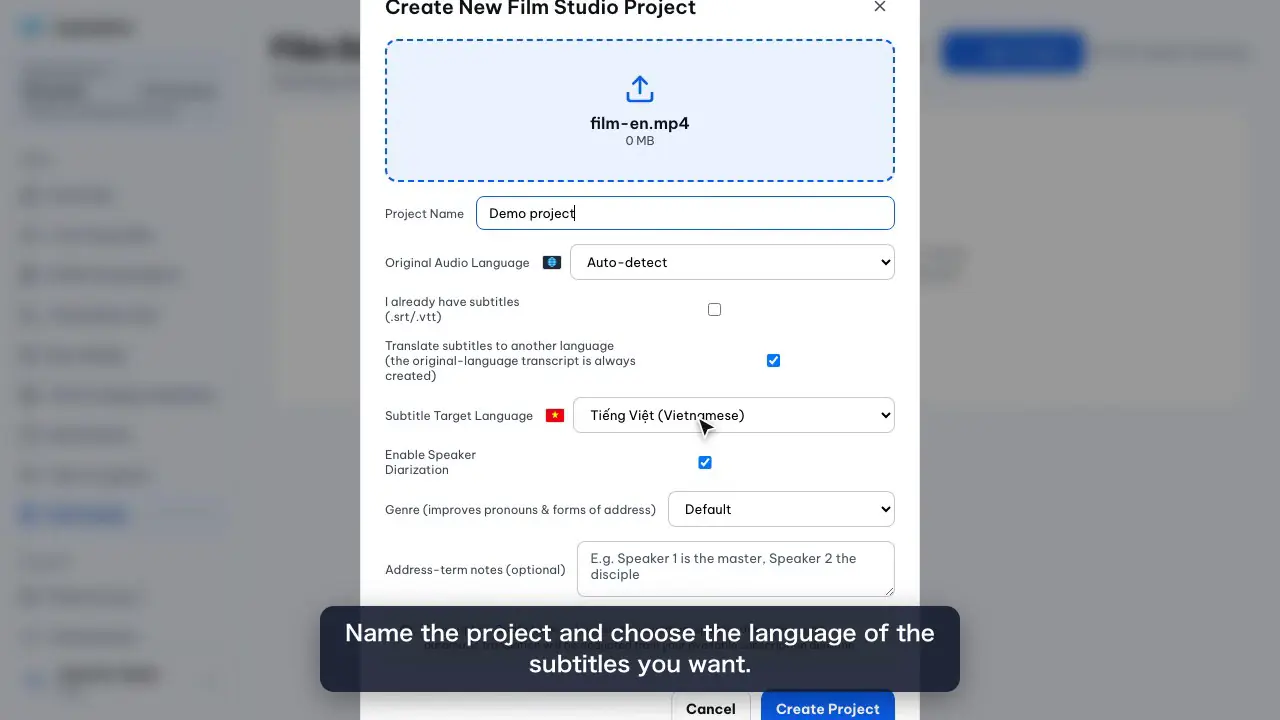
Name the project and choose the language of the subtitles you want.
Give the project a name and choose the source and target languages.
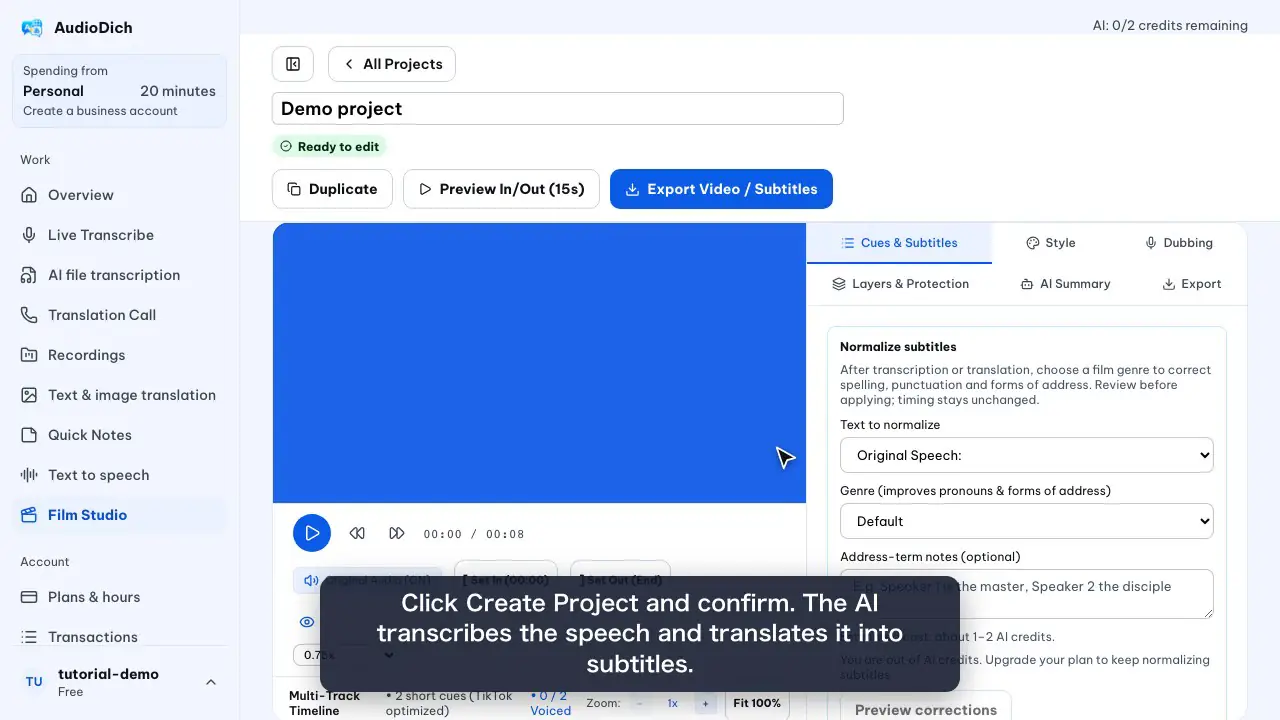
Click Create Project and confirm. The AI transcribes the speech and translates it into subtitles.
Create the project. AI extracts the speech, creates a transcript and translates the subtitles.
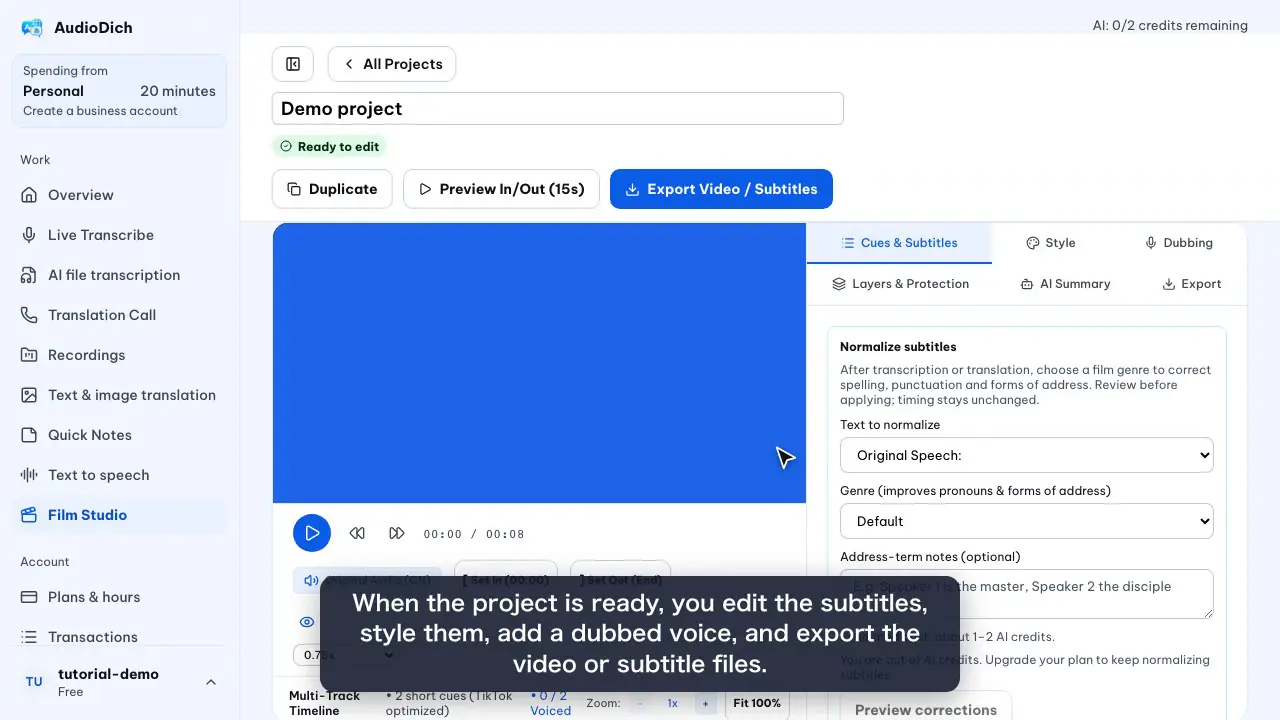
When the project is ready, you edit the subtitles, style them, add a dubbed voice, and export the video or subtitle files.
When it is finished, open the result to check the subtitles, adjust them and export.
Tips
- AI speech recognition, speaker diarization and automatic translation are deducted from your available time.
- If you already have an SRT or VTT subtitle file, you can use it and skip speech recognition. Choose the source language yourself in that case.
- AI dubbing runs in the background and AudioDich emails you when it is done, so you can leave the page.
- Projects are kept for 14 days after creation, and the list refreshes every few seconds while one is processing.
Common problems
- The project failed.
- Something went wrong while recognizing, translating or dubbing the audio. Open the project and process it again.
- Some lines are not translated.
- Lines without a translation are exported in the source language. Translate the subtitles before you export.
- The upload does not finish.
- Check your connection and file size, then upload again.
Frequently asked questions
Can I export subtitles only?
Yes. You can export subtitle files without rendering a dubbed video.
Can I use my own subtitle file?
Yes. An SRT or VTT file is accepted, and speech recognition is skipped.
How long are projects kept?
14 days after you create them.
Does it use my minutes?
Yes. Recognition, speaker separation and translation are deducted from your plan time.
Video transcript
Open Film Studio in the left sidebar. Click New Project. Drop a video or audio file here, or click to browse. MP4, WebM, MOV, MKV and MP3 are supported. Name the project and choose the language of the subtitles you want. Click Create Project and confirm. The AI transcribes the speech and translates it into subtitles. When the project is ready, you edit the subtitles, style them, add a dubbed voice, and export the video or subtitle files.
See it in a real situation
- AI video translation and dubbingTranslate foreign-language videos and create natural dubbing voices in Studio.
- Translate YouTube videos to VietnameseWatch foreign-language videos with Vietnamese subtitles that follow the speech in real time.