

- Back to the guide
- Video tutorials
- Create a business account
Create a business account
Create an organization, pick a business package with a shared pool of hours and invite members.
This tutorial is for company owners and team leads who want one pool of hours shared by everyone. You create an organization, buy a monthly package and invite members who keep their own logins.
Steps
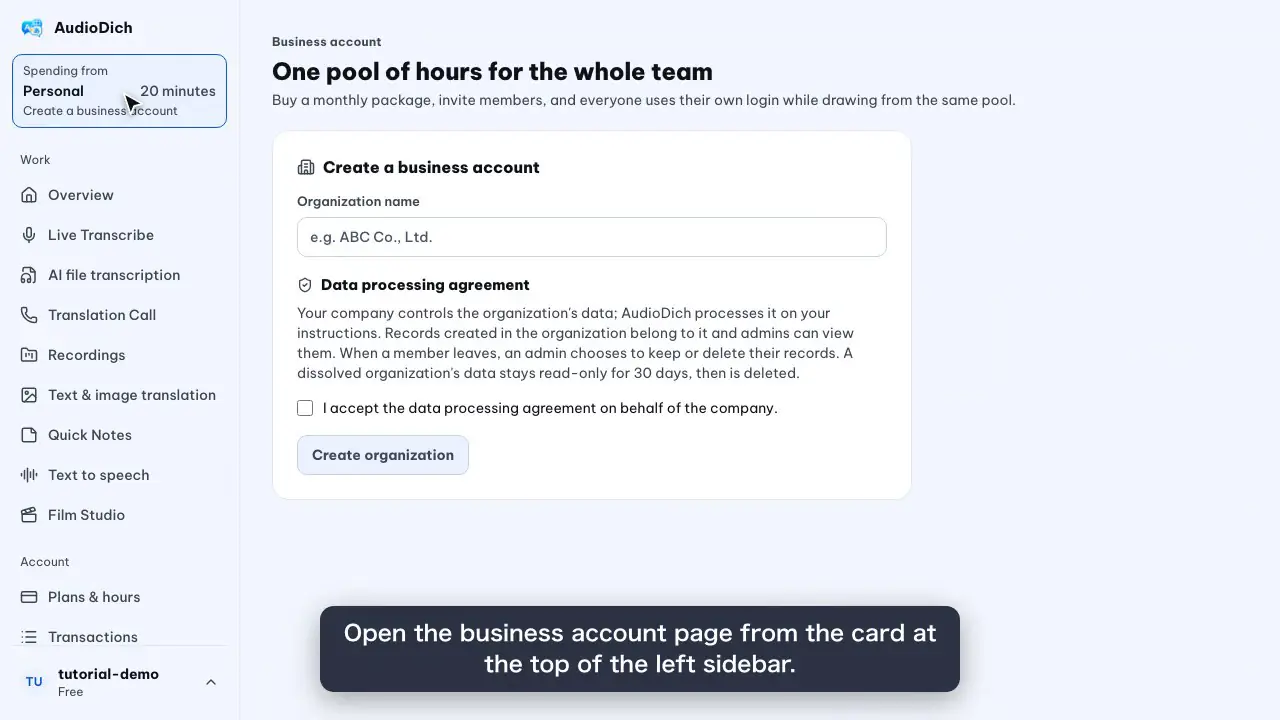
Open the business account page from the card at the top of the left sidebar.
Open the Organization page from the account menu in the sidebar.
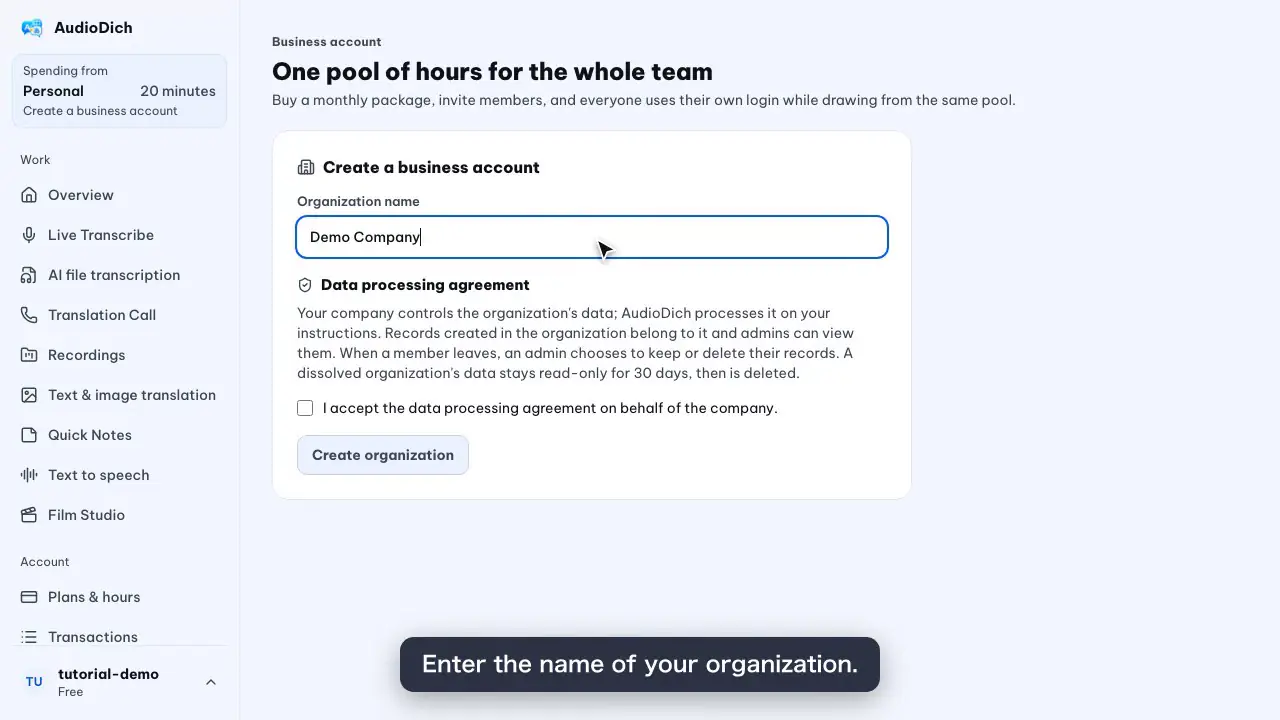
Enter the name of your organization.
Enter the name of your organization in the first field.
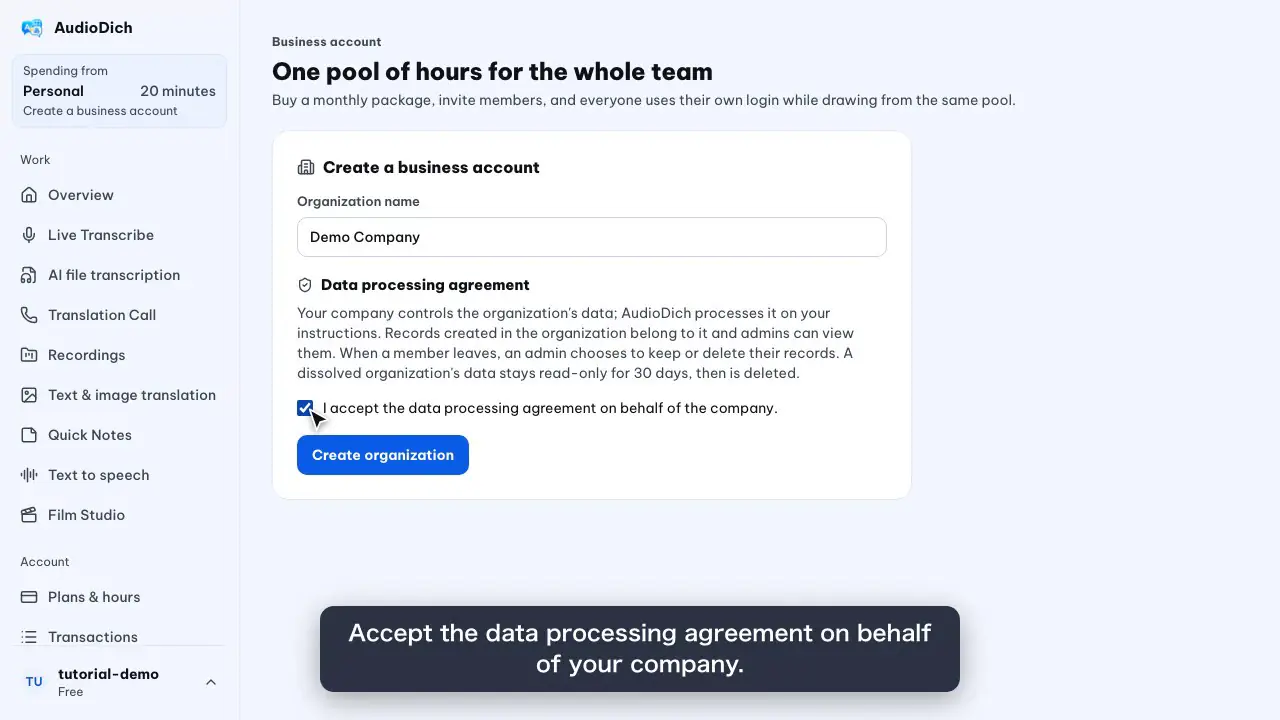
Accept the data processing agreement on behalf of your company.
Tick the checkbox to accept the data processing agreement on behalf of the company.
Click Create organization.
Click the create button to set up the organization.
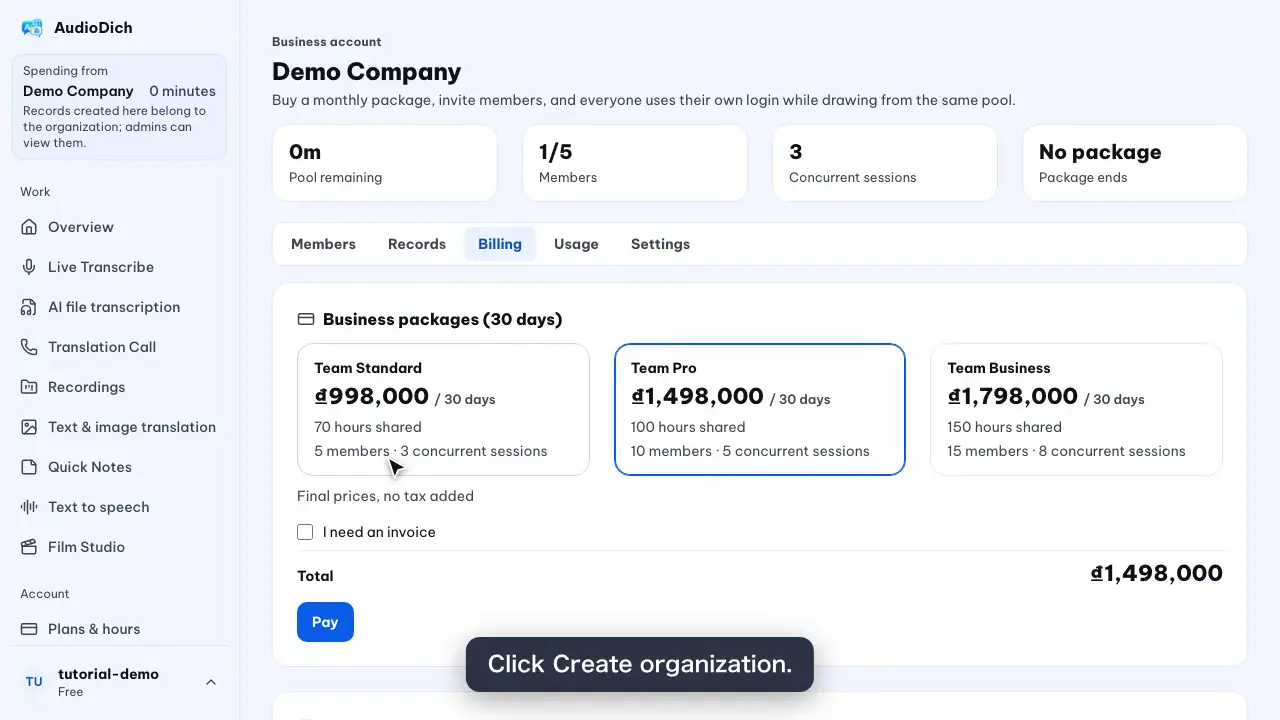
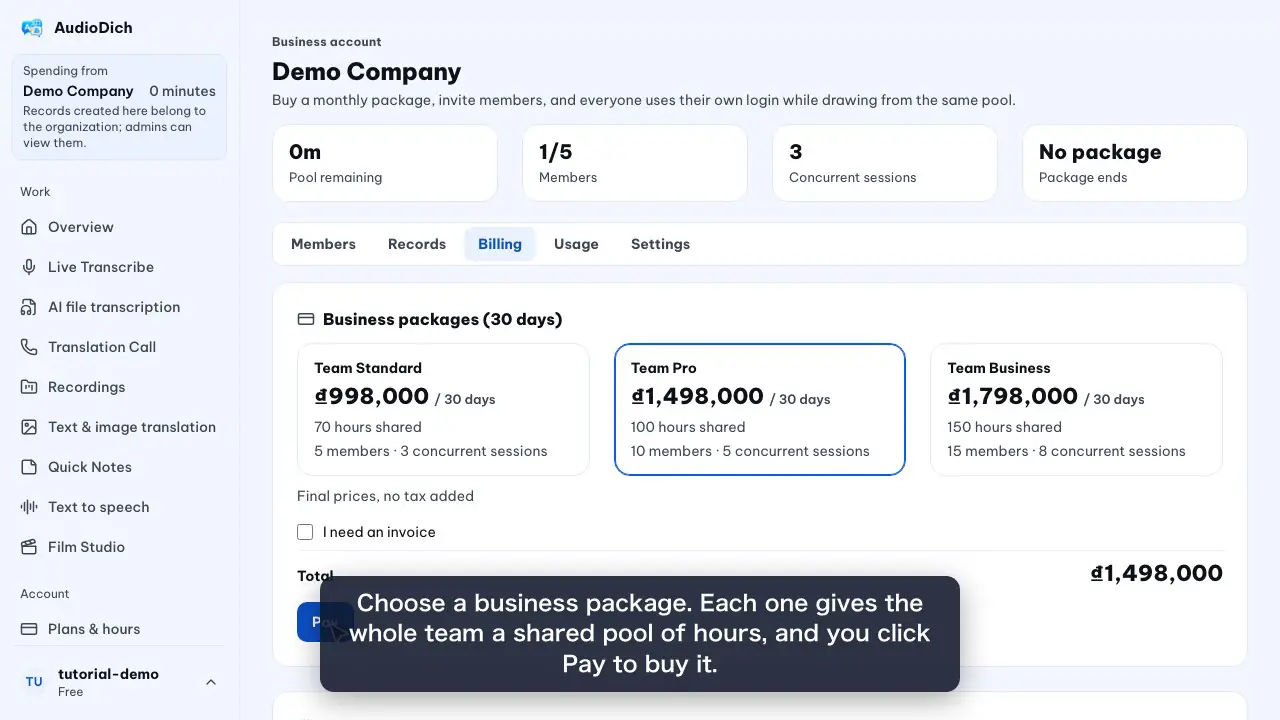
Choose a business package. Each one gives the whole team a shared pool of hours, and you click Pay to buy it.
Choose a business package. The cards show the shared hours, the number of members and the concurrent sessions.
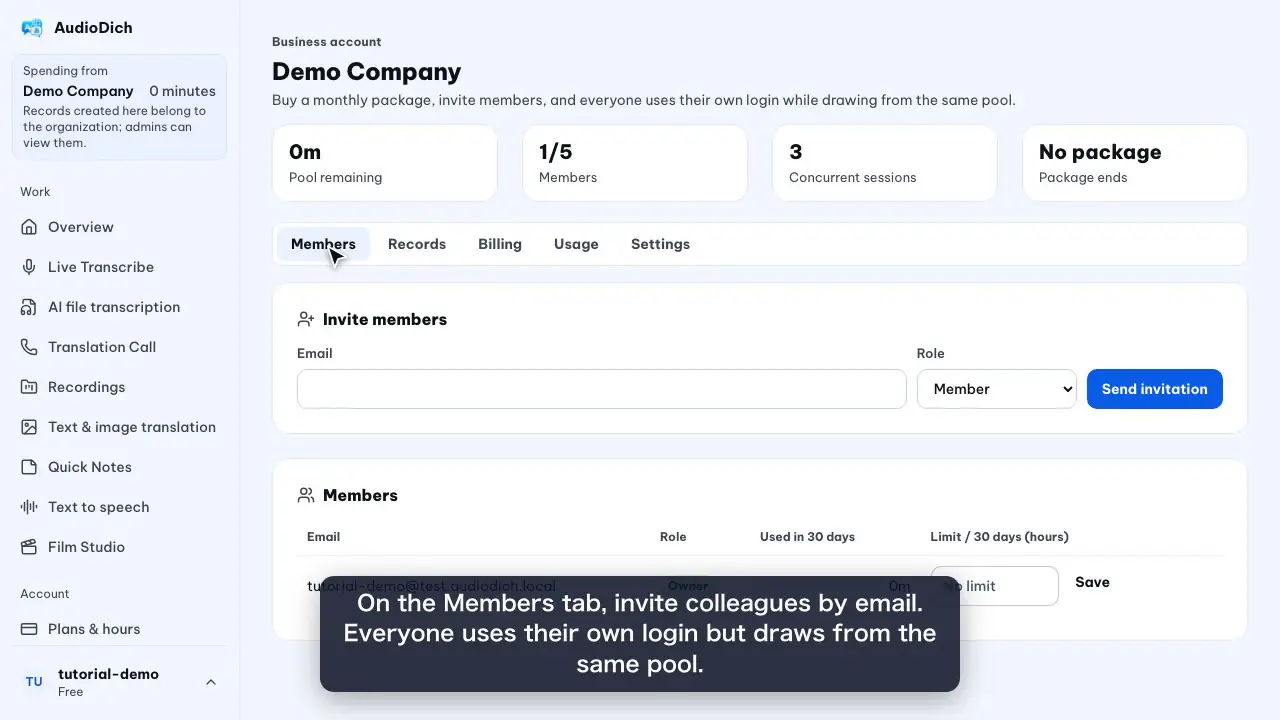
On the Members tab, invite colleagues by email. Everyone uses their own login but draws from the same pool.
Open the Members tab to invite colleagues and later see the usage of each member.
Tips
- Business packages last 30 days and the prices are final, with no tax added.
- Each package has a member limit. When it is reached you need a bigger package to invite more people.
- Records created in the organization belong to the company and admins can view them. Personal data is not affected.
- Members switch between their personal account and the organization in the sidebar, and session time is charged to the account they choose.
Common problems
- An invitation shows the wrong account.
- The invitation is for a specific email address. Sign in with that email to accept it.
- A member cannot use the pool.
- The pool may be empty or the member may have reached their personal limit. Ask an admin to add hours or raise the cap.
- The payment is still waiting.
- The page updates by itself once the transfer arrives. Keep it open or check again in a minute.
Frequently asked questions
Do members need separate accounts?
Yes. Everyone uses their own login and draws from the shared pool.
What happens if I dissolve the organization?
Nobody can use the pool, and owners and admins can view and export data for 30 days before it is deleted.
Can I see who used the hours?
Yes. The usage by member list shows each person's use.
What happens when a member leaves?
An admin chooses to keep or delete the records they created.
Video transcript
Open the business account page from the card at the top of the left sidebar. Enter the name of your organization. Accept the data processing agreement on behalf of your company. Click Create organization. Choose a business package. Each one gives the whole team a shared pool of hours, and you click Pay to buy it. On the Members tab, invite colleagues by email. Everyone uses their own login but draws from the same pool.
See it in a real situation
- International customer supportUnderstand overseas customers and answer faster, with a transcript for your tickets.
- International telesalesCall overseas customers with subtitles, spoken translation and a two-way call room.