

- Back to the guide
- Video tutorials
- Quick notes
Quick notes
Create, save and export notes without using up your time.
This tutorial is for people who want a simple place to jot down meeting points, ideas or drafts inside AudioDich. Typing notes is free, so you can use them as much as you like.
Steps
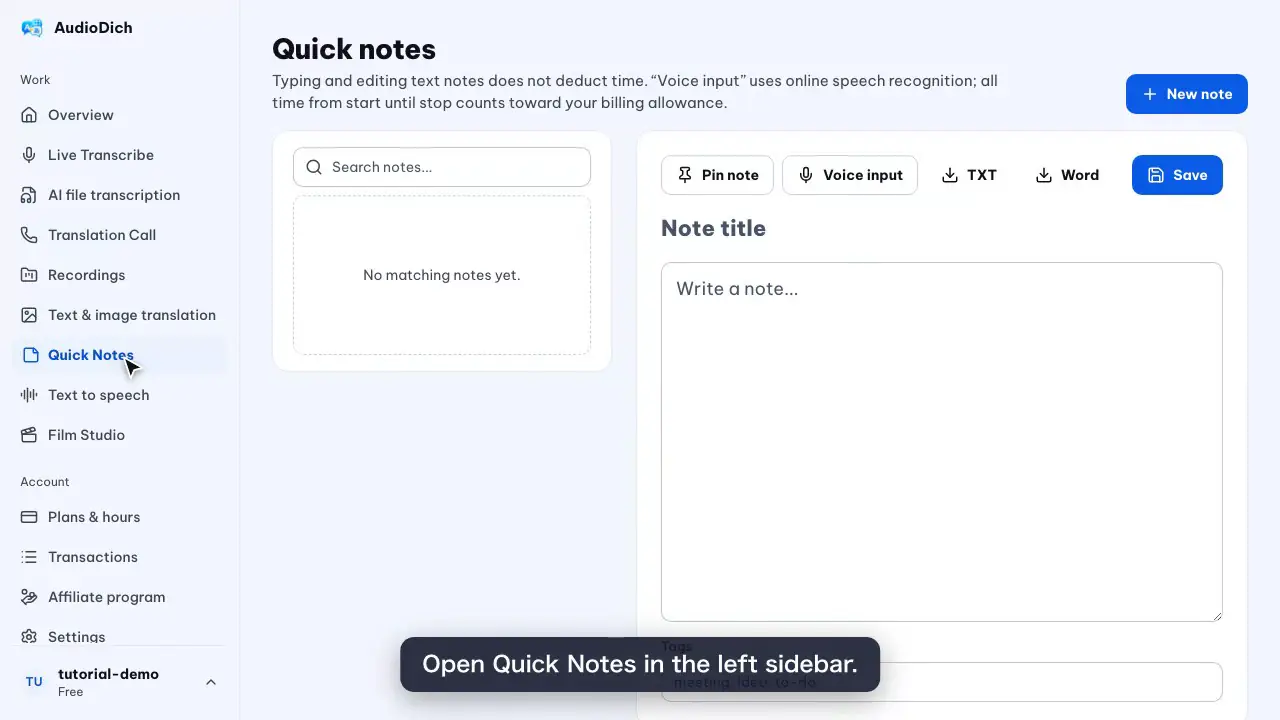
Open Quick Notes in the left sidebar.
Click Quick Notes in the left sidebar. Your saved notes are listed on the left and the editor is on the right.
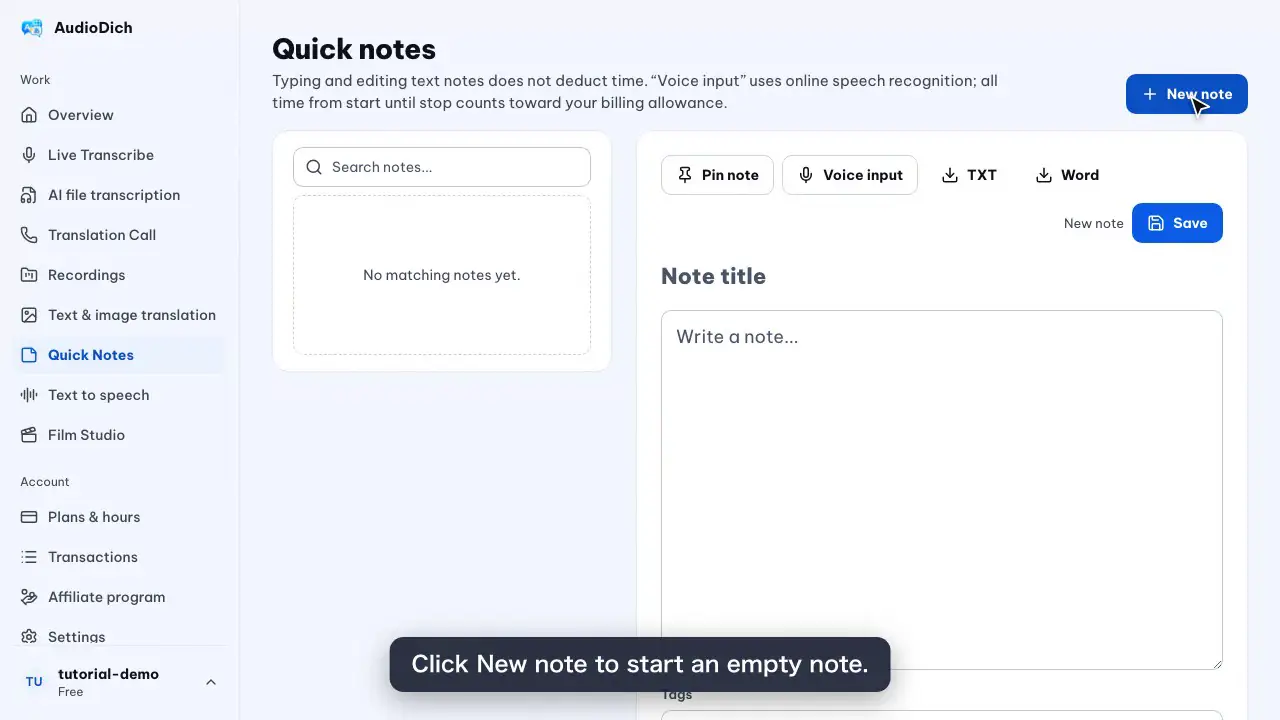
Click New note to start an empty note.
Click New note to open an empty note. Nothing is created until you save.
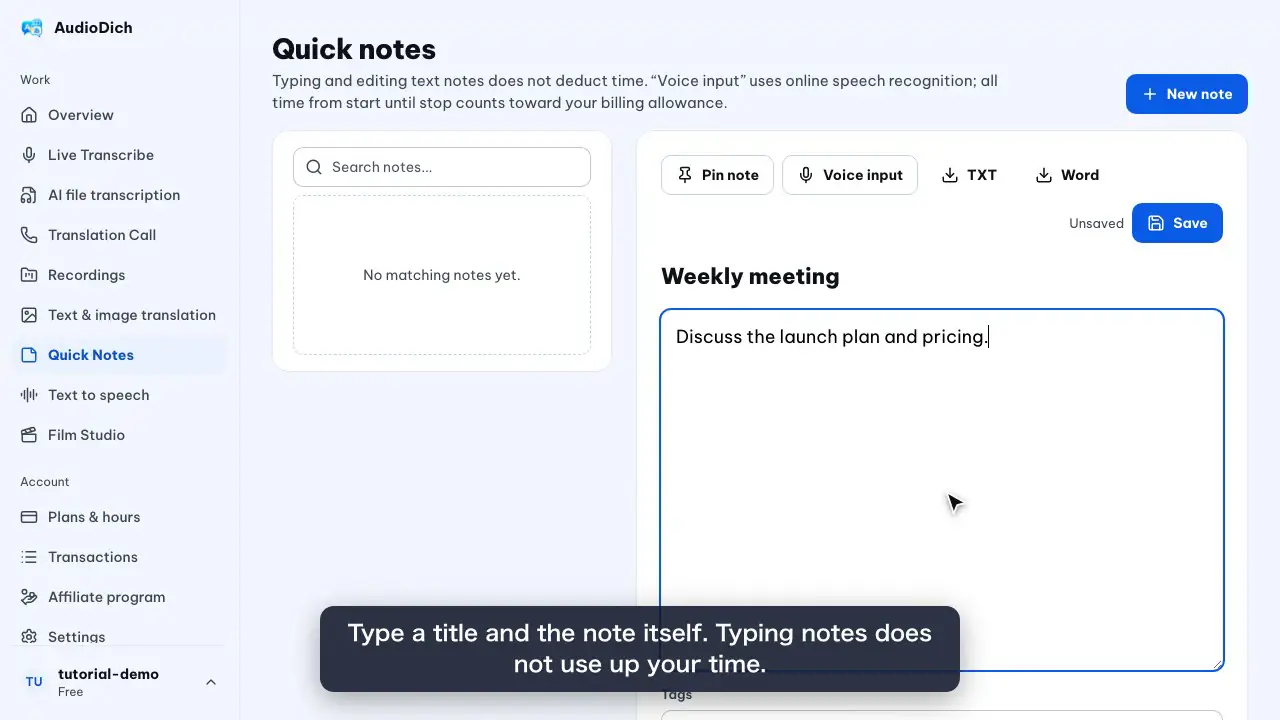
Type a title and the note itself. Typing notes does not use up your time.
Type a title and the body of the note. Typing and editing text notes does not deduct any of your time.
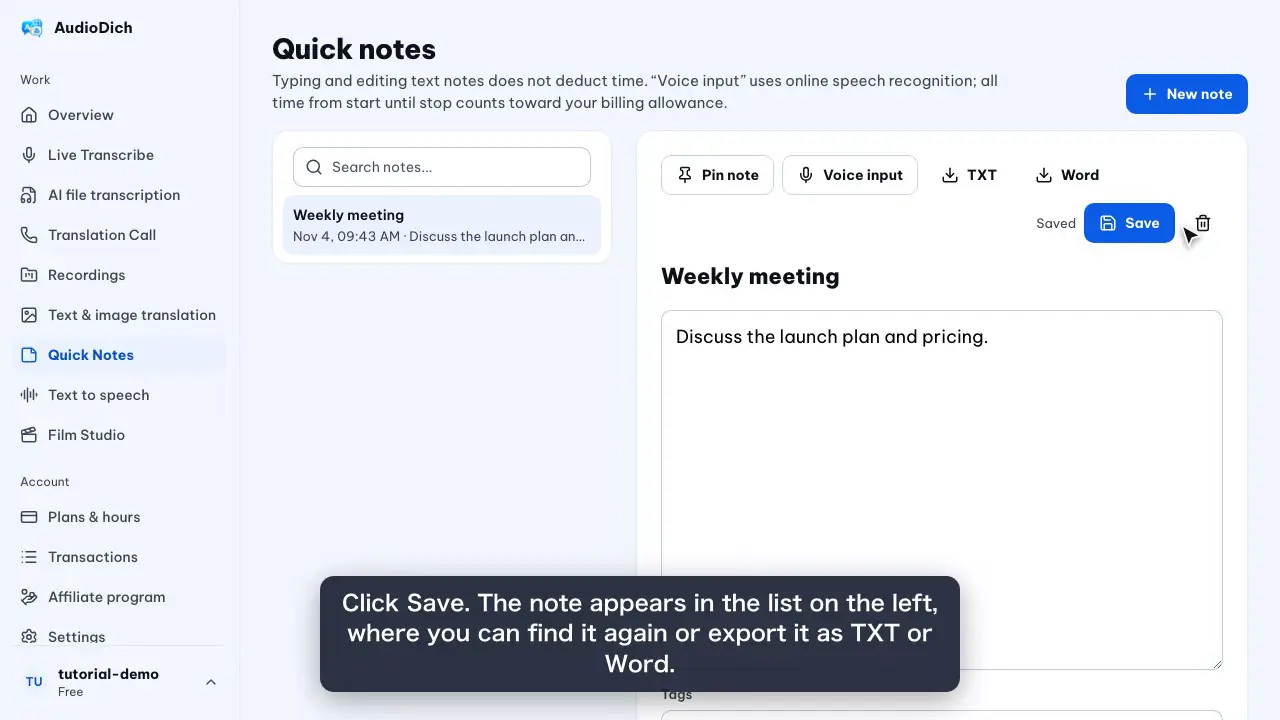
Click Save. The note appears in the list on the left, where you can find it again or export it as TXT or Word.
Click Save. The note appears in the list, where you can reopen it later or export it as TXT or Word.
Tips
- Only voice input uses time. It uses online speech recognition, and everything from the moment you start until you press Stop counts toward your allowance; AudioDich asks you to confirm before it starts.
- If you record audio with a note, the audio stays on this device and can be uploaded later from Recordings.
- Export a note as TXT for plain text or as Word when you want to keep editing it in a document.
Common problems
- Voice input stopped by itself.
- The speech connection may have dropped or your allowance ran out. Check your remaining time, then start voice input again.
- My note is missing from the list.
- Make sure you clicked Save. A note that was never saved is not added to the list.
- The browser cannot record audio for a note.
- Allow microphone access for the page in the browser settings, or use a browser that supports audio recording.
Frequently asked questions
Do notes use my minutes?
Typing and editing do not. Only voice input does, from start until you press Stop.
Can I export my notes?
Yes. Each note can be exported as TXT or Word.
Are my notes available on my phone?
Notes belong to your account, so you can sign in to the same account on another device to see them.
Is there a limit on the number of notes?
The tutorial does not show a limit. If you reach one, the page tells you.
Video transcript
Open Quick Notes in the left sidebar. Click New note to start an empty note. Type a title and the note itself. Typing notes does not use up your time. Click Save. The note appears in the list on the left, where you can find it again or export it as TXT or Word.