

- Back to the guide
- Video tutorials
- Set up live translation
Set up live translation
Choose languages, audio source and caption view before you start.
This tutorial is for anyone who will translate meetings, lectures or videos live. Before you press Start you decide which language is spoken, which language you read, where the sound comes from and how the captions look.
Steps
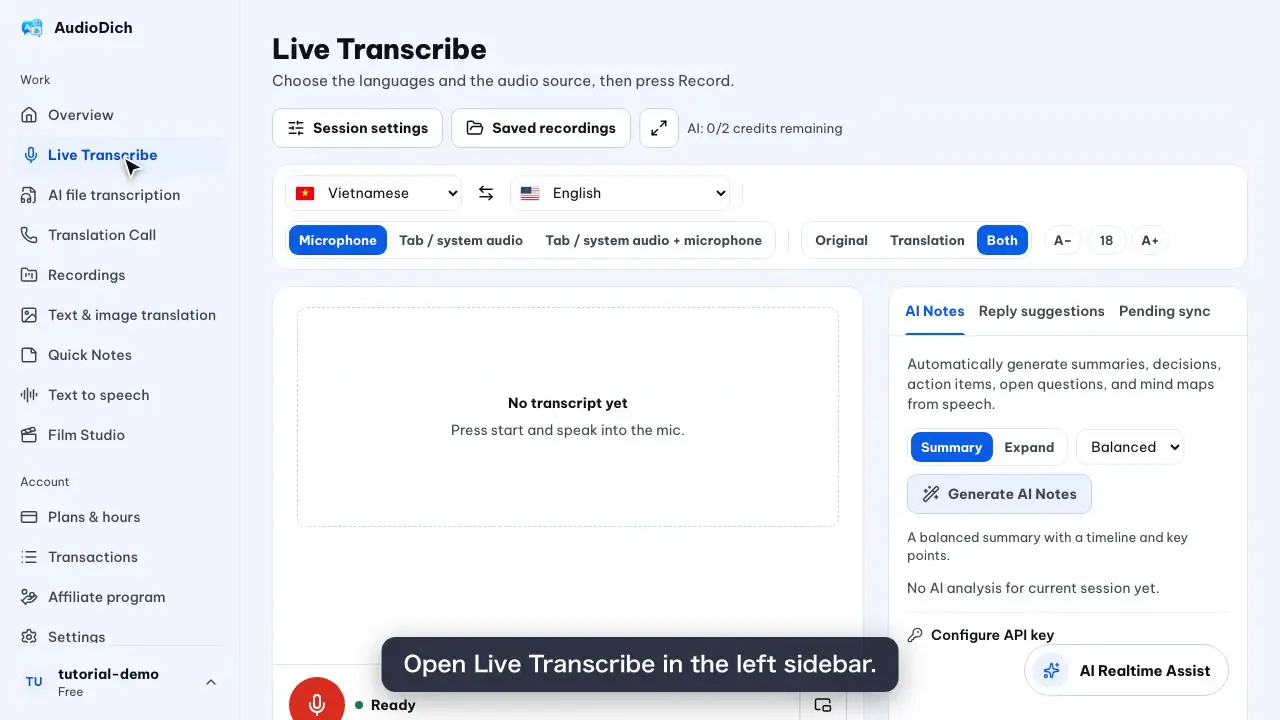
Open Live Transcribe in the left sidebar.
Click Live Transcribe in the left sidebar to open the live session screen.
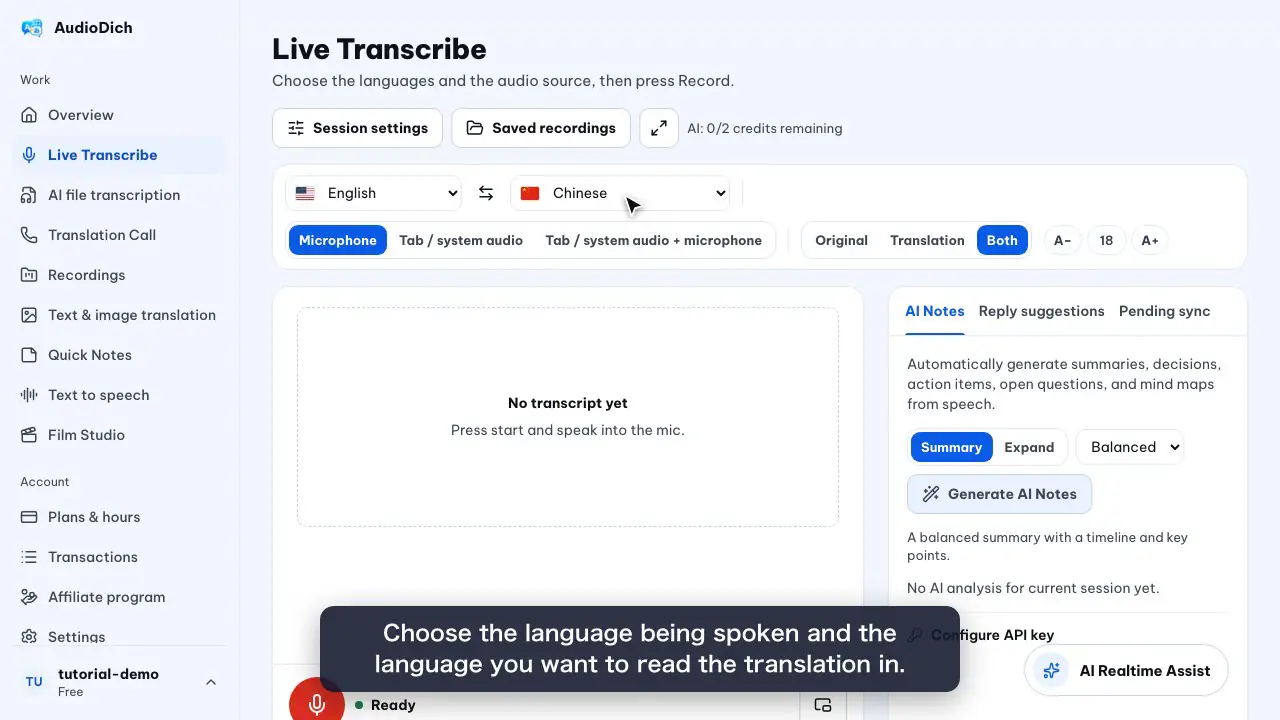
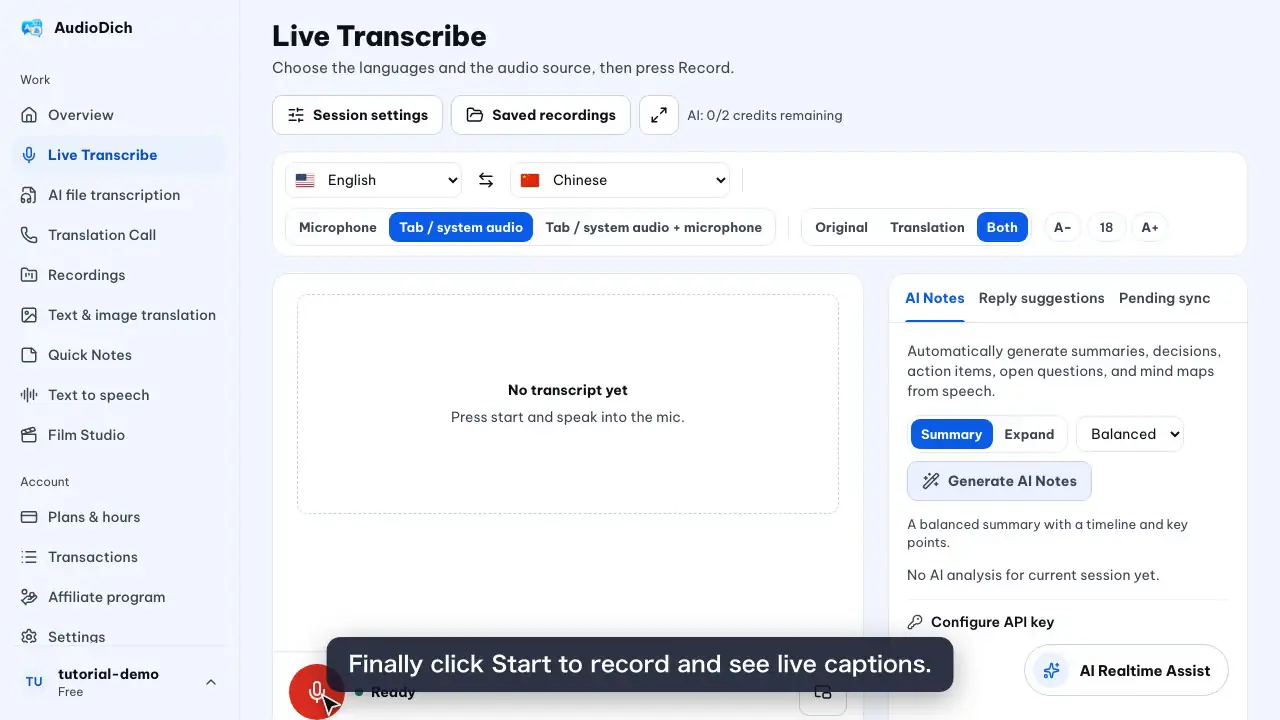
Choose the language being spoken and the language you want to read the translation in.
Choose the language being spoken as the source and the language you want to read as the target. Choose no translation if you only need a transcript.
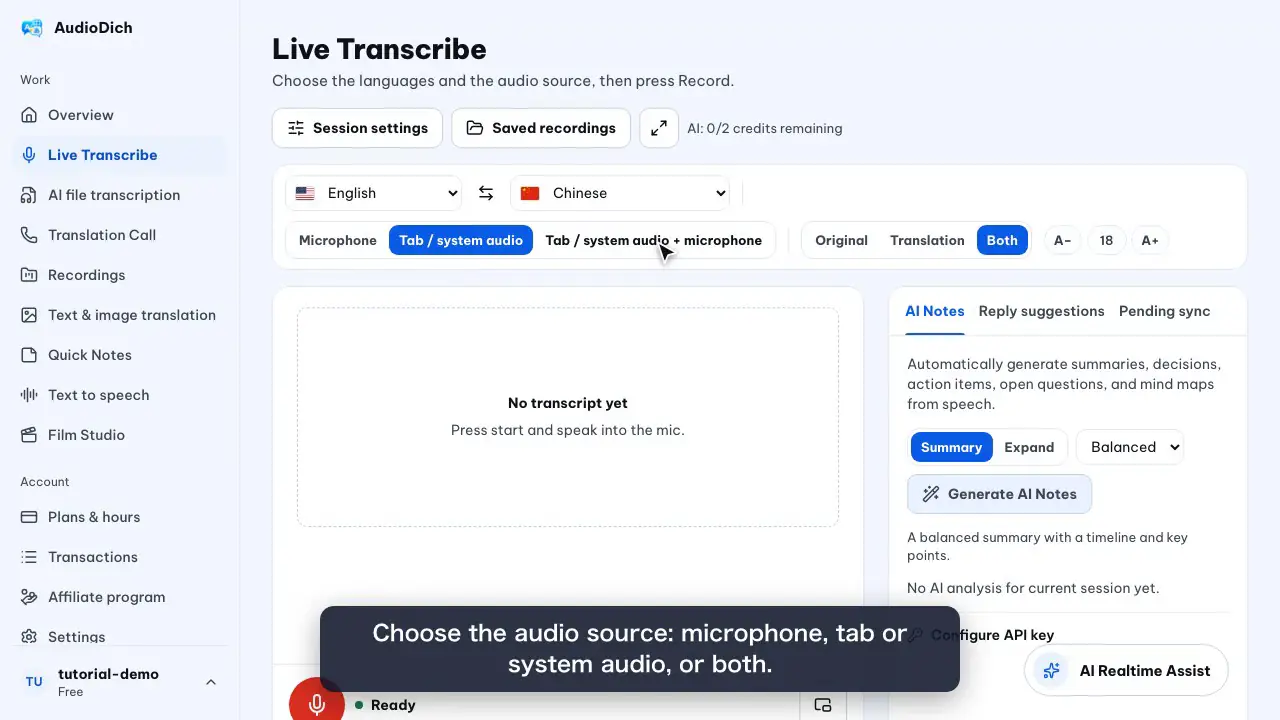
Choose the audio source: microphone, tab or system audio, or both.
Choose the audio source: your microphone, the audio of a tab or the system, or both together. Tab and system audio are offered in Chrome or Edge on a computer.
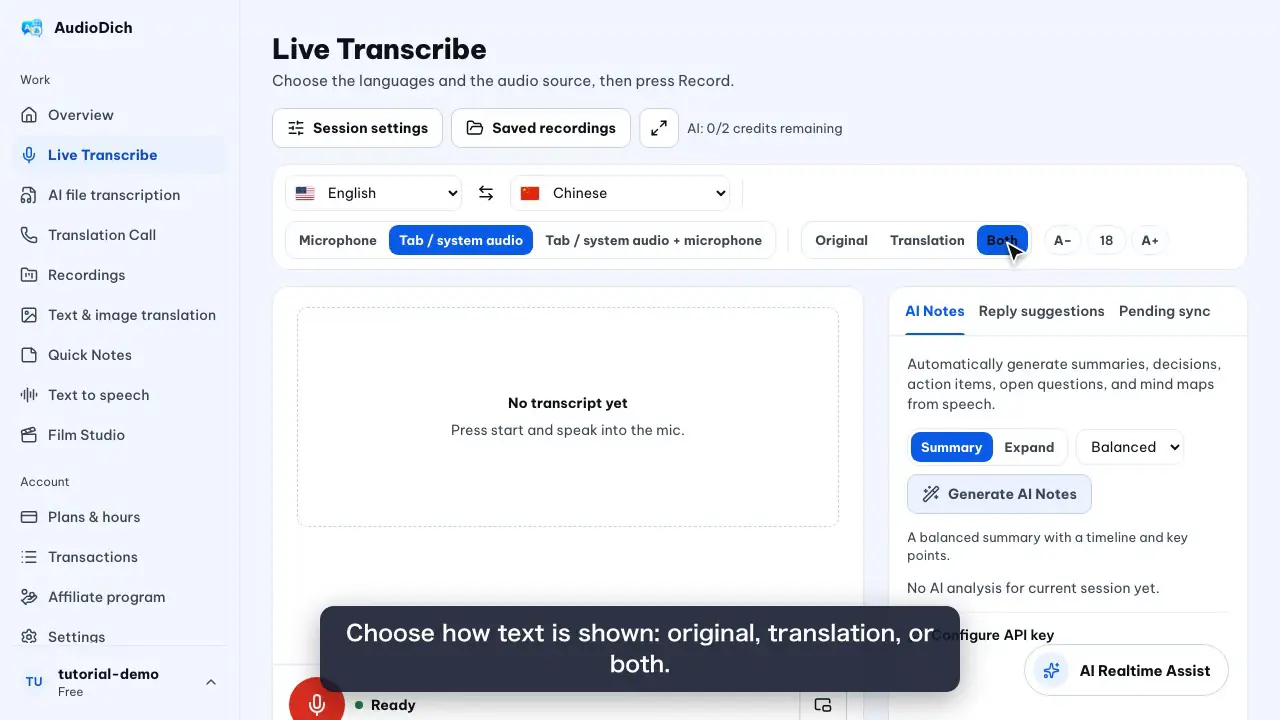
Choose how text is shown: original, translation, or both.
Choose how text is shown: the original, the translation, or both lines together.
Finally click Start to record and see live captions.
Click Start. A short review window lets you confirm languages and devices, then live captions begin to appear.
Tips
- To translate Zoom, Teams or another app, pick tab or system audio. When the browser asks what to share, open the Entire Screen tab, choose a screen and turn on Share with system audio before you click Share.
- For a single browser tab, use the Chrome Tab option and enable tab audio sharing. Without it AudioDich reports that no audio was shared.
- When you combine tab audio with the microphone, wear headphones so the microphone does not pick up the sound from your speakers.
- Keep the translation language explicit and use Auto detect for the source only when speakers may switch languages.
Common problems
- The session starts but no captions appear.
- Check that the audio source is the one that is actually playing sound, and that you shared audio when the browser asked.
- The audio source list only shows the microphone.
- Tab and system audio need Chrome or Edge on a computer. Open the page in one of them.
- A message says another session is already running.
- Another transcription session is active on your account. Close the old one, or continue with both knowing that both use your time.
Frequently asked questions
Can I translate a video I am watching?
Yes. Choose tab or system audio and share the tab or screen with its sound.
Do I need to share my microphone as well?
Only if you want your own voice included. Choose tab or system audio plus microphone for that, and wear headphones.
Will my transcript be saved?
When you stop, the transcript is saved to your account. Free accounts keep it for 5 days and paid accounts for 30 days.
Can I hear the translation spoken aloud?
Yes. Turn on the translation voice in the session options and choose where it plays.
Video transcript
Open Live Transcribe in the left sidebar. Choose the language being spoken and the language you want to read the translation in. Choose the audio source: microphone, tab or system audio, or both. Choose how text is shown: original, translation, or both. Finally click Start to record and see live captions.
See it in a real situation
- Translate ZoomBilingual subtitles, spoken translation and a transcript inside your Zoom meetings with foreign clients.
- Translate Google MeetFollow a Meet call running in your browser with real-time subtitles and translation.
- Translate Microsoft TeamsProject, support and vendor calls on Teams with subtitles and a transcript for accurate follow-up.
- Webinars and online eventsReal-time subtitles, a large-text window and a transcript for webinars, workshops and online conferences.