

- Back to the guide
- Video tutorials
- Reply suggestions while you talk
Reply suggestions while you talk
Turn on the AI assistant to get reply suggestions as soon as the other person asks a question in an interview, meeting, sales call or customer support.
This tutorial is for people interviewing, meeting, selling or supporting customers in a foreign language who want ideas ready for their reply. The AI assistant reads the transcript, recognizes questions and suggests an answer right beside it.
Steps
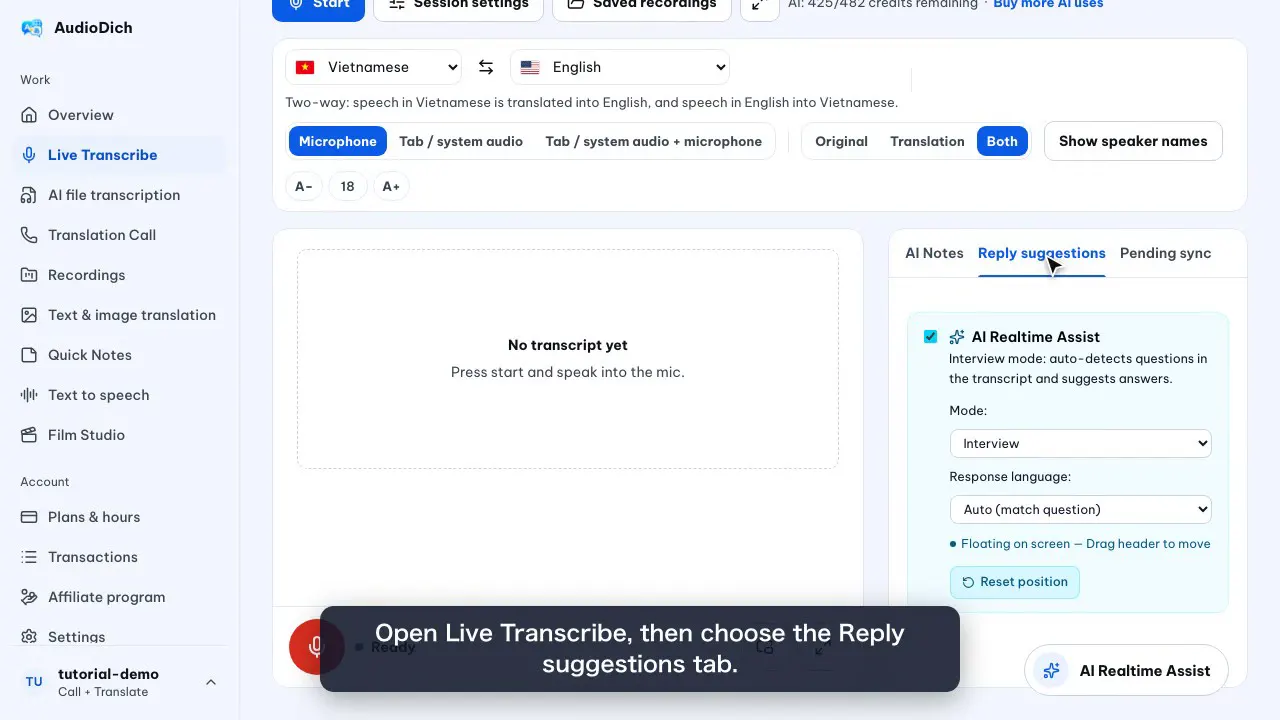
Open Live Transcribe, then choose the Reply suggestions tab.
Choose Live Transcribe in the left sidebar, then open the Reply suggestions tab next to the transcript panel.
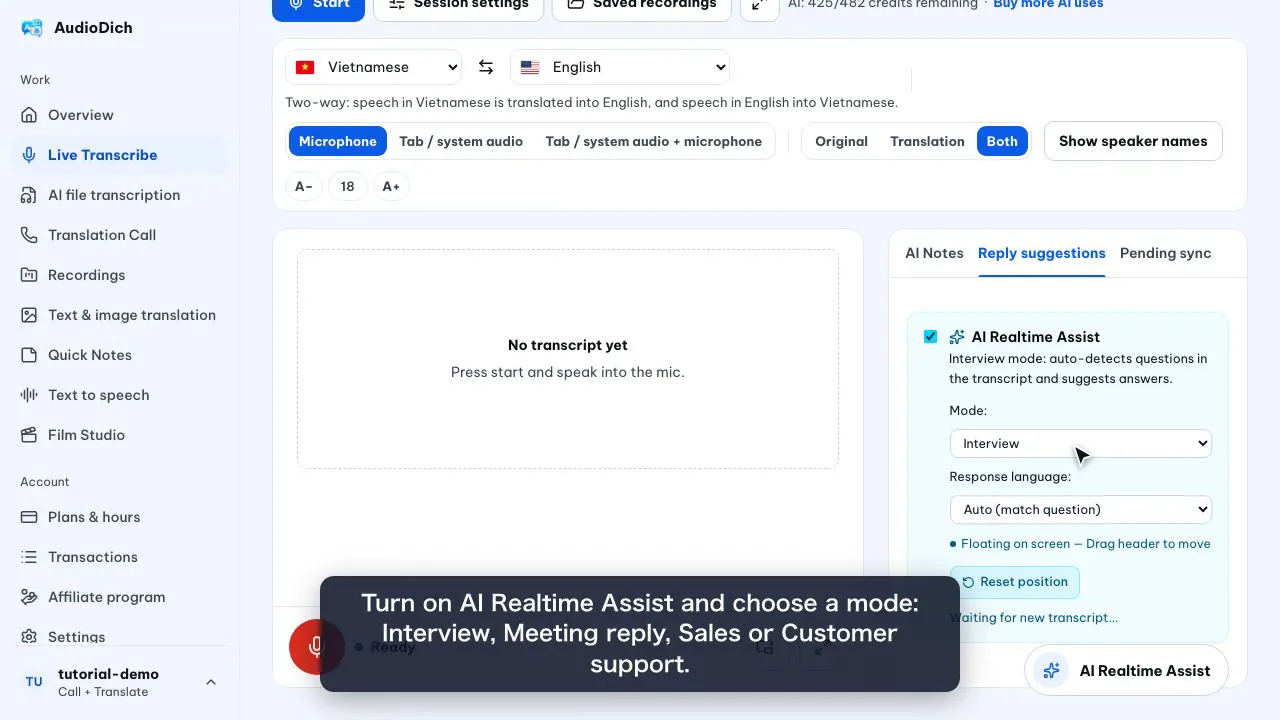
Turn on AI Realtime Assist and choose a mode: Interview, Meeting reply, Sales or Customer support.
Tick AI Realtime Assist, choose the mode that fits the conversation, and choose a Response language or leave it on Auto (match question).
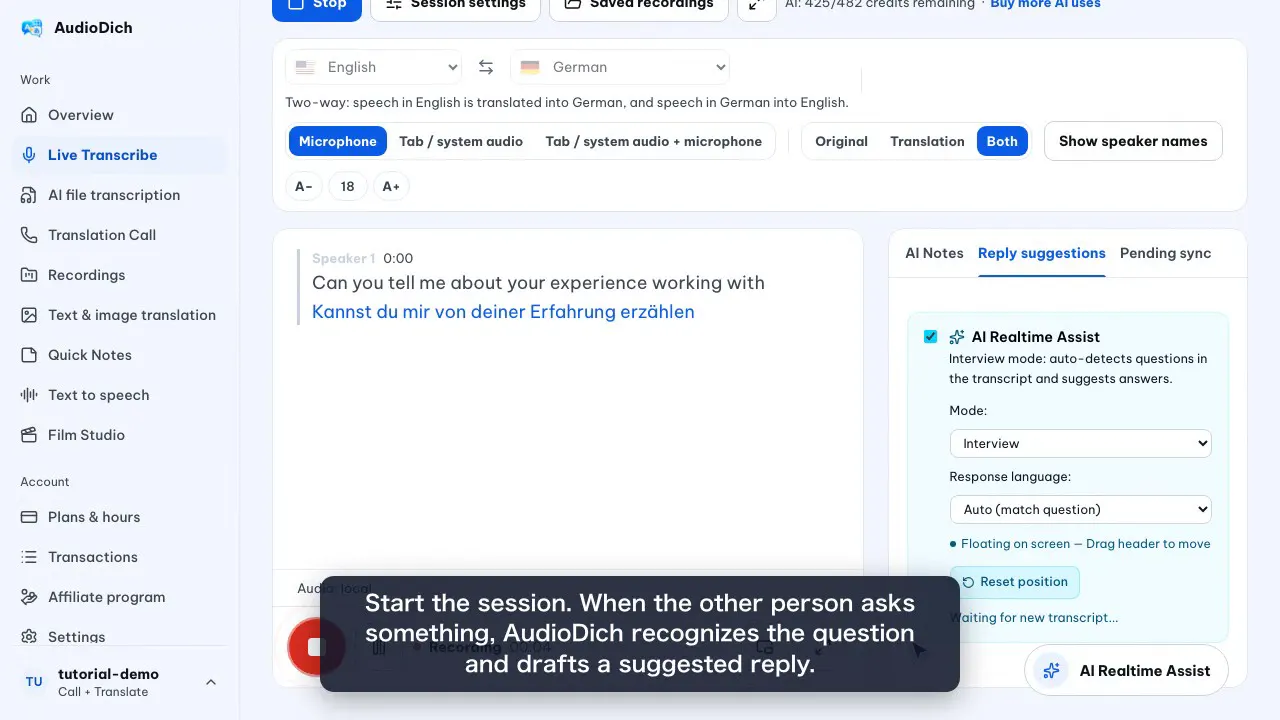
Start the session. When the other person asks something, AudioDich recognizes the question and drafts a suggested reply.
Click Start. When a new question appears in the transcript, the assistant recognizes it and creates a suggested reply.
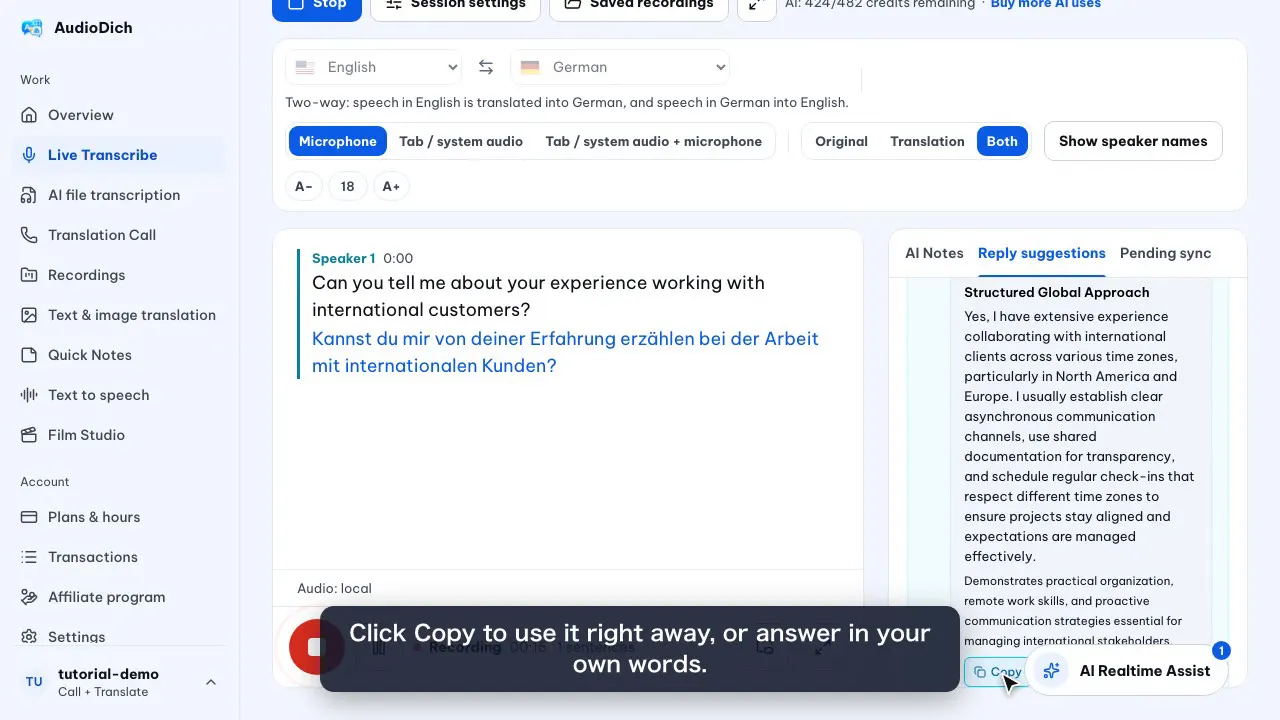
Click Copy to use it right away, or answer in your own words.
Click Copy to paste the suggestion into the chat box, or read it through and answer in your own way.
Tips
- Each suggestion uses an AI use; the remaining number is shown at the top of the page.
- A suggestion is only a reference; check figures and commitments before you tell a customer.
- The assistant window can be minimized, and you can drag its title bar to move it elsewhere.
- Click Clear suggestions to start over when you move to a different topic.
Common problems
- No suggestions appear.
- Check that AI Realtime Assist is on and that the transcript has new text. The assistant only creates a suggestion when it recognizes a question.
- It says you need to sign in to use the AI assistant.
- Sign in and verify your email; the assistant does not run in guest mode.
- It says you have run out of AI uses.
- Click Buy more AI uses at the top of the page, then turn the assistant back on.
Frequently asked questions
Do reply suggestions use translation hours?
Suggestions use AI uses, separate from your plan's translation hours.
Can the other person see the suggestions?
No. Suggestions only appear on your screen.
What language are the suggestions written in?
In the Response language you choose; if you leave it on Auto (match question), the suggestion follows the language of the question.
Does it work in the desktop app?
Yes. The assistant is available on the web and in the AudioDich desktop app.
Video transcript
Open Live Transcribe, then choose the Reply suggestions tab. Turn on AI Realtime Assist and choose a mode: Interview, Meeting reply, Sales or Customer support. Start the session. When the other person asks something, AudioDich recognizes the question and drafts a suggested reply. Click Copy to use it right away, or answer in your own words.
See it in a real situation
- Online interviewsInterview international candidates or employers without stopping to translate.
- International telesalesCall overseas customers with subtitles, spoken translation and a two-way call room.
- International customer supportUnderstand overseas customers and answer faster, with a transcript for your tickets.