

- Back to the guide
- Video tutorials
- Split costs, record and send the transcript of a call
Split costs, record and send the transcript of a call
Split the cost of custom languages with guests, keep an audio recording of a translated call and send the transcript by email.
This tutorial is for call hosts who already know how to create a translation room and want to use three more options: splitting costs with guests, keeping an audio recording of the call and sending the transcript after the call.
Steps
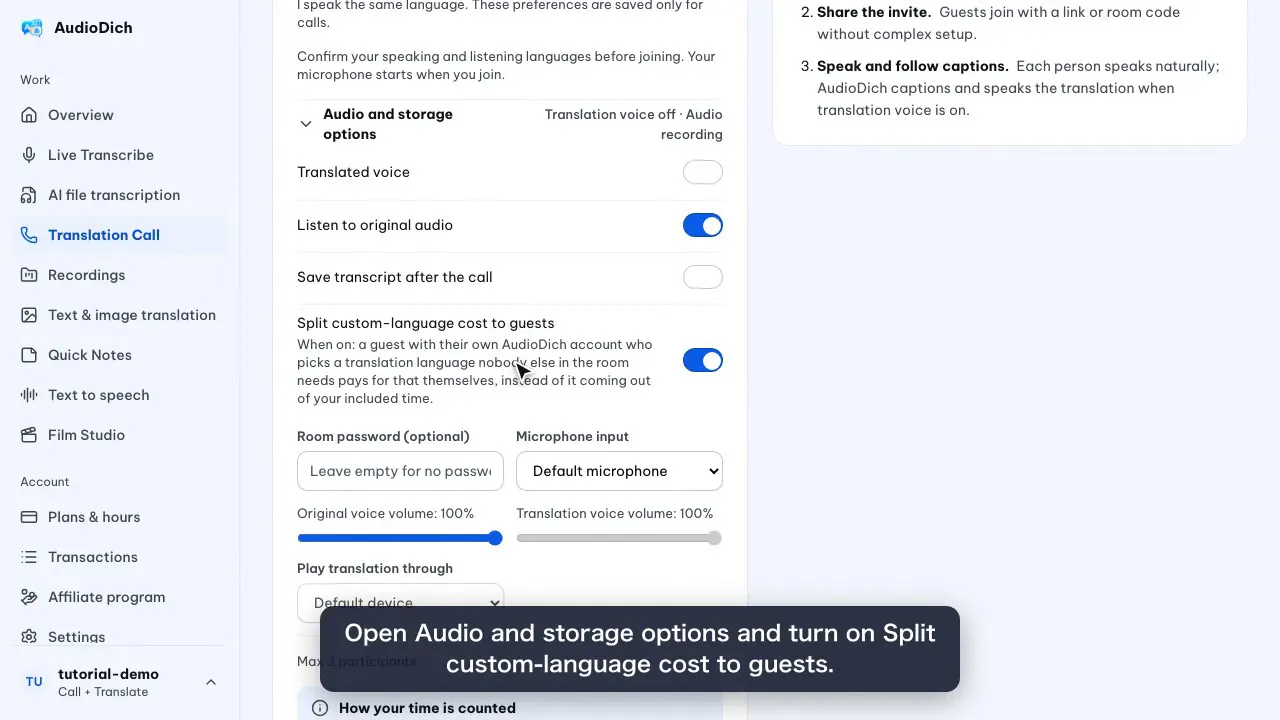
Open Audio and storage options and turn on Split custom-language cost to guests.
In the room creation form, open Audio and storage options and turn on Split custom-language cost to guests. If you leave it off, all costs count toward your plan as usual.
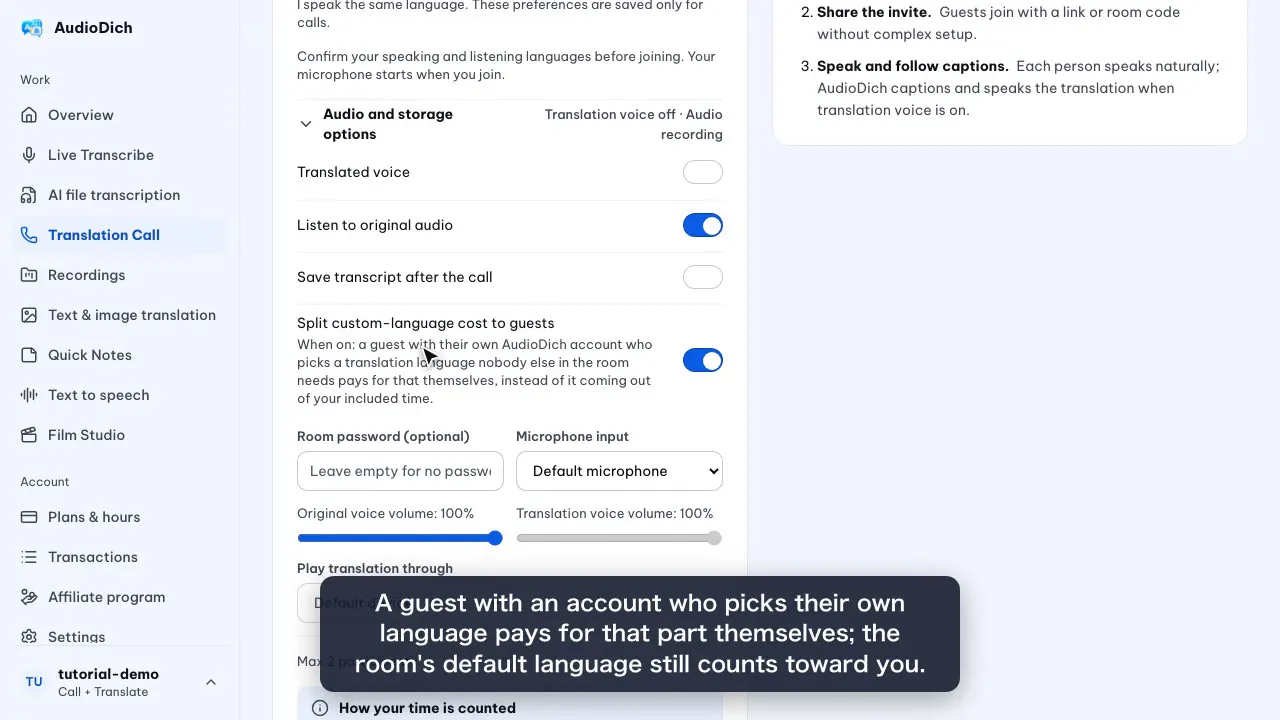
A guest with an account who picks their own language pays for that part themselves; the room's default language still counts toward you.
When a guest with an AudioDich account picks a translation language that nobody else in the room needs, that extra translation is deducted from the guest's time. The room's default language is still paid by you.
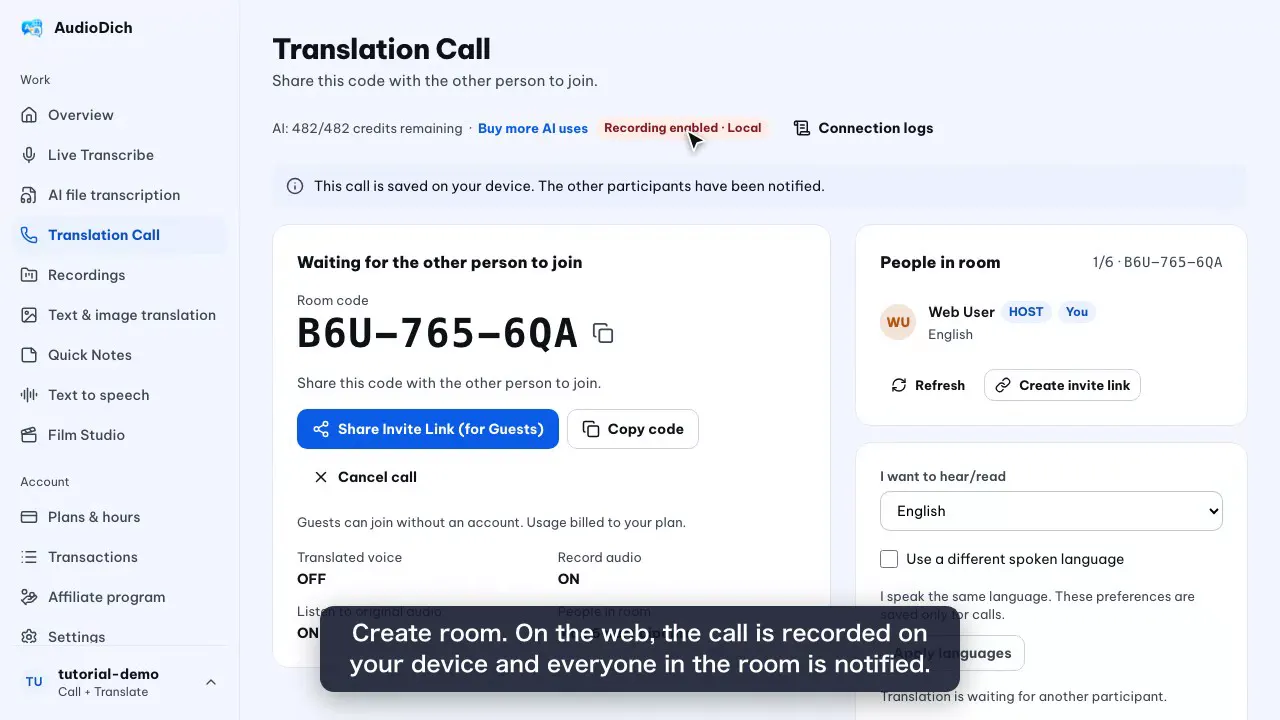
Create room. On the web, the call is recorded on your device and everyone in the room is notified.
Click Create room. When you call on the web, the call audio is saved on your device; the room shows the Recording enabled label and the other people are told that the call is being saved.
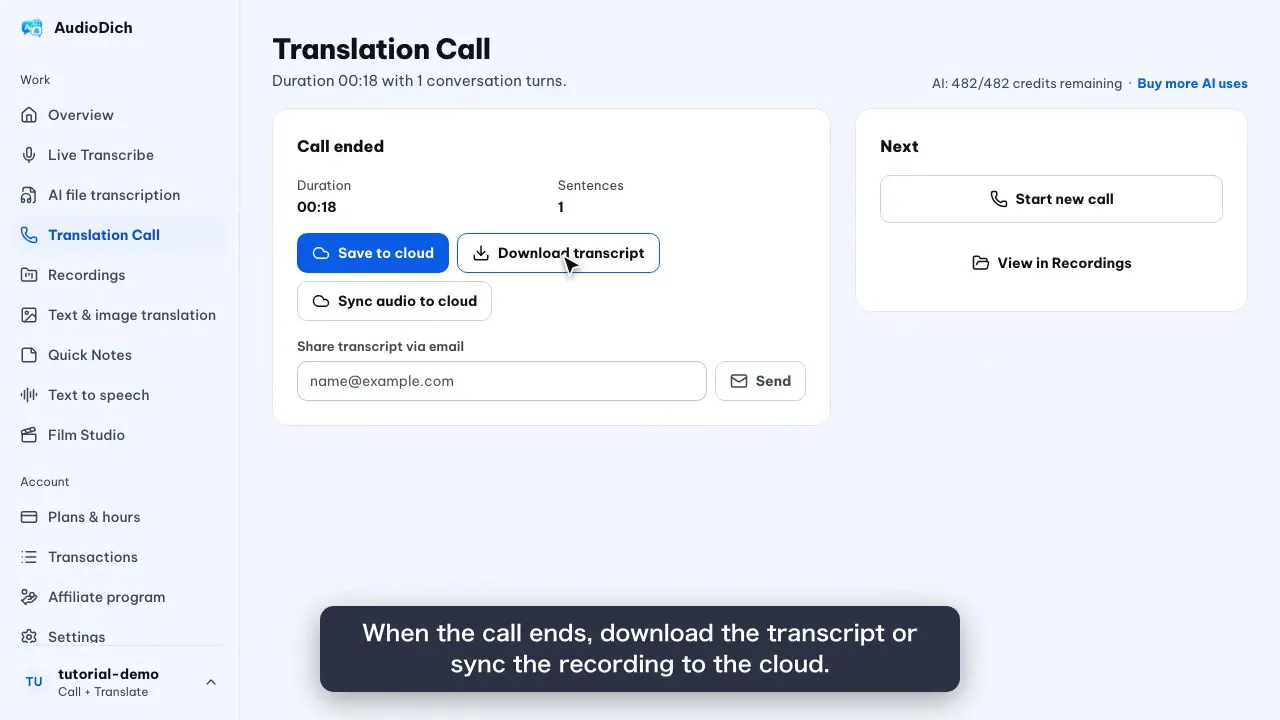
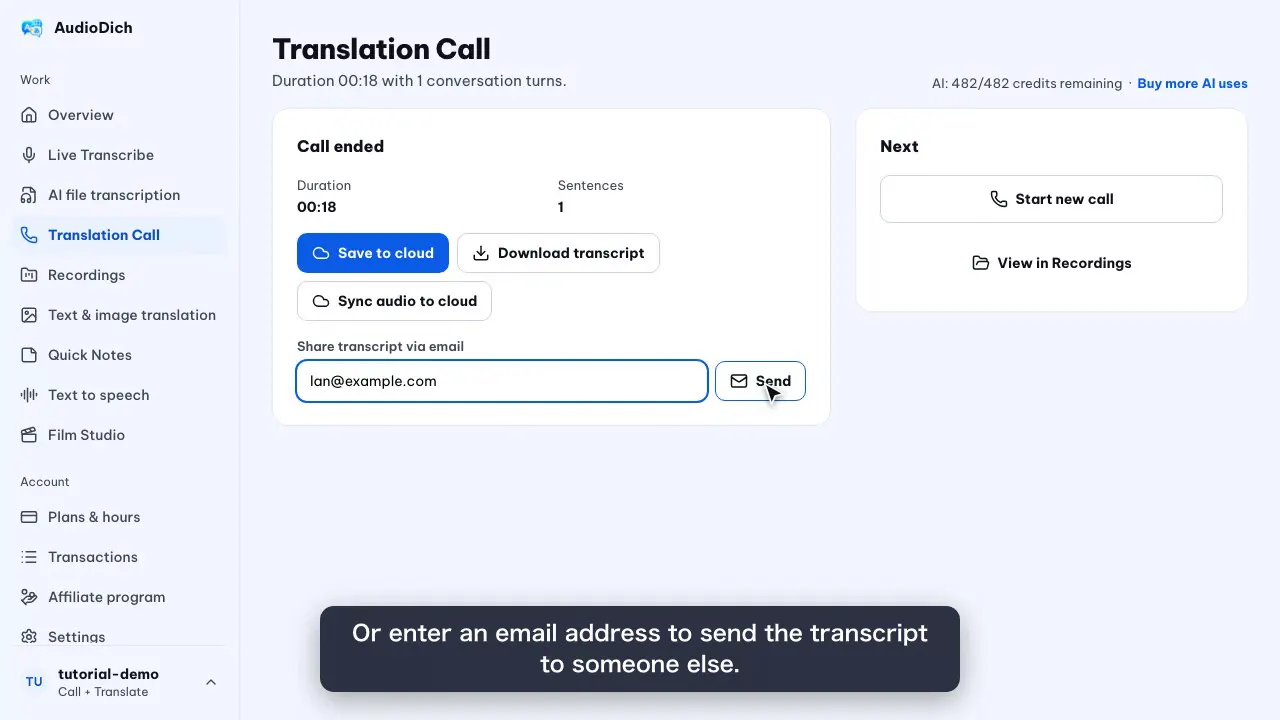
When the call ends, download the transcript or sync the recording to the cloud.
When the call ends, click Download transcript to save it to your device, or Sync audio to cloud to reopen the recording on another device.
Or enter an email address to send the transcript to someone else.
In Share transcript via email, enter the email address and click Send.
Tips
- Let everyone know before you record a call.
- Only guests with their own account can pay for themselves; a guest who joins by link without signing in is counted toward your plan.
- Turn on Save transcript after the call so the transcript goes into Recordings automatically.
- You can try the whole flow with two browser tabs or two devices.
Common problems
- A guest runs out of time in the middle of the call.
- The call is not cut off: from then on the guest's own language counts toward your account, and both sides get a notification.
- The transcript cannot be sent by email.
- Check the email address and try again. If it still fails, your current plan may not support it; download the transcript and send it yourself.
- The download and send buttons are greyed out.
- No sentence has been transcribed in the call yet. The buttons only work when the transcript has content.
Frequently asked questions
If I turn on cost splitting, does the guest pay for everything?
No. The guest only pays for the custom language they add. The room's default language is still paid by the room owner.
If two guests pick the same custom language, who pays?
The person who picked that language first pays for all of it; the cost is not split in half.
Where is the audio recording saved?
On the web, the recording stays on your device and appears in Recordings. Click Sync audio to cloud to open it on another device.
Does the email recipient need an AudioDich account?
No. The transcript is sent straight to the email address you enter.
Video transcript
Open Audio and storage options and turn on Split custom-language cost to guests. A guest with an account who picks their own language pays for that part themselves; the room's default language still counts toward you. Create room. On the web, the call is recorded on your device and everyone in the room is notified. When the call ends, download the transcript or sync the recording to the cloud. Or enter an email address to send the transcript to someone else.
See it in a real situation
- Two-way translated callsEach side speaks their own language and hears and reads the translation in one shared call room.
- International telesalesCall overseas customers with subtitles, spoken translation and a two-way call room.